Technical / Programming Manual
FT128 Rev 2.2
160
21 Download software (S/W)
Note: When existing system requires software upgrade, first, logon to the Control Unit
using a compatible EBLWin (or Win128) software version with the existing firmware
version in FT128 then conduct SSD backup to save the existing Site Specific Data file.
This must be performed prior to any software download.
The latest software version of the EBL128 system software
is factory downloaded before
the delivery. Due to continual development and improvement, different S/W versions may
be found.
The valid (current) S/W version is shown in menu H4/U7 or via EBLWin (Control unit pop-
up menu; Software version…).
FT128 can be upgraded with a new S/W version, downloaded on site via EBLWin as well
as the display units 1728, 1736. See the 1728 and 1736 manuals respectively.
21.1 Software Download to the FT128 (CIE)
Note: Before downloading new software in existing system, SSD
backup must be
performed using compatible Win and EBL software then saved in the new version of
EBLWin.
To download a new software (system program) version, a PC and EBLWin
are used.
The .BIN file that to be downloaded contains both the software and a text file i.e. there is
one .BIN file for each convention (AU or NZ).
Before download, the PC has to be connected to the RS232 connector J3 in FT128 (on the
main board). Check that the EBLWin key is plugged in a PC spare USB port in your PC.
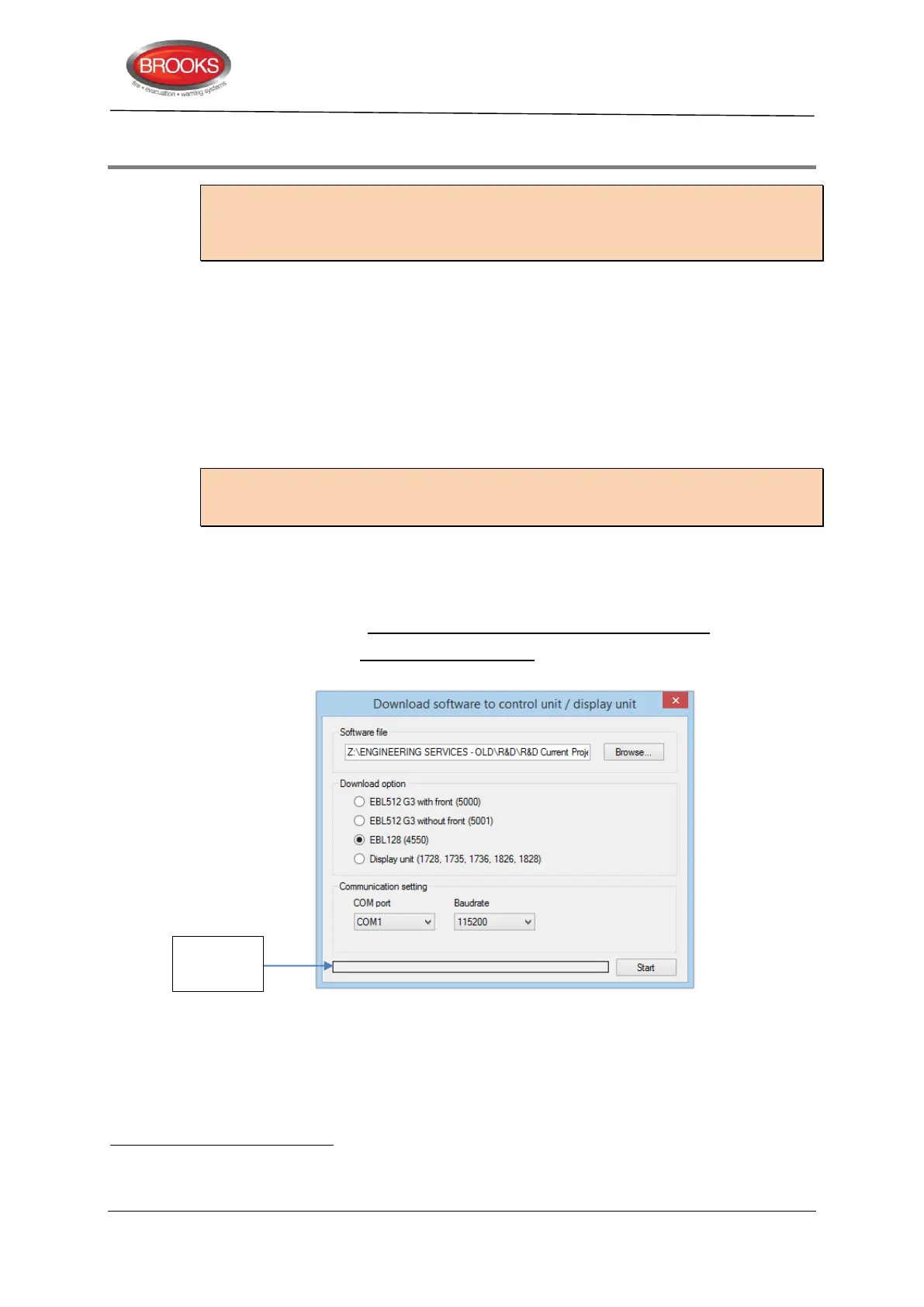
1. Start EBLWin. Do not Log on to FT128. In the "Tools" menu select "Download
Software…" to open the dialog box and do the required settings as shown below.
2. Select the path and the Software file to be downloaded, e.g.
Australian_EBL128_220.bin. (220 = version 2.2.0)
3. Select “EBL128 (4550)”
4. Select the "COM port" to be used on your PC.
The software (firmware) is the system software and always uses “EBL” abbreviation.
It is highly recommended to make a copy of the SSD file in its original version as well.
To logon to the control unit and to download software, an EBLWin key (5094) is required in a PC spare USB port.



 To Next Page