Chapter 8 Advanced Copy Management
8.2 Functions in the Action Area for Advanced Copy
ETERNUS Web GUI User’s Guide
222
Copyright 2011 FUJITSU LIMITED P2X0-1090-02ENZ0
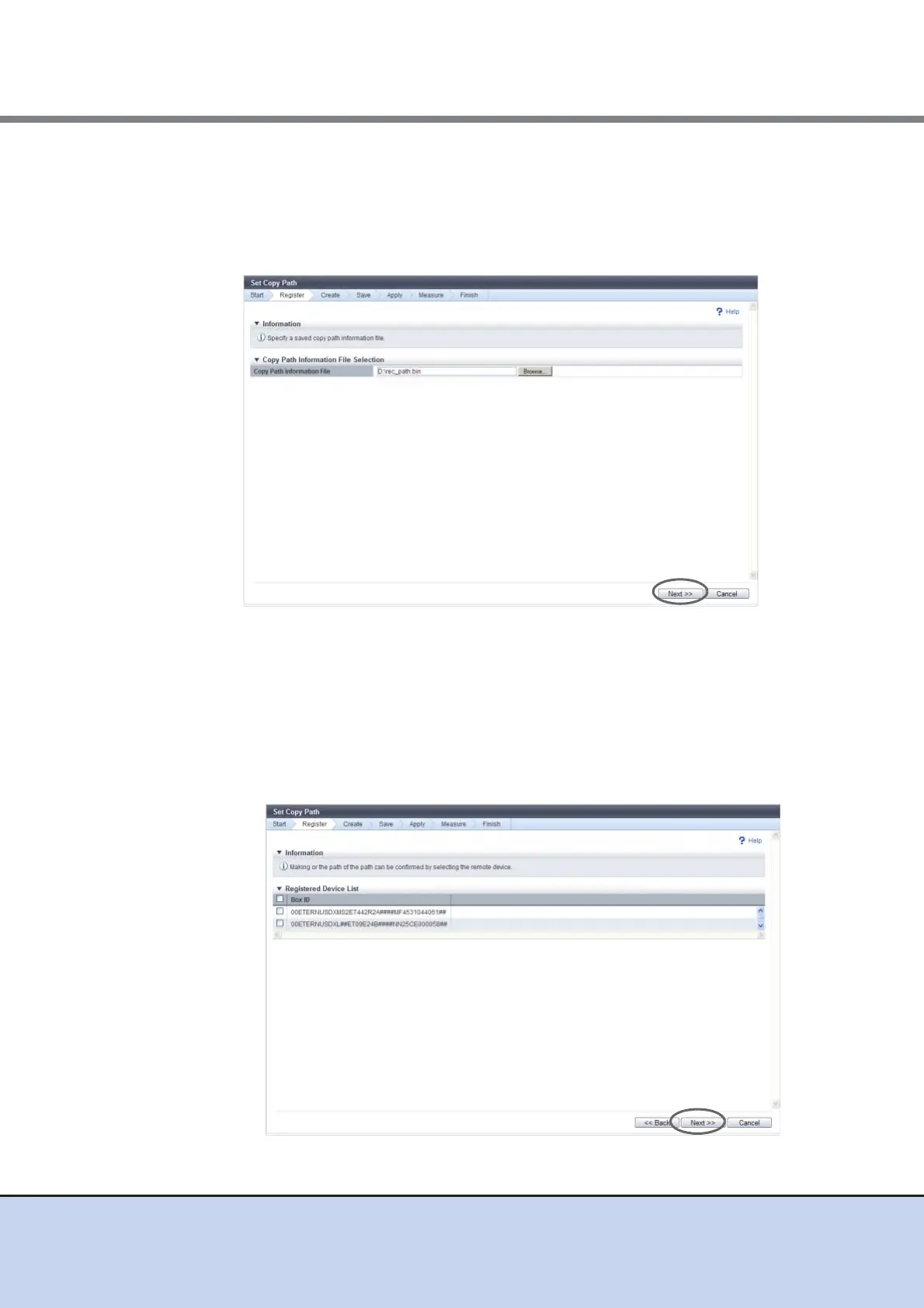
2 Enter the location where the copy path information file that to be used, and click
the [Next] button.
• Copy Path Information File
Enter the location where the copy path information file that to be used.
Click the [Browse...] button to specify the location, or input the location directly.
→ The [Check Registered Device Information] screen appears.
3 Select a device to register the information (multiple selections can be made),
and click the [Next] button.
• Checkboxes for selecting a device
A list of the ETERNUS DX Disk storage system information specified in the copy path
information file previously applied or stored in the ETERNUS DX Disk storage system
is displayed.
Select the ETERNUS DX Disk storage system to create a copy path.
→ A confirmation screen appears.



 To Next Page