Chapter 8 Advanced Copy Management
8.2 Functions in the Action Area for Advanced Copy
ETERNUS Web GUI User’s Guide
223
Copyright 2011 FUJITSU LIMITED P2X0-1090-02ENZ0
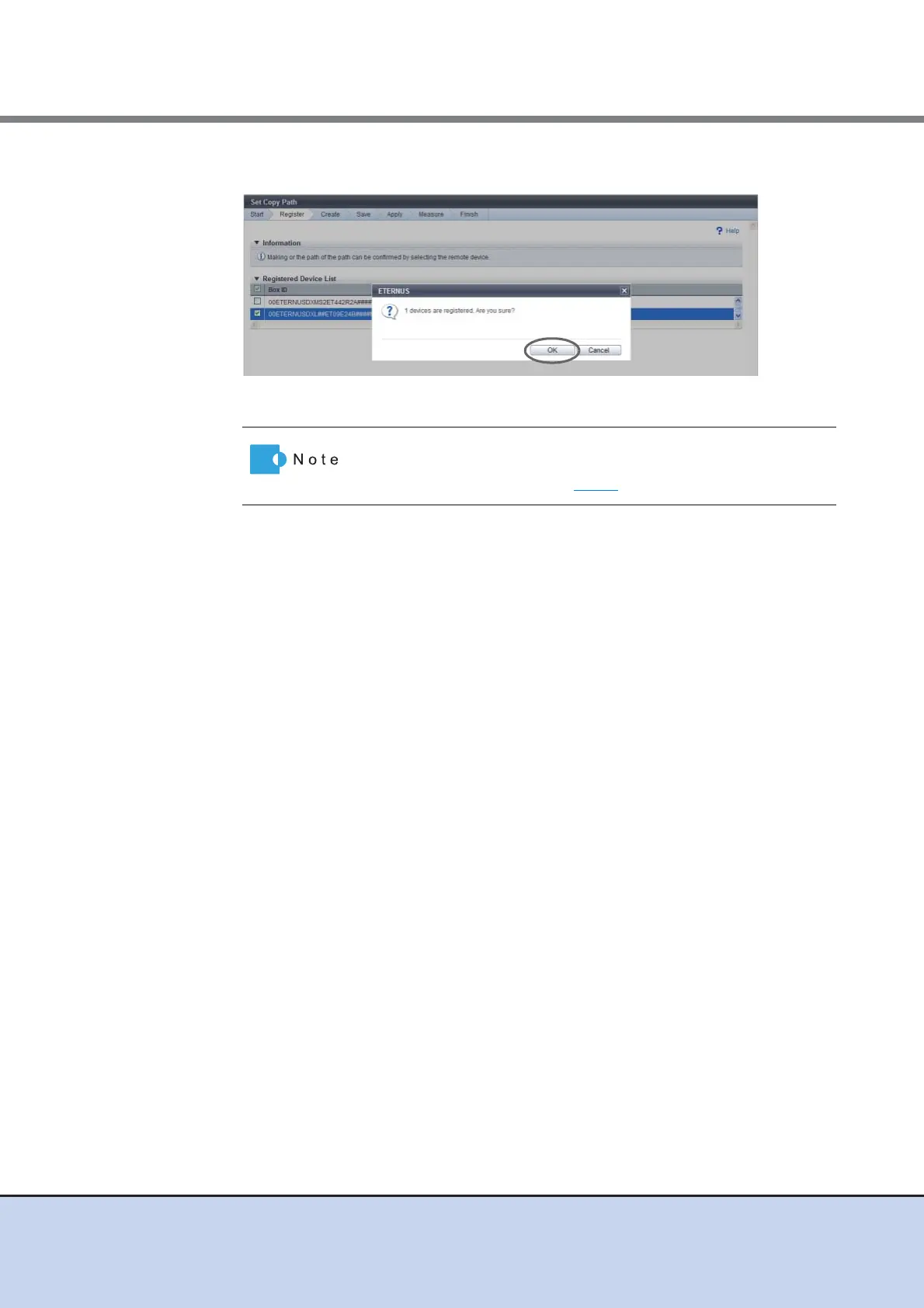
4 Click the [OK] button.
→ The [Device Configuration Setting] screen appears.
5 Set the port to be used for the copy path, and click the [Next] button.
• Port Type
Select the port type to set a copy path. The displayed contents vary depending on the
device type.
- For ETERNUS DX90 S2
FC 1-Port, FC 2-Port, iSCSI 1-Port, iSCSI 2-Port, iSCSI-RA
- For ETERNUS DX410 S2/DX440 S2
FC 2-Port, FC 4-Port, iSCSI 2-Port, iSCSI-RA
- For ETERNUS DX90
FC 4-Port
- For ETERNUS DX410/DX440/DX8100/DX8400/DX8700 or ETERNUS4000/
ETERNUS8000
FC 1-Port, FC 2-Port, FC 4-Port, iSCSI-RA
• Check to use as RA
Select the port to set a copy path as RA.
The port number is displayed at right side of the checkbox. When "iSCSI-RA" is
selected in the "Port Type" field, all ports are automatically selected.
- #x (x: Port number (0 - 3))
- When "FC 1-Port" is selected in the "Port Type" field: #0 (#1, #2 and #3 cannot be
selected.)
- When "FC 2-Port" is selected in the "Port Type" field: #0, #1 (#2 and #3 cannot be
selected.)
- When "FC 4-Port" is selected in the "Port Type" field: #0, #1, #2, #3
- When "iSCSI 1-Port" is selected in the "Port Type" field: #0 (#1 cannot be selected.)
- When "iSCSI 2-Port" is selected in the "Port Type" field: #0, #1
- When "iSCSI-RA" is selected in the "Port Type" field: #0, #1 (All ports are selected.)
When no ETERNUS DX Disk storage system to register the
information is selected, the [Device Information File Selection]
screen appears. Proceed to Step 7
.



 To Next Page