7 - 38
6. Saving Image
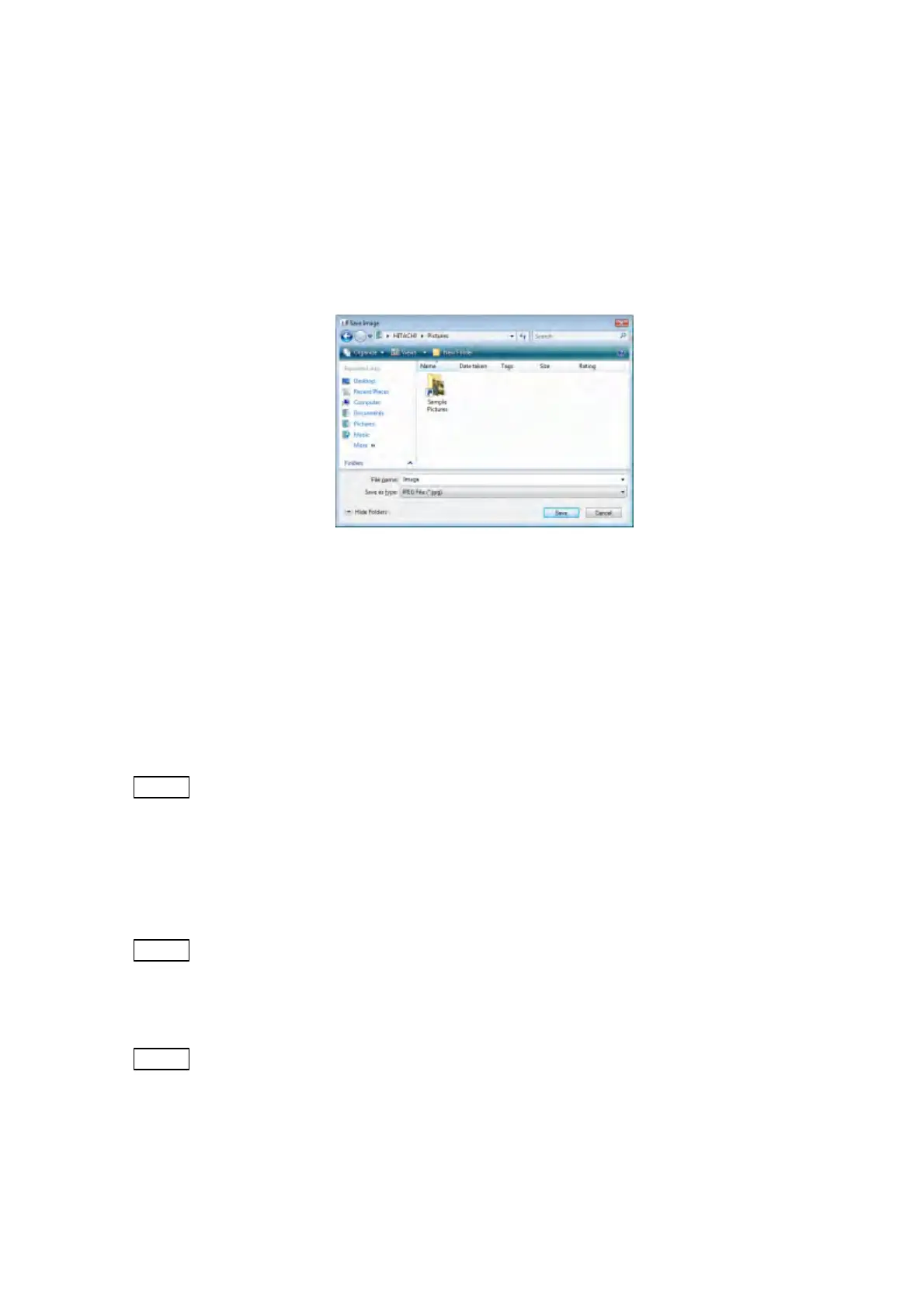
The Saving Image Window is displayed after executing the 3D-Image Capture. The
image and the text data can be saved by inputting the file name, selecting the
destination and the file type, and clicking the [Save] button (A file name is up to 255
single-byte alphanumeric characters). The actual file name which is saved is [entered file
name] + "-A" to "-D" + {.bmp/ .tif/ .jpg} by an image of an each element. The character of
"-A" to "-D" is automatically put on the end of the file name.
Figure 7.14.1-6 Save Image Window
File type for preservation
Specifies the file type that is saved. The default is JPEG.
BMP: Windows bitmap file
TIFF: TIFF file
JPEG: JPEG file
NOTE
: When saving the file, text file whose name is the same as the image file is created
(with a ".txt" extension). This file records the capture condition of each image.
When a 3D image is constructed using 3D-Image Viewer, this file is used. When
using 3D-Image Viewer on a PC other than the TM3030Plus control PC, the text
file and images file whose names are same should be copied to that PC.
NOTE
: If a file with the same name already exists in the destination, the overwrite
confirmation message appears after clicking the [Save] button. When selecting the
[OK] button, the existing file with the same name is overwritten with the new data.
NOTE
: When clicking the [Cancel] button, all images and text data are not saved.


 To Next Page