ifm Vision Assistant O3M
20
5.1 Navigation bar
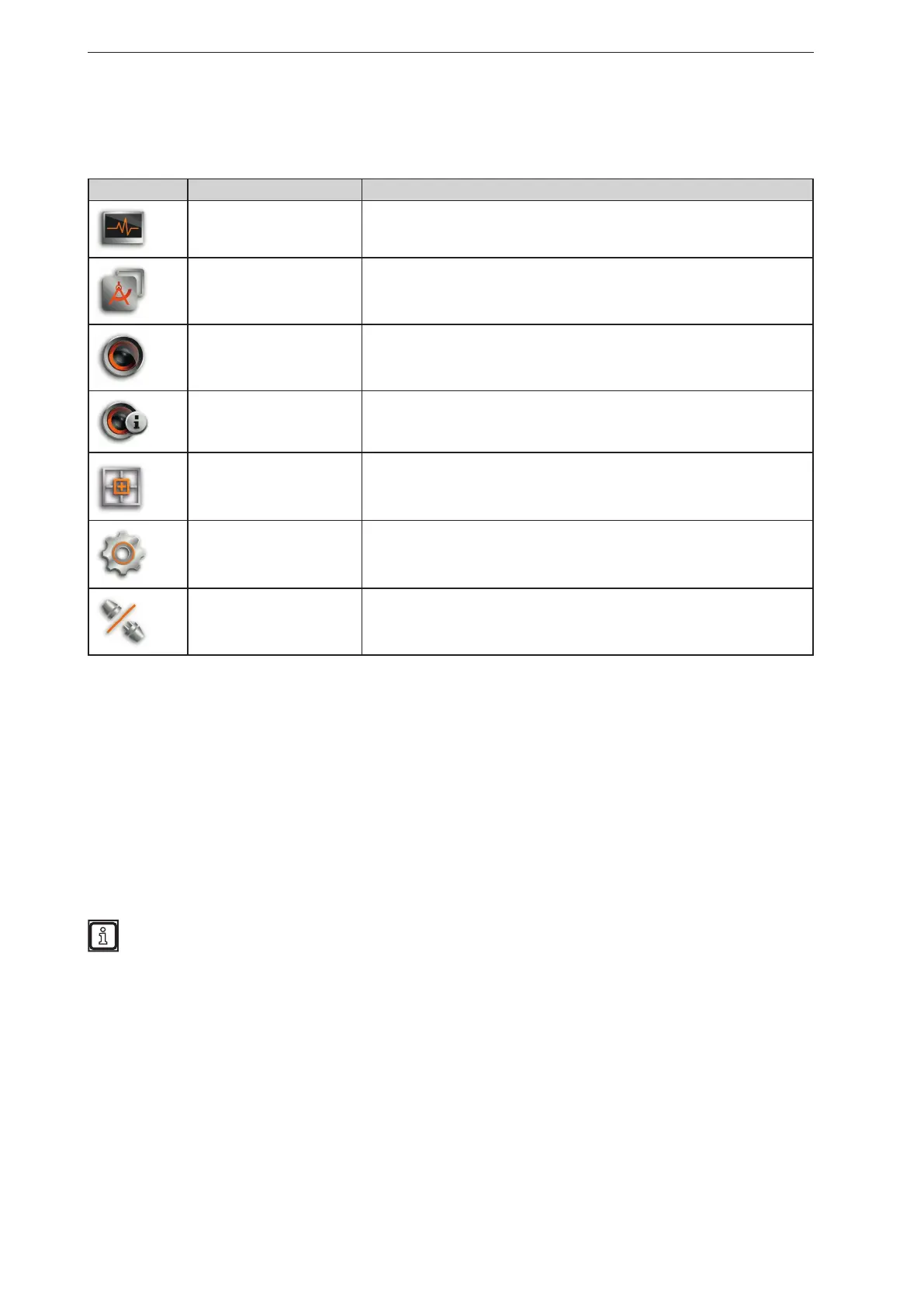
The navigation bar on the left features the following options:
Button Name Description
Monitor
Opens a 2D or 3D view and shows the current device data
(→ „6 Monitoring window“).
Applications
Opens an overview of the applications (→ „11 2D overlay“).
Managing and adjusting the applications.
Device setup
Opens the device setup (→ „11 2D overlay“).
For device settings that are independent of the applications.
Device information
Shows basic information (e.g. hardware firmware, device status) (→ „8 Device
Information“).
Calibration Settings
In the calibration settings, the device is calibrated for the intended application
(→ „9 Calibration settings“).
Settings Opens the "Settings" window (→ „4.5 Settings“).
Disconnect
Disconnects the ifm Vision Assistant from the device.
The ifm Vision Assistant returns to the start screen.
5.2 Status bar
The status bar at the bottom of the screen gives the following information:
● Availability status
● Temperature information of the device, e.g. "Temperature normal"
● Connection type of the device, e.g. CAN and Ethernet
● Error mode of the device, e.g. xyz
● Frame count shows the number of frames
The availability status gives information about:
● Usability of the data
● Recognition of soiling (sensor disk dirty or frosted)
● Recognition of spray (can be activated in the programming mode)
5.3 Main area
While the device is operated, the main area shows the monitoring window
(→ „6 Monitoring window“).
When the device is being set up, the main area shows the corresponding screen pages.


 To Next Page