ifm Vision Assistant O3M
90
11.2.3 Adding a graphic.
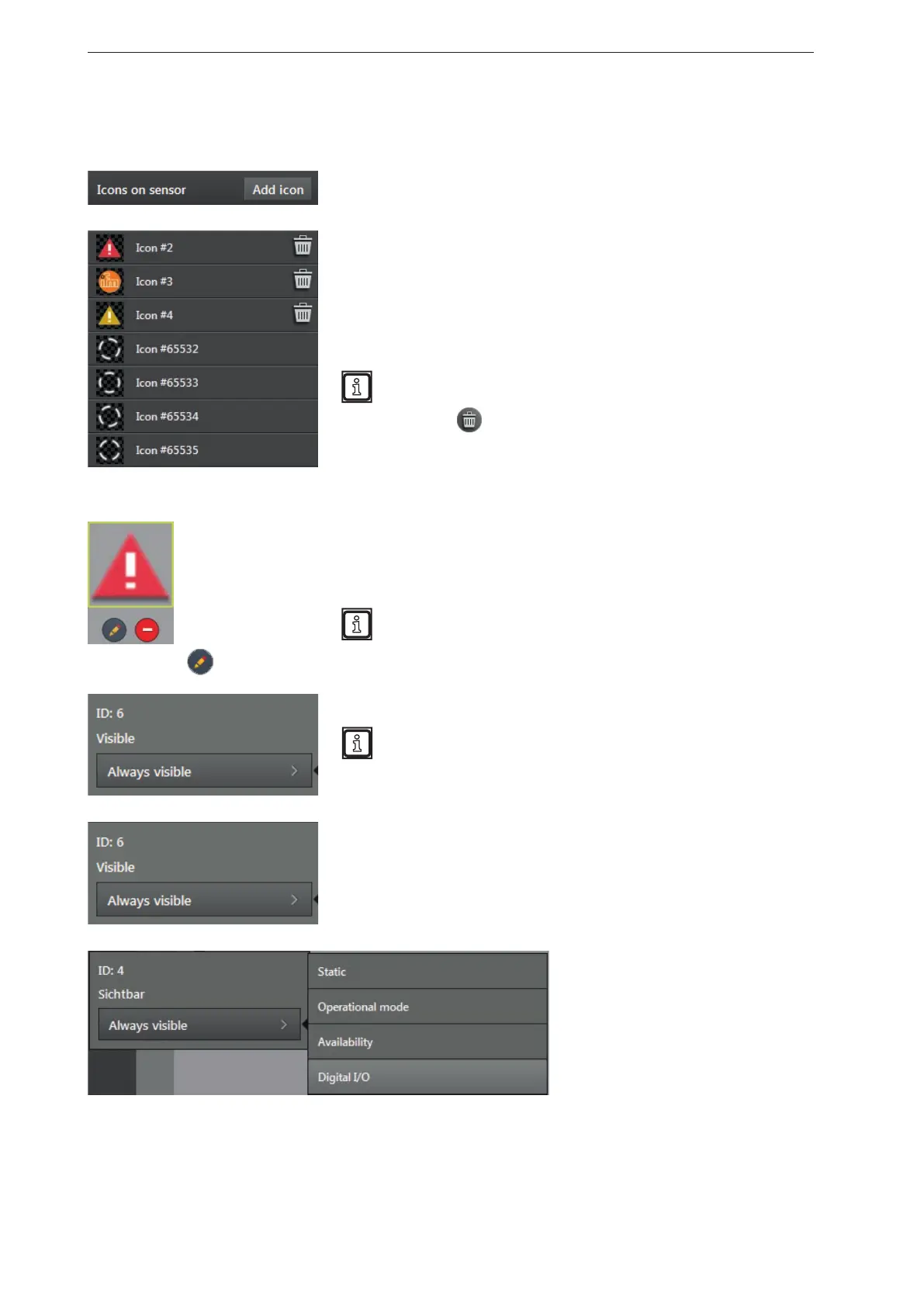
The following buttons add a graphic to the "Preview of the 2D overlay".
The [Add] button opens the file selection which is used to add
further graphics to the selection shown below.
The selection shows all graphics stored on the device.
The graphics "Icons #2", "Icons #3" and "Icons #4" are already
stored on the device when delivered. Each added graphic is shown
below the icon. Each graphic includes its own ID (e.g.: "#65532").
The following graphic formats are supported:
png, jpg, bmp, ico and gif.
Graphics with transparency are only possible in png format.
With the symbol
, the graphic is deleted from the selection and
from the device.
After clicking on the graphic in the selection, the mouse pointer
turns into a cross hair. Then, the graphic in the 2D overlay is shown
in the "Preview of the 2D overlay".
The graphics can be edited in the "Preview of the 2D overlay":
● move the graphic by holding the mouse button,
● scale the graphic by clicking on the corner dots.
The graphic is always scaled at a fixed aspect ratio. The
graphic can only be scaled up to its original size.
By clicking on
, the graphic can be edited and the following window opens.
The graphic has the ID 6. Each graphic has an own ID.
The graphics are directly saved on the device. Thereby, the
graphics can be controlled via CAN. To control them, the IDs
are required.
In the list "visible", the visibility of the graphic can be set.
The visibility of the graphic can be
coupled to the different conditions
of the device.


 To Next Page