bizhub C652/C552 7-13
7.1 System Settings
7
d Reference
To adjust the half-fold position:
Press the [Utility/Counter] key ö [Administrator Settings] ö [System Settings] ö [Expert Adjustment] ö
[Finisher Adjustment] ö [Half-Fold Position].
Half-Fold Position
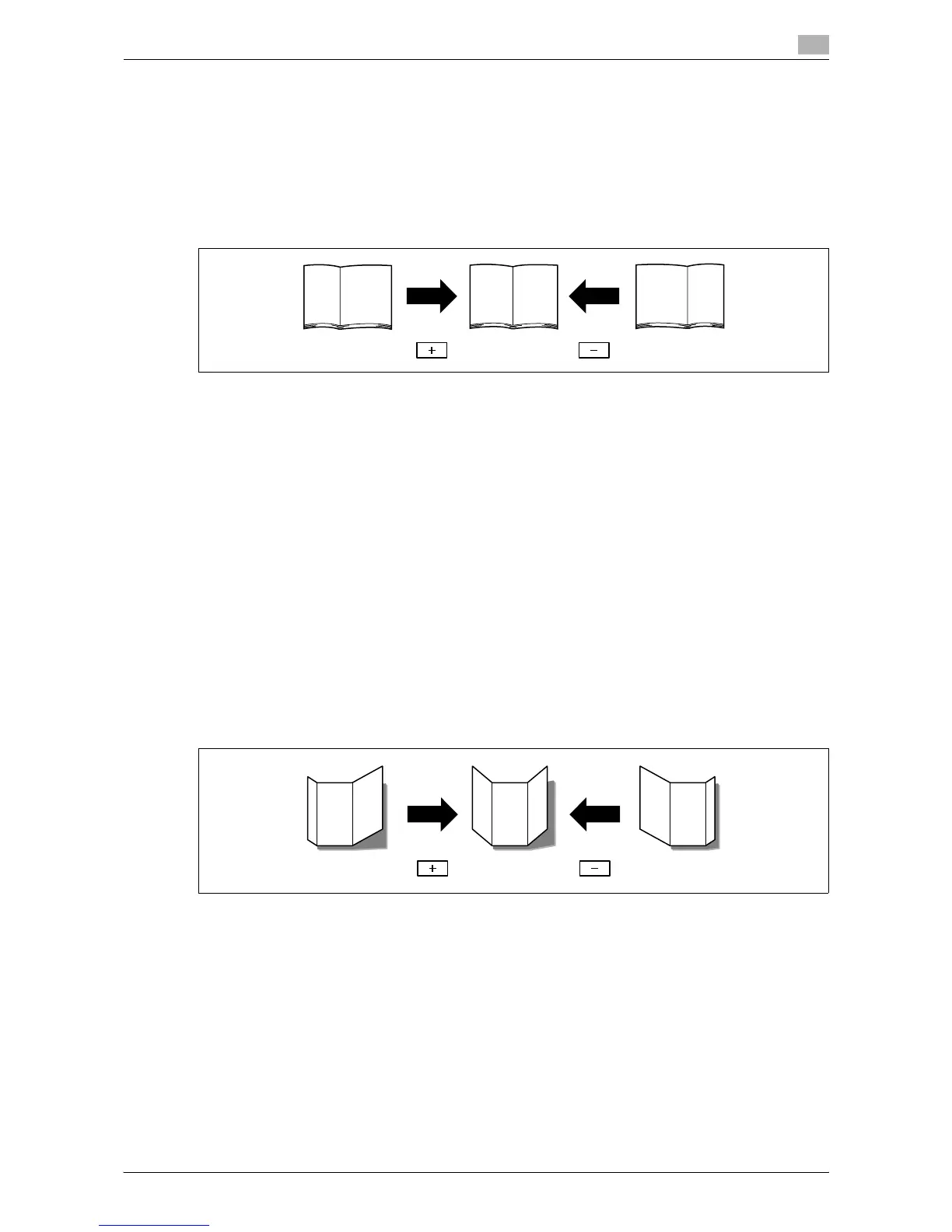
Adjust the center staple & fold and half-fold positions.
0 Before making any adjustments, create a sample using the half-fold function. Adjust the half-fold
position while checking the created sample.
0 It can be adjusted only when the finisher is installed.
0 When adjusting the half-fold position in parallel with the left edge of paper, contact your service
representative.
1 Press the [Utility/Counter] key ö [Administrator Settings] ö [System Settings] ö [Expert Adjustment]
ö [Finisher Adjustment] ö [Half-Fold Position].
2 Select the size of paper of which half-fold position is adjusted.
3 Press [+] or [-] to adjust the punched hole position while checking the sample.
4 Press [OK].
5 Create a sample, and check the print result.
Tri-Fold Position Adjustment
Adjust the folding position for each paper size when printing with the tri-fold function. The folding width
depends on the paper size, which cannot be changed.
0 Before making any adjustments, create a sample using the tri-fold function. Adjust the tri-fold position
while checking the created sample.
0 It can be adjusted only when the finisher is installed.
1 Press the [Utility/Counter] key ö [Administrator Settings] ö [System Settings] ö [Expert Adjustment]
ö [Finisher Adjustment] ö [Tri-Fold Position Adjustment].
2 Select the size of paper of which tri-fold position is adjusted.
3 Press [+] or [-] to adjust the tri-fold position while checking the sample.
4 Press [OK].
5 Create a sample, and check the print result.






 To Next Page