Viewing measurement results Chapter 5
Mastersizer 3000 Page 5-5
Column configuration
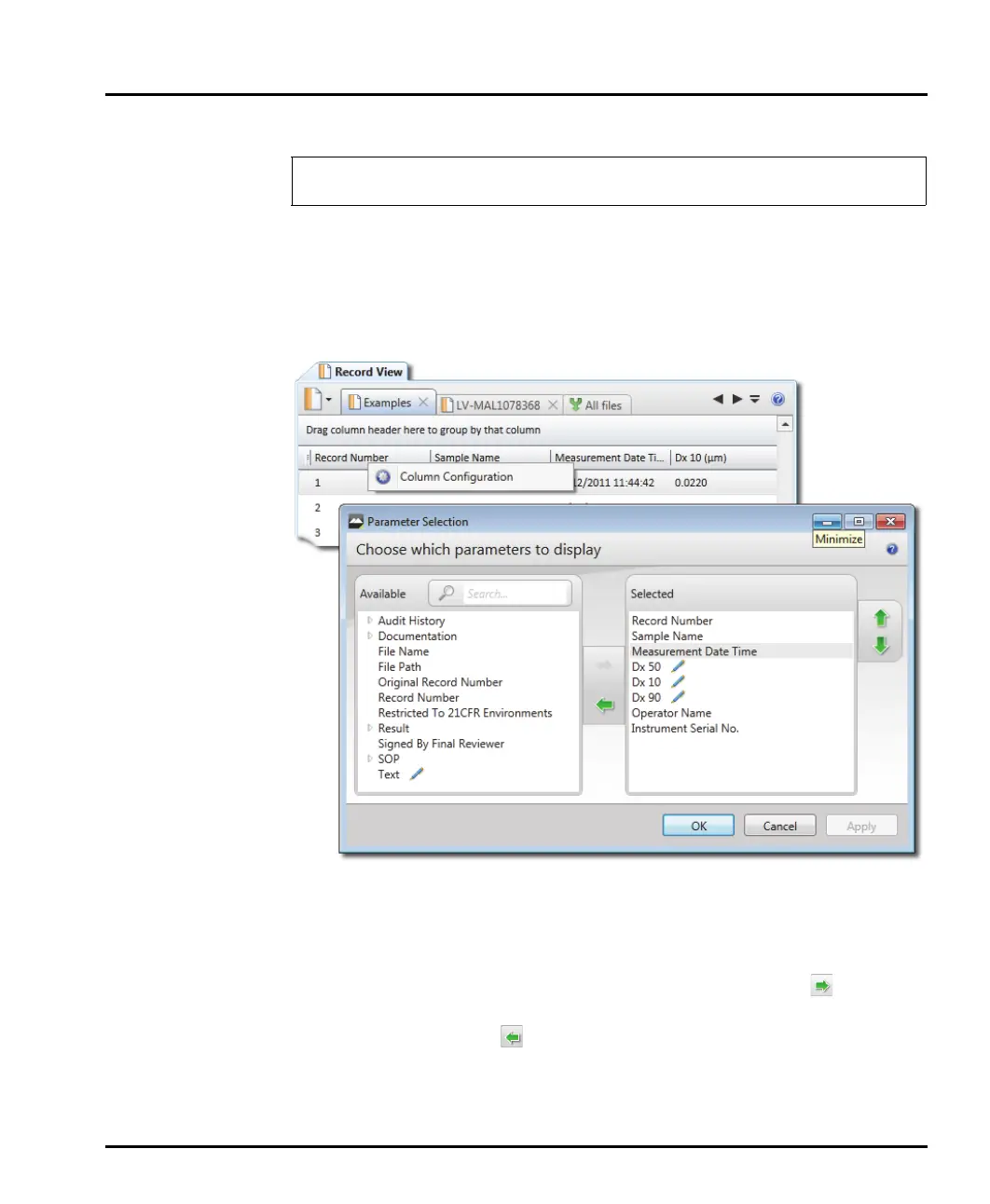
The columns can be changed as required to indicate various parameters.
Right click the mouse in the header field of the record view to display the Column
configuration button, then select the button to display the Parameter selection
window.
Alter the required parameters as follows:
Locate parameters by manually expanding the tree structure in the Available
list, or search for them by typing their first few characters into the Search...
field.
Select a parameter in the Available list and then click the Add button to
transfer it to the Selected list. Similarly, select an item from the Selected list
and click the Remove
button to transfer it to the Available list. It is also
possible to select multiple items using the standard Windows selection meth-
ods (i.e. SHIFT and click, CTRL and click).
The column configuration feature is only available with the Mastersizer 3000
/ Mastersizer 3000E with Extended software option.


 To Next Page