Advanced features Chapter 9
Mastersizer 3000 Page 9-7
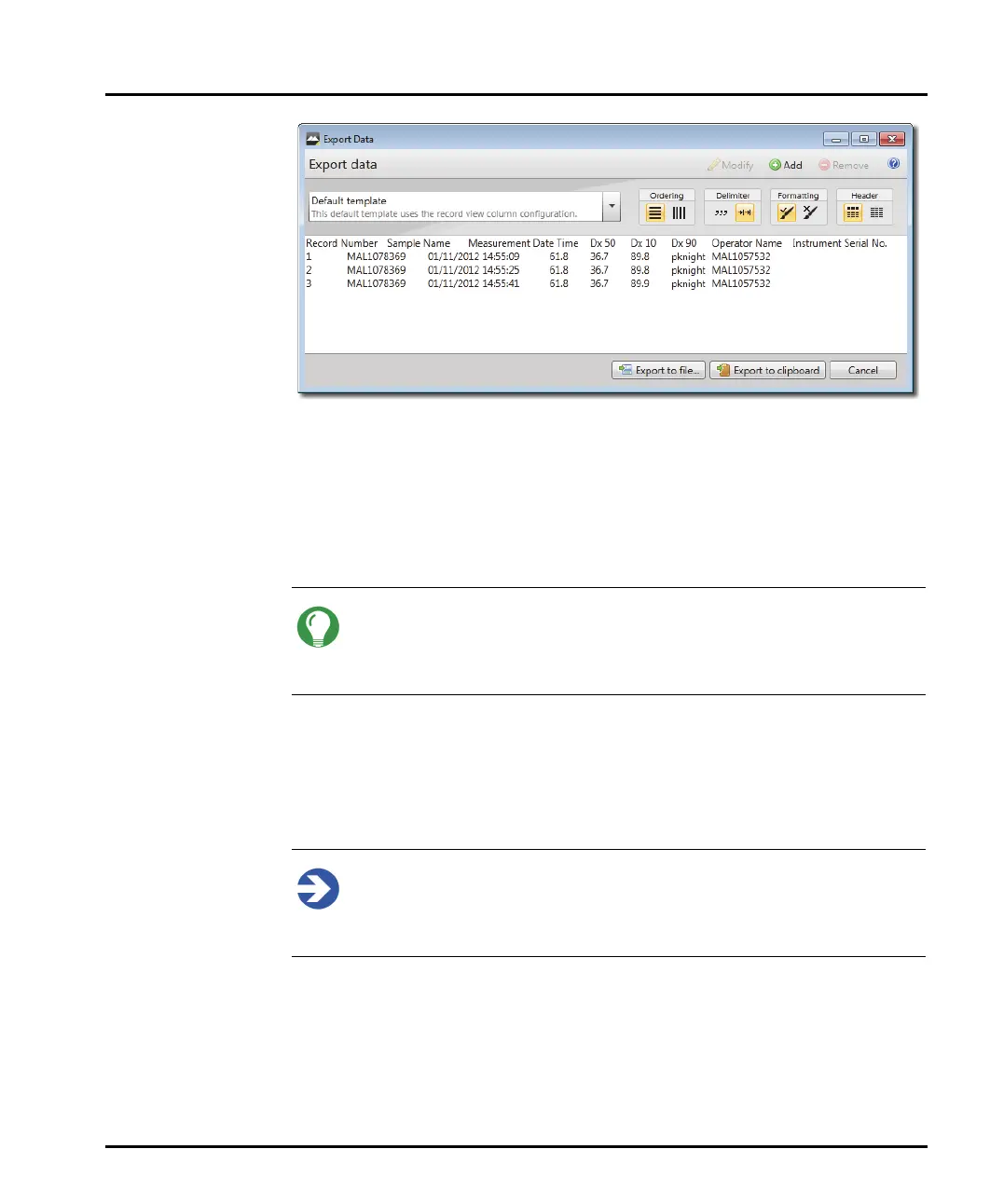
2. Select an appropriate export template from the drop-down list - the preview
pane is updated accordingly.
3. Change the presentation of the data using the Ordering, Delimiter, Format-
ting and Header options (see Export templates for more information).
4. Click Export to file to save the data as a separate (.txt or .csv) file, or select
Export to clipboard to copy the data to the clipboard.
Tip
Drag and drop record data from the Record View straight into Microsoft
Excel/Word. The parameter values copied are all of those currently shown
in the records view.
Export templates
Export templates provide a means of storing, and quickly accessing, commonly-
used sets of parameters and format settings for exporting data. You can build and
store any number of export templates.
Note
Each template is associated only with the workspace in which it was con-
structed. This means, for example, that a template defined in the Malvern
default workspace, will not then be displayed in a custom workspace.
Creating or modifying an export template
1. To create a new export template: from the Home ribbon select New-
Export template (or click Add from the Export Data window).
To modify an existing template: select it from the drop down in the
Export Data window and click Modify.


 To Next Page