9.3.External control I/O
222
External equipment
9
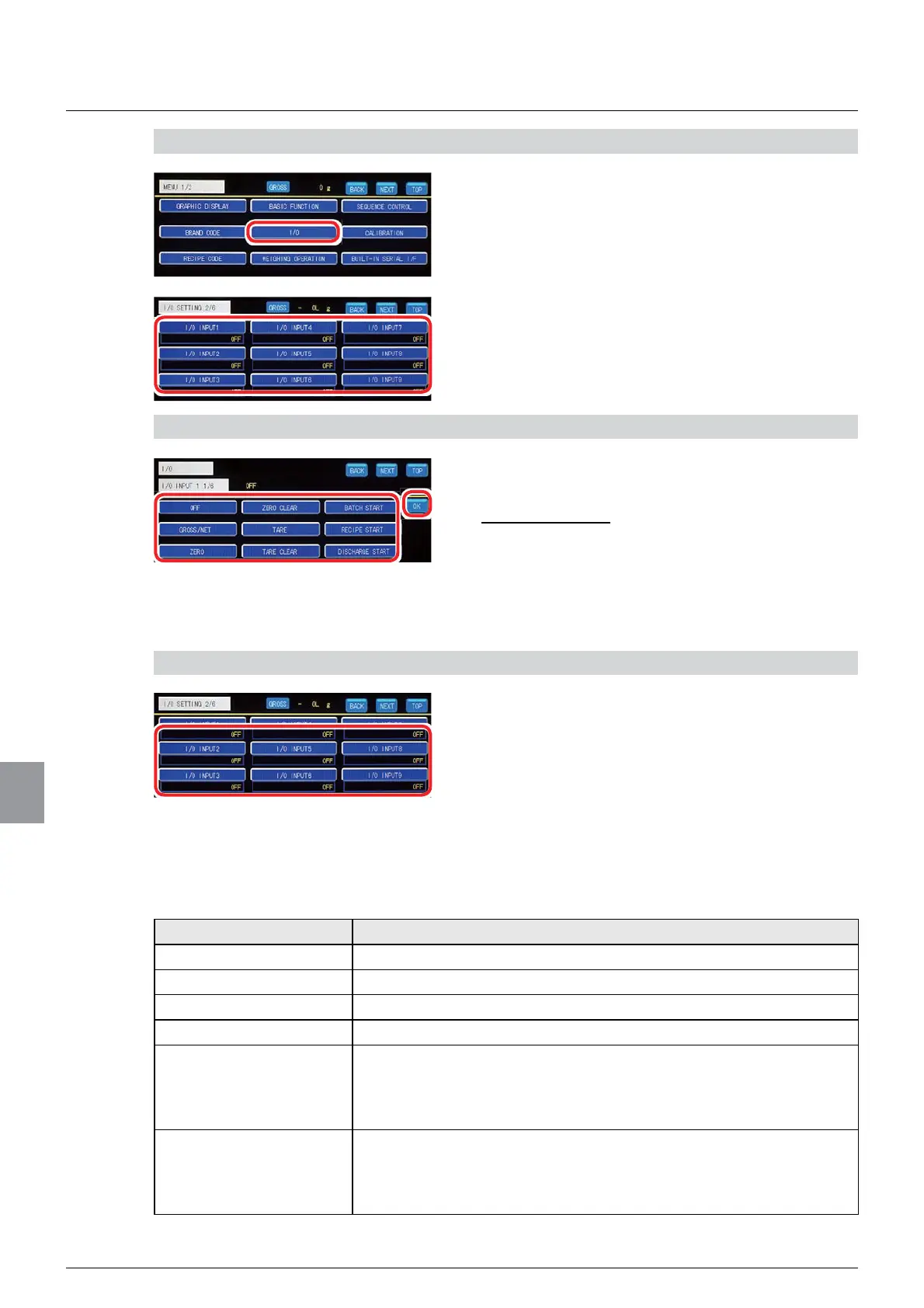
1) Display the I/O input setting screen
1. Tap [I/O] on [MENU 1/2].
[I/O SETTING 1/6] will be displayed.
2. Tap your desired I/O input key on [I/O
SETTING 2/6] or [I/O SETTING 3/6].
The I/O input setting screen will be displayed.
2) Set a function to the I/O input
1. Select a function to be assigned to the I/O
input.
,QLWLDOYDOXH2))
2. Tap [OK].
The function will be assigned, and [I/O SETTING
2/6] or [I/O SETTING 3/6] will be displayed.
3) Check the setting that you set
1. Check the I/O input setting.
The setting is completed if the item set by the step
2) above appears under each I/O input key.
(2) CONTROL I/O connector output setting
Function are assigned to [I/O OUTPUT1] to [I/O OUTPUT11] of the external control output.
$VVLJQDEOHIXQFWLRQVDUHDVIROORZV
Function name Description
OFF Assigns no functions.
STABLE Output when a weighing value is stable.
ZERO BAND Output when a weighing value is around zero.
FULL Output when a weighing value is full.
))/2:6 In simple comparison mode or sequential mode, this is output when
IXOOÀRZLVH[HFXWHG
In 4-step comparator mode, this is output when the S1 conditions
DUHVDWLV¿HG
0)/2:6 In simple comparison mode or sequential mode, this is output when
PHGLXPÀRZLVH[HFXWHG
In 4-step comparator mode, this is output when the S2 conditions
DUHVDWLV¿HG



 To Next Page