Morgana DocuMaster MFC - Service Manual 239
7. Electrical and Control System - GUI PCPU Software Updates through a Network Connection
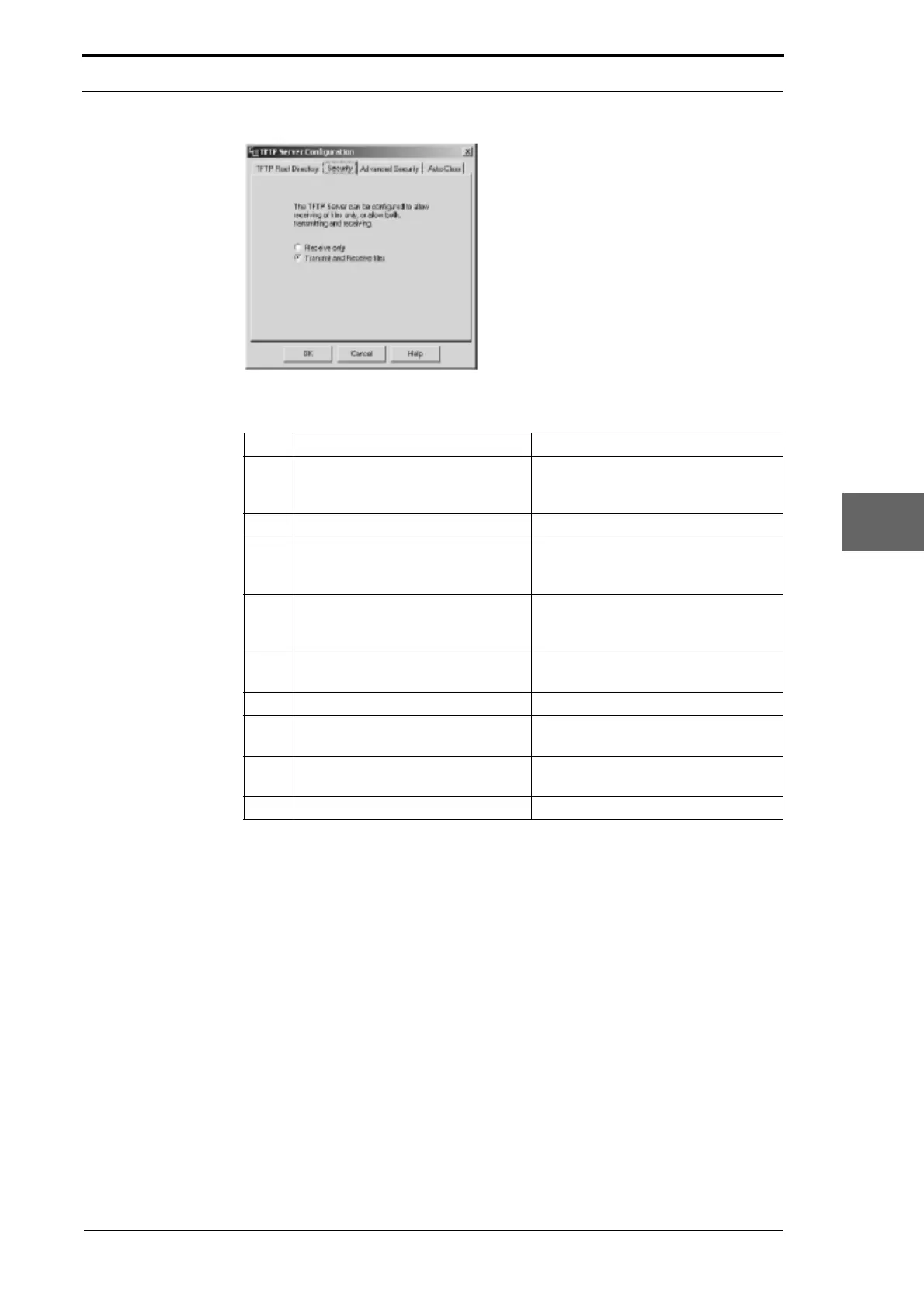
Figure 7.33 TFTP Server ‘Security’ Window
Step Action Information
1 Make sure that the MFC software
has self-extracted to the
C:\GUI
folder.
(See Section 7.4.1).
2 Click 'Help'.
3 Select 'Configure' to open the
TFTP Server Configuration
window.
(See Figure 7.31).
4 Click the 'TFTP Root Directory' tag
in the TF
TP Server Configuration
menu.
(See Figure 7.32).
5 Set the path to the folder where the
MF
C software is stored.
6 Click the 'OK' button.
7 Click the 'Security' tag in the TFTP
Server Configuration menu.
8 Make Sure that 'Transmit and
receive files' is selected.
(See Figure 7.33).
9 Click the 'OK' button.
7.7.4 How to find the IP Address
You must know the IP address and Subnet Mask of the computer from where you
download the application software. The TFTP Server shows this IP address in the
lower-right corner of the configuration window. The Subnet Mask is possibly set to
255.255.255.0.
If your computer uses Microsof
t Windows, you can use these methods to find the IP
address.
• Windows 95. Open the MS-DOS prompt, type in winipcfg and press the Return
key. A dialogue box appears, which contains the IP address of the computer.
• Windows 98/2000/XP/Vista. Open the MS-DOS prompt, type in ipconfig and
press the Return key. The IP address appears in the DOS window.
• Windows 7. Click the Network Icon on the Taskbar. Click the 'Open Network and
Sharing Center' text. Click on 'TFTP Server Connection' text. Click the 'Details' tab.
The IP address appears in the list.


 To Next Page