MultiSmart Installation & Operation Manual
25.7 Uploading Logic Files Using FTP
The easiest way to transfer files into the MultiSmart unit is by using FTP. In order to do this you will need an
Ethernet crossover cable, and have your PC’s IP address on the same subnet as the MultiSmart. See
Section 22.4 on how to change the Ethernet address of the MultiSmart.
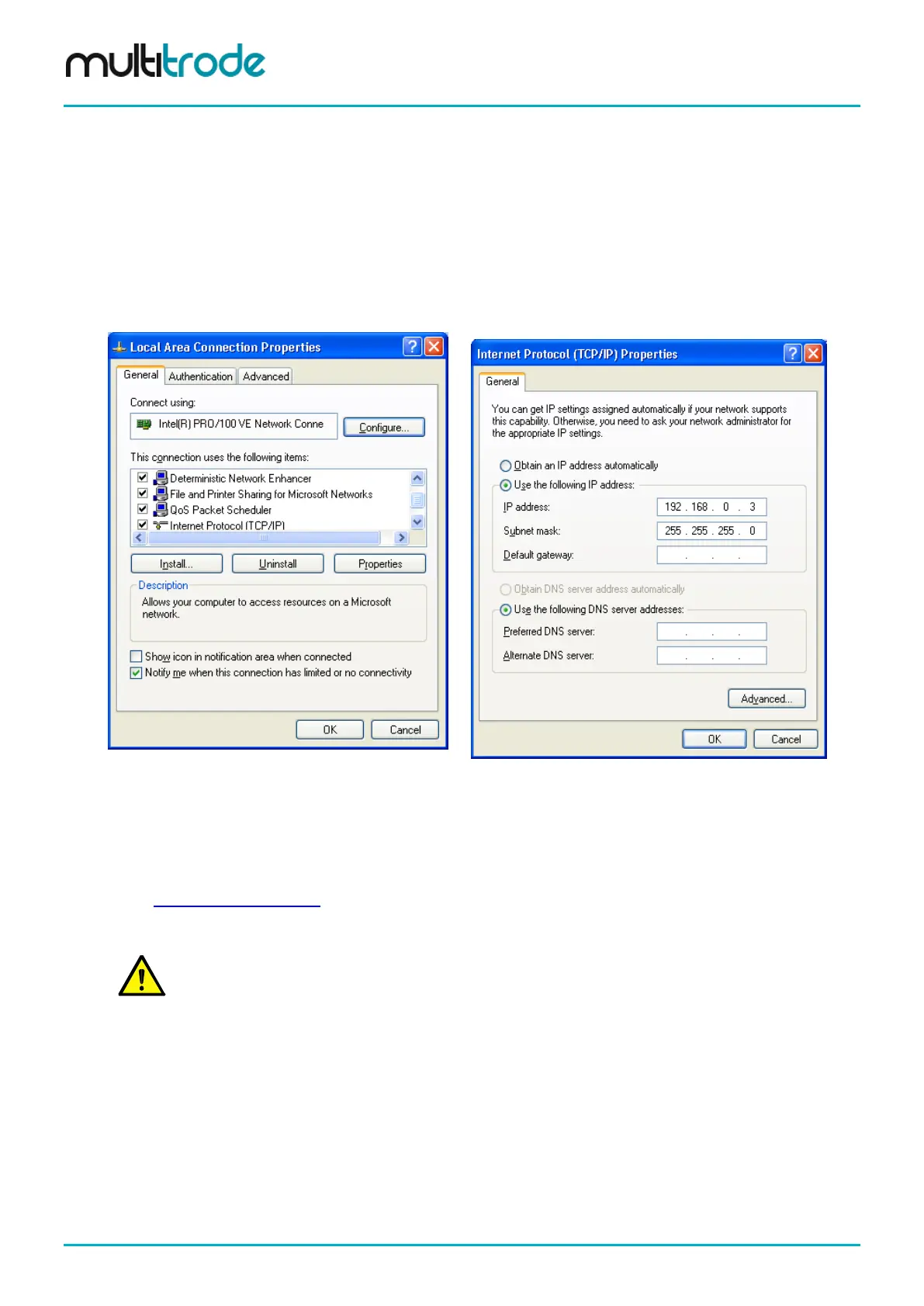
If you have Windows XP on your PC, you can change the IP address from:
• Start-> Settings ->Network Connections and then right click the Local Area Network icon.
Figure 164 – Select TCP/IP and click
Properties:
Figure 165 –Enter IP Address
Now check the “Use the following IP address” button and enter an IP address, for example, the one shown
above.
The easiest way to ftp a file into the unit is using MS Internet Explorer. For example, if you had set the IP
address of MultiSmart to 192.168.0.10, at the address (URL) field type the following:
ftp://user@192.168.0.10
When prompted for the password you need to enter the administrator password for the unit.
NOTE: Each unit is shipped with the administrator password is on the inside back cover of the
Installation and Operation manual. See Section 11 for details.
Open the folder /var/config and copy your logic engine files into this directory.
Page 220 of 260 MultiSmart_IO_Manual_R20



 To Next Page