MultiSmart Installation & Operation Manual
32 More Advanced Configuration
Part 3 has detailed many of the configuration settings beyond the Quick Commissioning Guide. The
MultiSmart unit has a great deal of flexibility and therefore presents opportunity for advanced users to
customize the product for a large variety of complex applications. Navigate to:
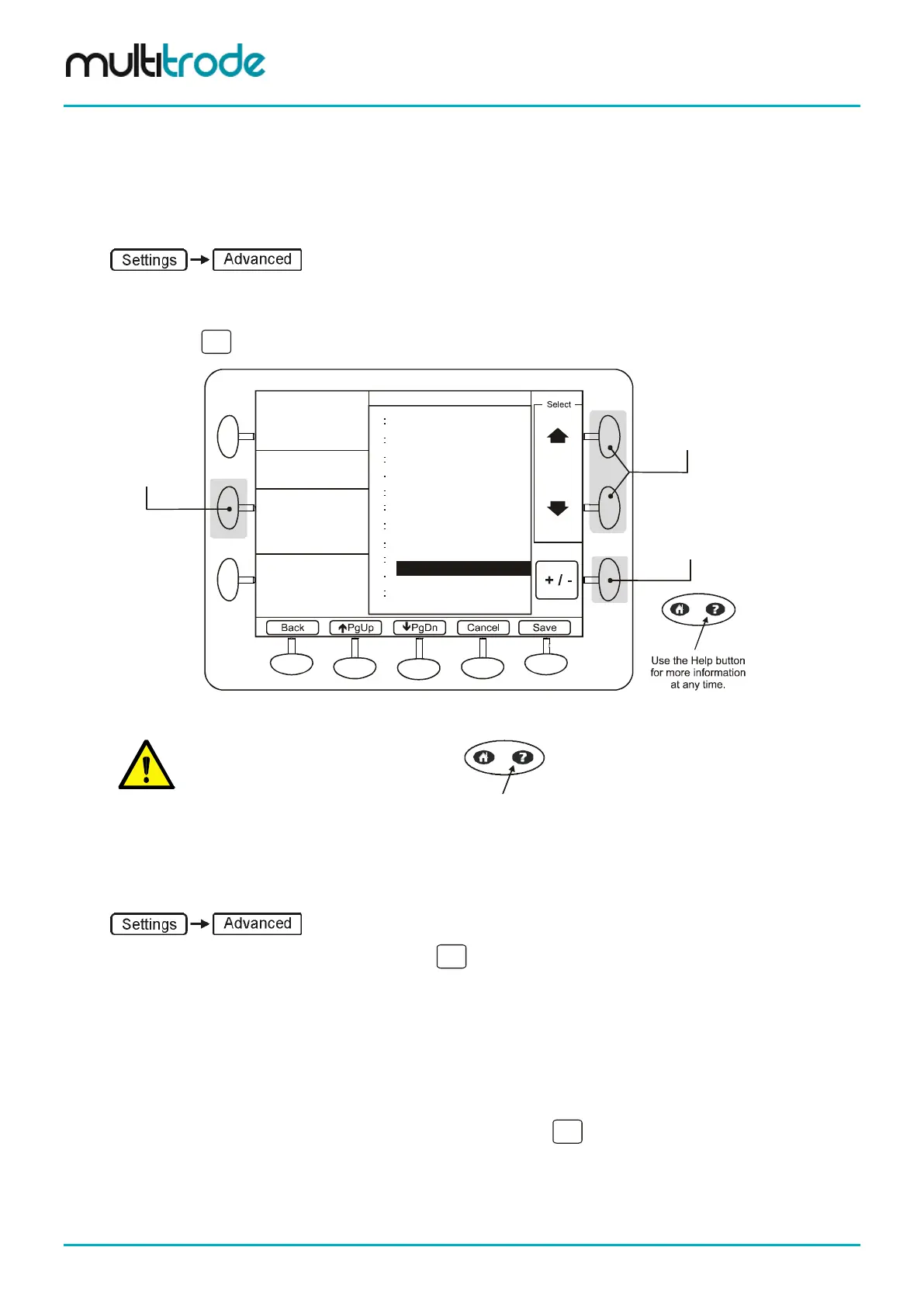
A Windows Explorer style screen is displayed which shows all of the main functional modules inside the
MultiSmart.
Pressing the
key by any of the modules expands out the options available for that module.
.. DNP Slave
.. Event Logger
.. Faults
.. Flow
.. General Configuration
.. IO
.. LCD
.. Modbus
.. Motor Protection
..
.. Supply Protection
.. Telemetry
Pump Control
Use this button to
move expand/contract
the menu structure
Use Up or
Down buttons
to select an item
Use this button to
see additional values
or user hints
Station optimization,
alternation, pump
groups, delays,
setpoints, VFD
Hint:
Use the “+ / -” button to
see/hide additional
values.
Pump Control
/
+
+
+
+
+
+
+
+
+
+
+
+
Figure 180 - Advanced Screens
NOTE:
Refer to the Short Help in the top left
corner for each setting.
Pressing the Help key will often provide
additional information on the feature or
setting.
32.1 Default Mode vs. Showing Less Options
There are two modes within the Advanced screens. As of v2.3.3 the default mode shows all parameters. The
option (previously the default) is to hide some of the more complex / less-used features.
To hide these less-used parameters and features, navigate to:
• From the list of modules select: LCD
• Highlight Show More Options?
• Press the Show More Option? button (bottom left corner) to uncheck the box
• Press Save
• Exit to the main settings screen via the Back button
• Again press Advanced
The reduced list of parameters are now displayed whenever the
is pressed.
Page 232 of 260 MultiSmart_IO_Manual_R20



 To Next Page