2. Delete
plug and play
folders
• Open the folder
C:\Windows\System32\Spool\drivers\win32x86 or
C:\Windows\System32\Spool\drivers\win32x64
Please note: The location of the “Windows” folder might be different
on your PC.
• Delete any address printer related folders left here, except for the
folder “3”!
3. Delete .inf
files
• Open the folder
C:\Windows\inf
Please note: The location of the “Windows” folder might be different
on your PC.
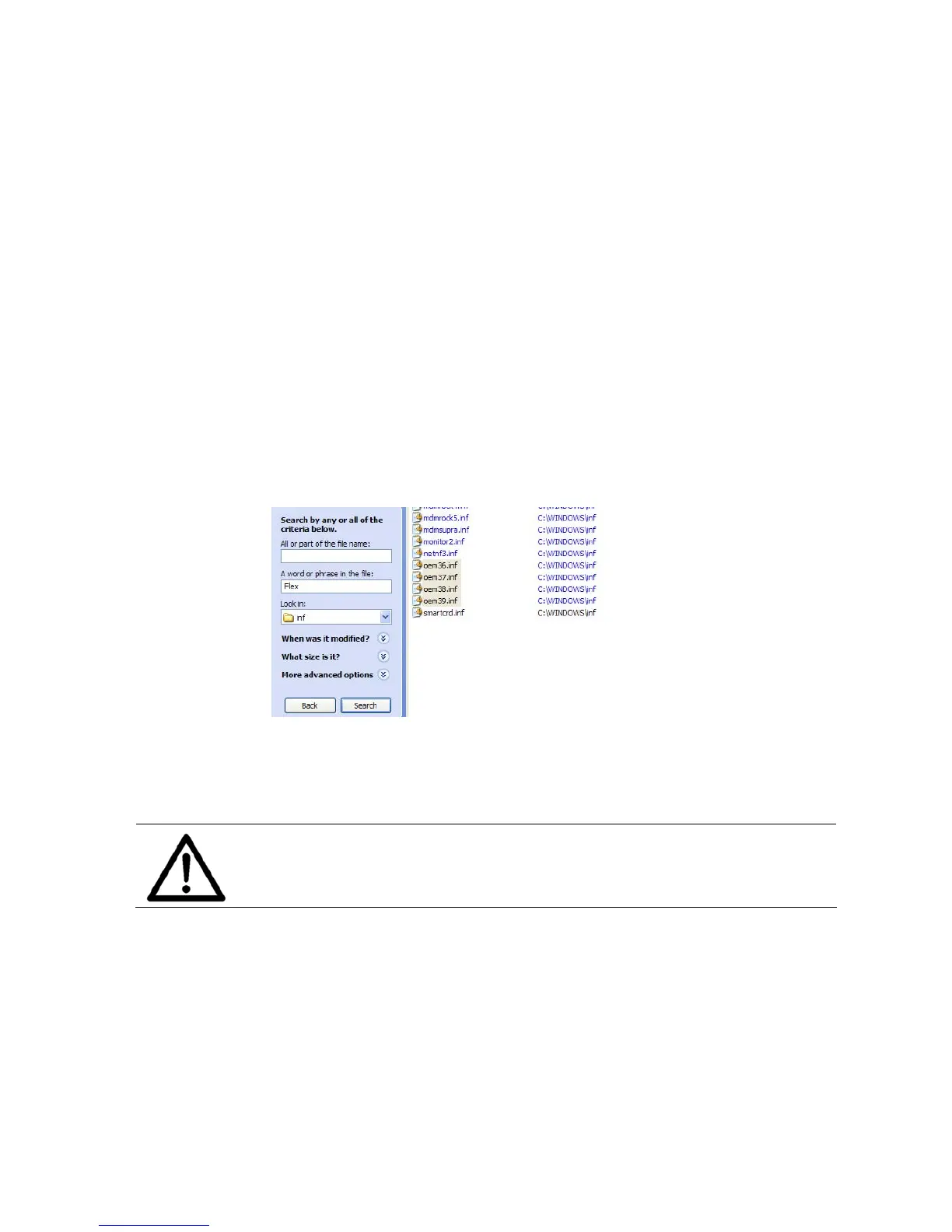
• Search for oem**.inf files containing (= in the file) the words
“Flex Systems” or “Satori”.
• Delete all oem**.inf files that were found containing these words.
For example “oem36.inf”.
Pos: 100.3 /Bedienungsan leitungen/Gerät e spezifisch/Druc ker/Printer Dri ver & Cables to PC/USB 2.0 (619)/ 7.X.X_Ü2_How to use a pre-in stalled printer dri ver_ONLY_619 @ 3\mod_129665 2778190_912.doc @ 29931 @ 233
11.3 How to use a pre-installed printer driver
It is not recommended to continue to use an old version of the printer
driver. When setting up a new printer the printer driver, which is
delivered together with the printer, should be installed.
11.3.1 USB connection
1. Check
installed
printer driver
• Make sure that the already installed printer driver is the correct
one for your new printer. For example the printer model AS-710
requires the printer driver for the AS-710.
2. Connect the
printer to the
PC
• Connecting the printer to the PC via the USB cable. The PC will
show the following messages. See Figure 56 and Figure 57


 To Next Page