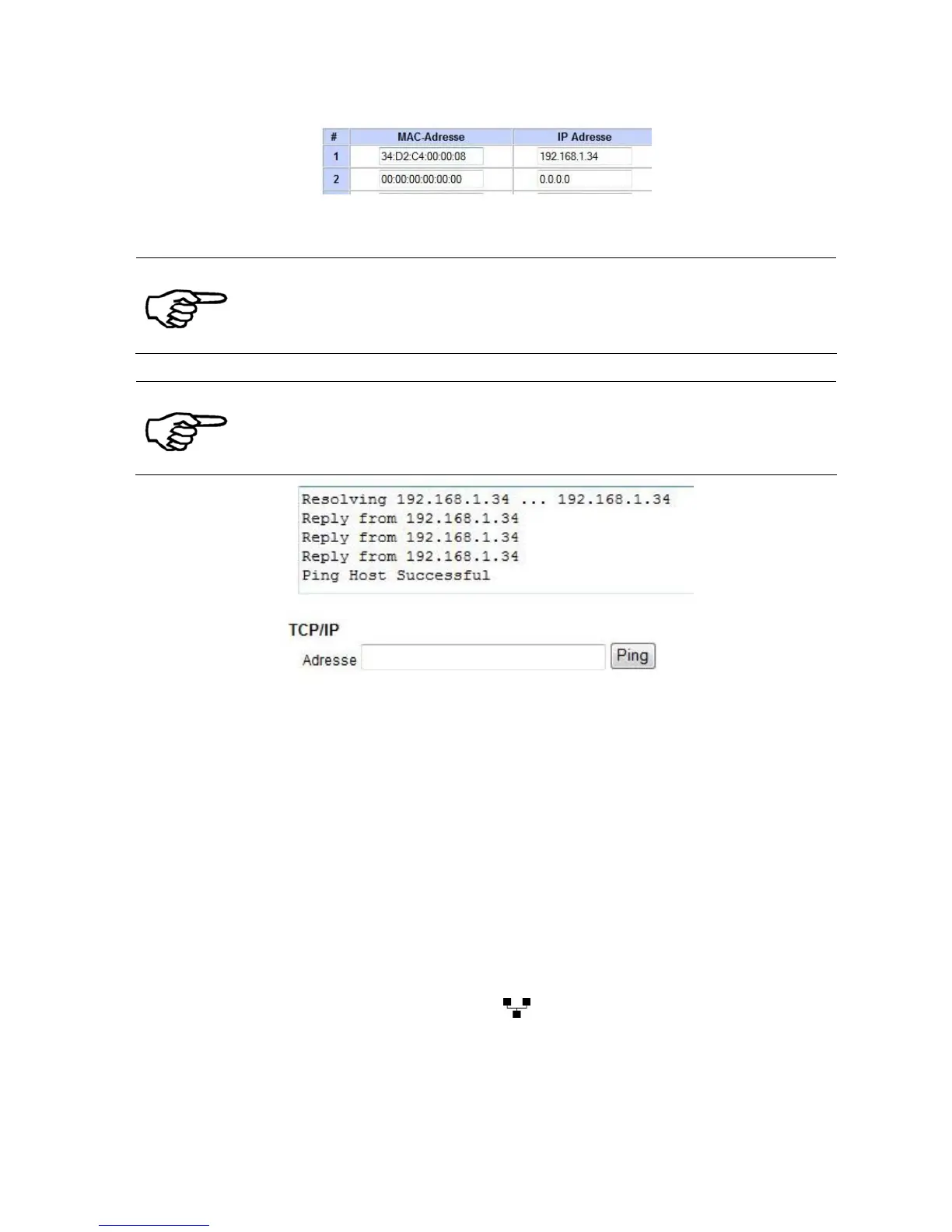
Figure 46: DHCP Table on server
Hinwei s
Using the printer within a LAN
It is necessary to assign one specific IP address to the printer within the
network. Since this one specific IP address needs to be entered in the
configuration of the printer driver.
Hinwei s
Checking the printer’s network settings
You can always check the printer’s current IP address, Port number,
subnet mask, gateway and the MAC address in this printer menu:
SERVICE > CONFIGURAT. INFO
Figure 47: Test of fix IP (ping test on server)
4. Configure
network
settings (PC)
and install
printer driver
• It is not necessary to change any network settings on the PC used
to send data to the printer, given that the PC is working within the
same LAN as the printer.
• Install and configure the printer driver for your printer model as
described in chapter 7.1 on page 86.
Pos: 62.7 /Bedienungsan leitungen/Geräte s pezifisch/Druc ker/Printer Dri ver & Cables to PC/TCP /IP (619)/7. X.X_Ü3_Direct ethernet c onnection between the pr inter and the PC_ONLY_619 @ 3\mo d_1289307250494_912.d oc @ 28152 @ 3
7.3.3 Direct Ethernet connection between the printer and the PC
1. Connect the
printer to the
PC with an
Ethernet cable
• Connect the printer to the PC with the Ethernet cable.
Insert one Ethernet connector of the cable into the Ethernet
interface of the printer
and insert the other connector into the
interface of your PC.


 To Next Page