2. Add a
TCP/IP port to
the printer
driver
• Add a “Standard TCP/IP Port” to the already installed printer driver
as described in chapter 7.3.1, on page 91.
3. Setup the
Ethernet
connection
• Setup the Ethernet connection between the printer and the PC as
described in 7.3, on page 90.
Pos: 100.4 /Bedienungsan leitungen/Gerät e spezifisch/Druc ker/Printer Dri ver & Cables to PC/USB 2.0 (619)/ 7.X.X_Ü3_How to identif y the USB port number @ 3\mod_129 6549141672_912.doc @ 29849 @ 3
11.3.3 How to identify the USB port used by the printer
In certain cases (e.g. further use of already installed printer drivers) it is necessary to
identify the exact USB port number, when the printer is connected to the PC via USB.
As most PC’s nowadays have more than one physical USB port. The USB port number can
be used to identify the actual port where a device is plugged in.
Depending on which PC USB port the printer is plugged in, the USB port number can be for
example USB001, USB002 or etc.
1. Set the
printer to USB
communication
• Check if the printer is set to USB communication in the printer
menu: PRINTER CONFIG. > BOOT DEFAULTS > COMMUNICATION
• If not, set it to USB.
2. Connecting
the printer
• Connect the printer to the PC with the USB cable.
• Turn on the printer.
3. Device
detection
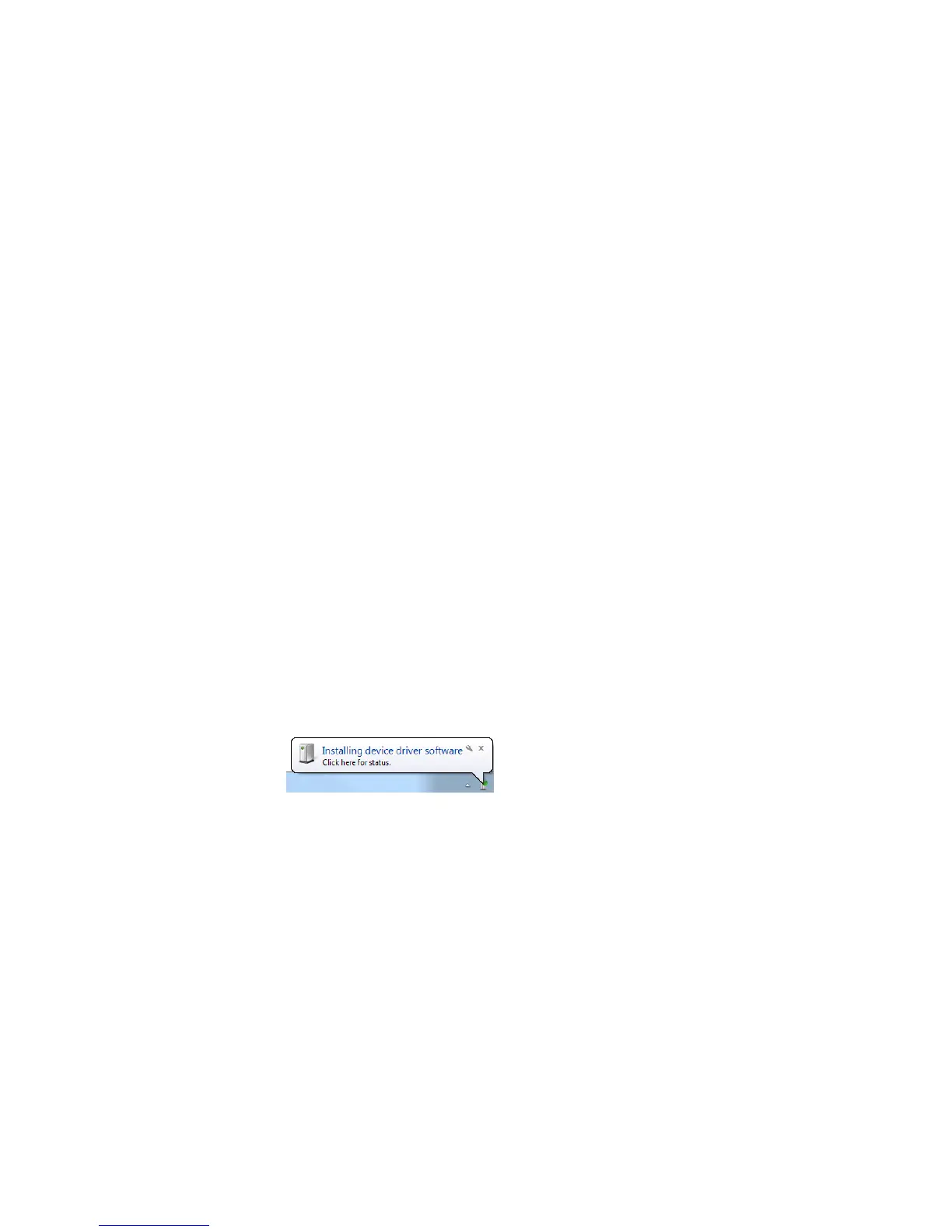
• Wait until Windows detects the printer.
4. Open the
Device
Manager
• Open the Widows Device Manager.
Start > Control Panel > Hardware and Sound > Device Manager
5. Identify the
printer device
• The printer device will be shown under
Universal Serial Bus controllers > USB Printing Support.
See Figure 58.
6. Identify the
USB port
number
• Select the printer in the Device Manager and right-click onto it.
• Select “Properties” and click onto the “Details” tab.
• In the “Property” drop down list select “Bus relations”.
• In the entry under “Value” the USB port number is shown. In the
sample in Figure 59 the USB port number is “USB001”


 To Next Page