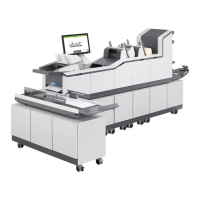
4.3 The Operator Panel
Pos: 39 /Bedienungsanlei tungen/Geräte spezi fisch/Druc ker/4.4_Operator_Pane l @ 2\mod_1265967728349_912. doc @ 12018 @
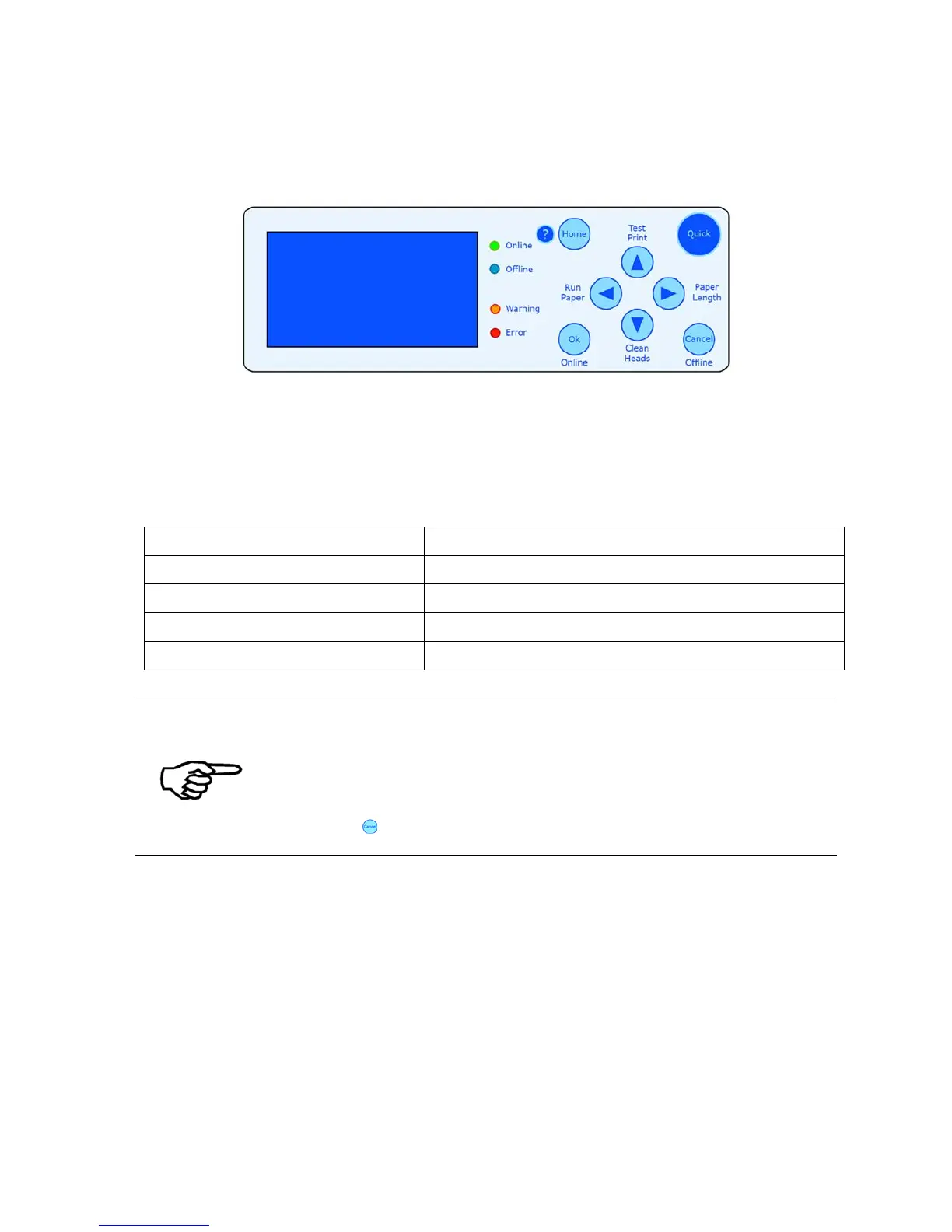
Figure 6: The operator panel
The operator panel is used to easily activate often required functions and select information
from the main display. The operator panel is also used to navigate within the printer menus,
in order to change printer and layout settings, run test modes and look up specific printer
statistics.
The four LEDs (light-emitting diode) on the panel indicate the status of the printer.
LED Status indication
Green Online
Printer is Online
Blue Offline
Printer is Offline
Orange Warning Printer displays a warning message
Red Error Printer displays an error message
Online and Offline
Only when the printer is Offline you can make changes to printer
settings, use the secondary functions of the arrow key or open printer
menus.
Please note, that when the printer is Online (= able to receive print
data from the PC), the only key that can be used is the Cancel
(Offline)
key. The Cancel (Offline) key will turn the printer Offline
(= not able to receive print data from the PC).
Pos: 40 /Bedienungsanlei tungen/Geräte spezi fisch/Druc ker/4.4.1_Ü3_Key Panel_Sh uttle Head Only @ 1\mod_126087 7755595_912.doc @ 8437 @ 3


 To Next Page