11.7 How to update the flashware
Pos: 104 /Serviceanlei tungen/Geräte neutra l/41_Ü3_Firmware up date via USB port GRAPHIC DI SPLAY & 619 ONLY @ 3\mod_129483423252 9_912.doc @ 29242 @ 3
11.7.1 How to update the flashware
The flashware can only be updated via the USB port
of the
printer. When starting the printer in the update mode, it will
automatically use the USB port.
1. Before you
begin
• Use the SETTING DUMP feature, located in the SERVICE menu, to
print out all current printer settings. You will need this information
later.
• Make sure that the correct printer driver is installed and that the
driver is working correctly when connecting the printer via USB.
Install the printer driver first
Please make sure to install the printer driver before you connect to
the printer to the PC. Make sure that the connection via the USB port
is working correctly by printing sample pages before you attempt the
flashware update.
2. Preparation
• Turn off the printer.
• Connect the printer to an USB port of your PC.
• Unpack the .zip file containing the flashware onto the hard disk of
your PC.
3. Put the
printer into
the update
mode
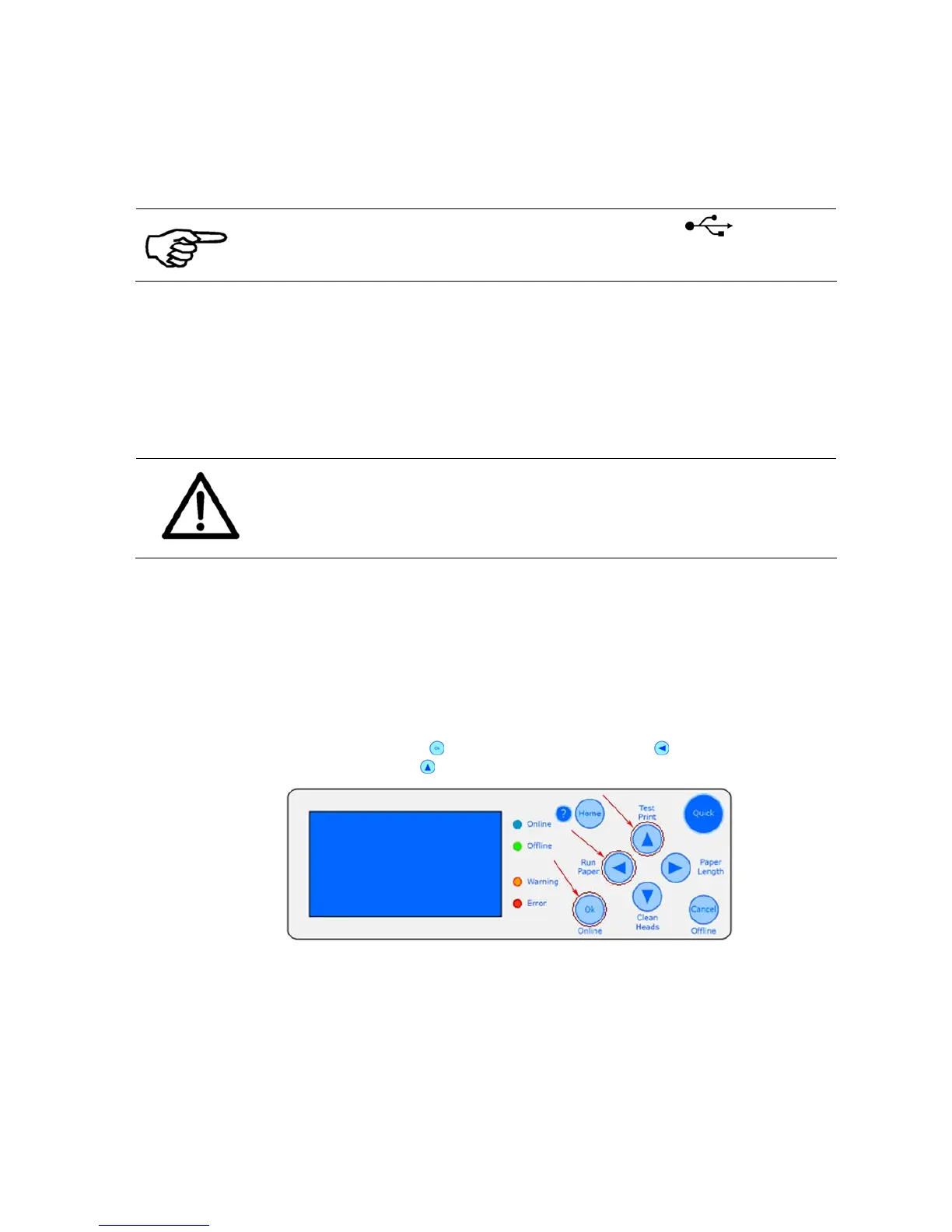
• Press the Ok
, the Arrow left (Run paper) and the Arrow Up
(Test Print)
keys together and hold them.
•
While holding these three keys turn the printer on.
• On the display the message Waiting for Download appears.
4. Send the
flashware file
to the printer
• Use the software tool PrintFile, as described below, to send the
flashware to the printer.


 To Next Page