112 Chapter 4 Use the PLC applications to control your workflow
Overview of Océ View Station LT
[42]
[43]
The view ribbon
[44]
[42] The Preference menu
Item Function
'View ribbon' Show the view ribbon. The view ribbon provides easy access
to some 'File', 'View', and Preference menu items. See the
'View ribbon' section below.
'Status bar' Shows the status bar at the bottom of the Océ View Station LT
window. The Status Bar shows the pointer co-ordinates and a
status line.
'Reference' Show the 'Reference' window. The 'Reference' window is a
small, normally floating window. The 'Reference' window
shows the complete current page in miniature. The crossed
box in the 'Reference' window indicates the part of the page
shown in the document window. Move or change the size of
the crossed box to change the area of the page shown.
'Detail' Shows the 'Detail' window.
'Measurement' Enables you to measure the lines and the areas on the image.
[43] the Help menu
Item Function
'About' Show information about Océ View Station LT.
[44] The View ribbon (1 – 2)
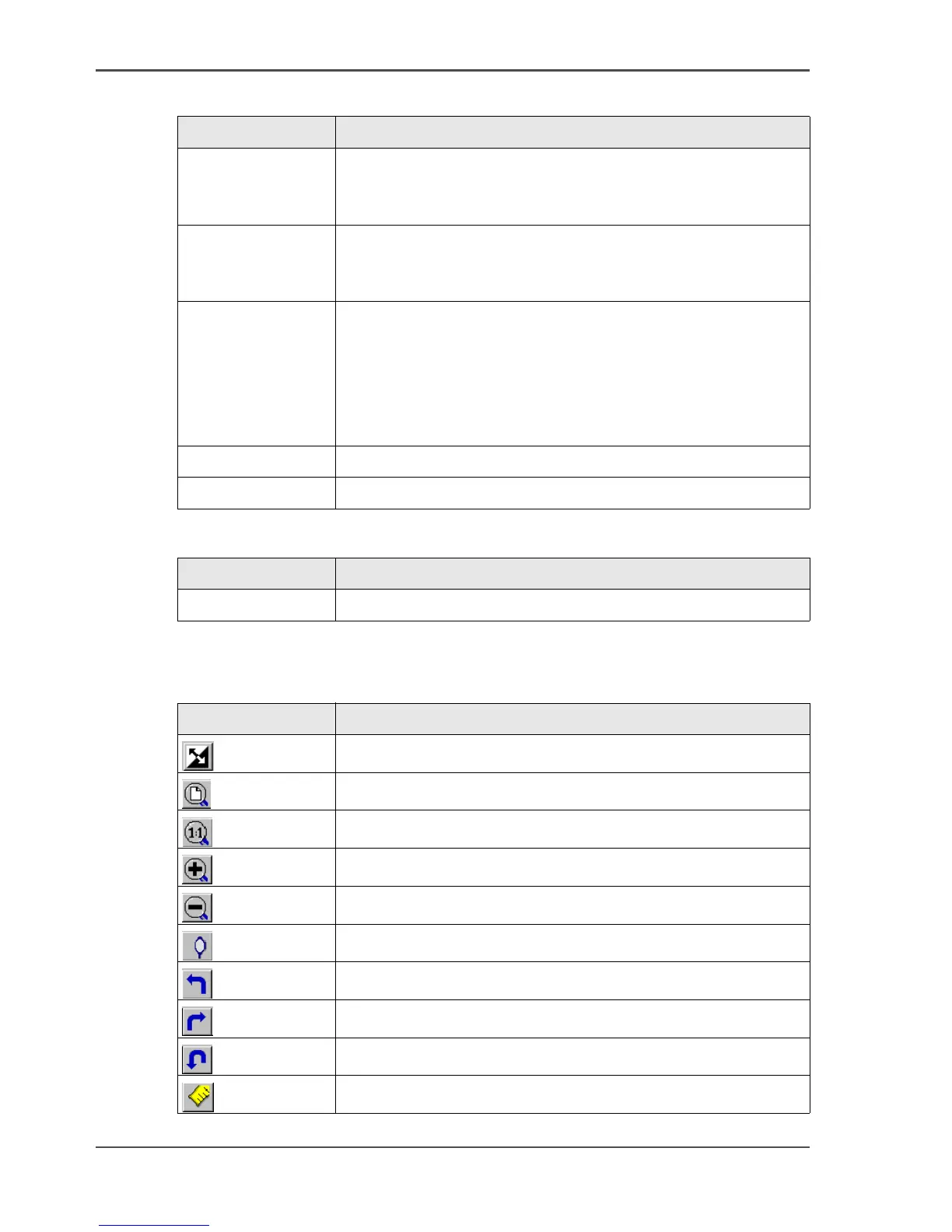
Button Function
[81]
Reverse the black and white parts of the image.
[82]
Scale the image to fill the window.
[83]
Show the image at a 1:1 scale factor.
[84]
Zoom into the page.
[85]
Zoom out of the page.
[86]
Mirror the image.
[87]
Rotate the image 90 degrees counter-clockwise (to the left).
[88]
Rotate the image 90 degrees counter-clockwise (to the right).
[89]
Rotate the image 180 degrees.
[90]
Enables you to measure the lines and the areas on the image.



 To Next Page