268 Chapter 12 System messages and solutions
Remove jammed media
Remove jammed media
Introduction
If a media jam occurs, the system produces a double audio signal. The red LEDs of
the printer operator panel remain illuminated. If a jammed media error occurs on the
system, immediately remove the jammed media to prevent damage to the printer.
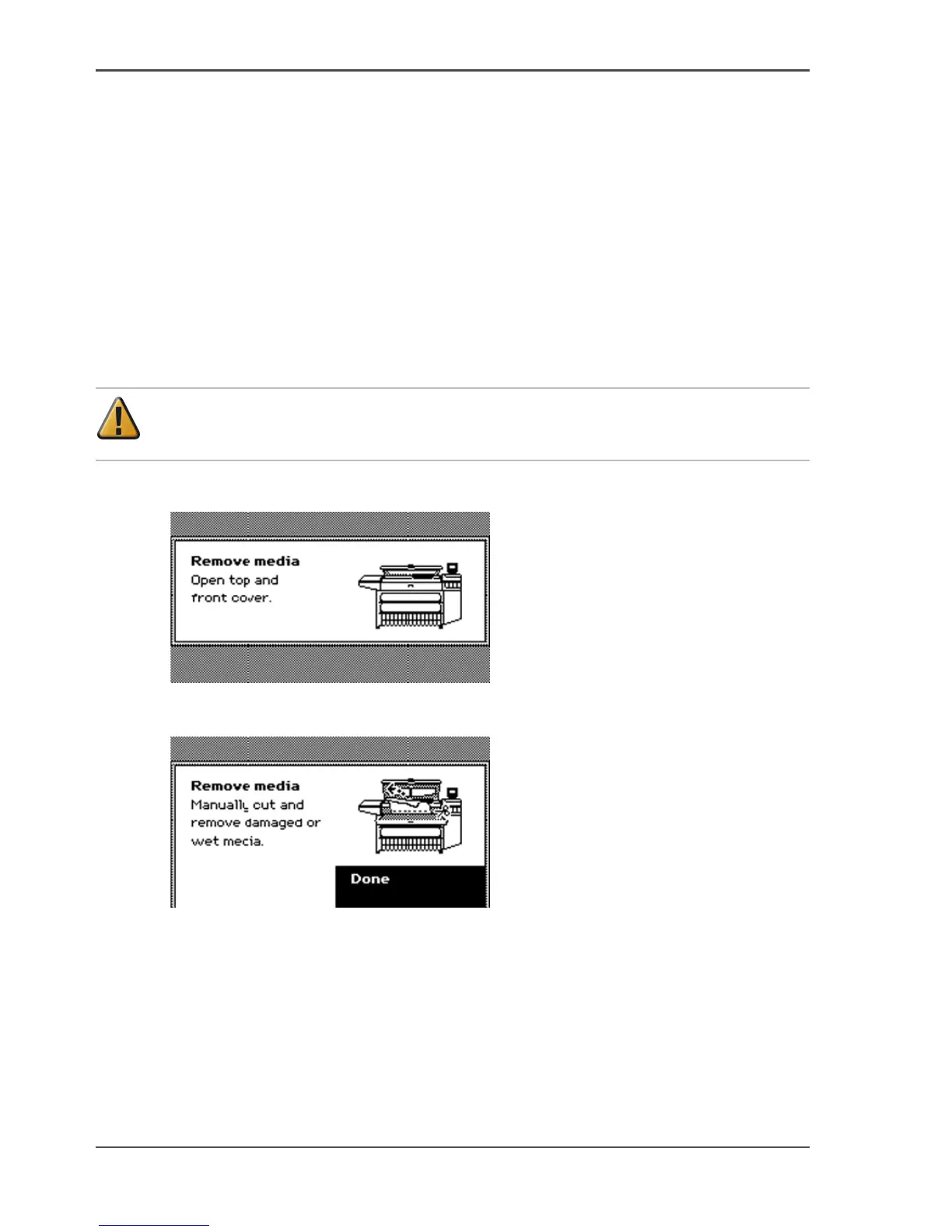
The system handles the error recovery for the jammed media through a series of
dialogue boxes. Use the following procedure to remove the jammed media.
How to remove jammed media
Attention: Never use a knife to cut loose the jammed media. When you use a
knife to cut loose the media, you can damage the printer.
1. Open the cover or door that the printer operator panel indicates.
[213]
2. Use a pair of scissors to cut loose the media.
3. Remove the jammed media from the output side of the printer.
[214]
4. Press the softkey for 'Done' to confirm that you removed the jammed media.
5. Close the cover or door that the printer operator panel indicates.



 To Next Page