184 Chapter 7 Use the Océ TCS500 for copy jobs
Make a copy and delete a specific area of an original
Make a copy and delete a specific area of an original
Introduction
You can make a copy without a specific area of an original with the 'Delete area'
setting.
Attention: When you copy without a specific area, make sure that you copied
all the required information.
How to copy a specific area of an original
1. Place the original face down and right aligned.
The scanner takes the original.
2. Define the job settings.
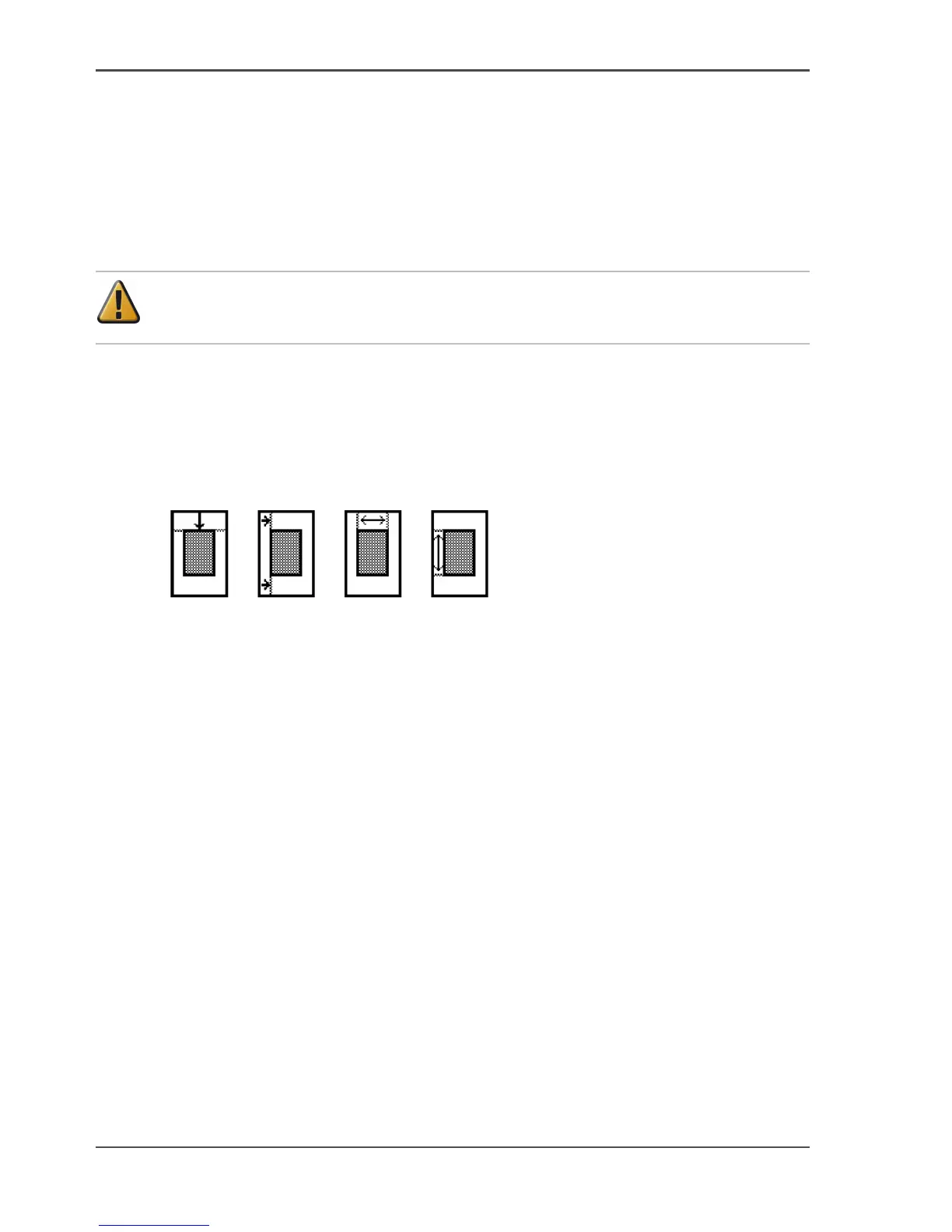
[159]
[159] The icons of 'Y Offset', 'X Offset','Width' and 'Length' setting
■ Select 'Copy' with the upper-left softkey.
The copy job templates appear.
■ Open a copy job template with a left softkey.
The top 5 settings display.
■ Scroll to 'Delete area' and open this setting with the left softkey.
■ Define the 'X Offset' with the scroll wheel or numeric keys.
■ Select 'Y Offset' with the left softkey and define the value with the scroll wheel
or numeric keys.
■ Select 'Width' with the left softkey and define the value with the scroll wheel or
numeric keys.
■ Select 'Length' with the left softkey and define the value with the scroll wheel or
numeric keys and close the setting.
3. Define the number of copies if necessary and press the green start key.
Result
The Océ TCS500 copies an original without the specified area.



 To Next Page