142 Chapter 5 Use the Océ TCS500 for scan-to-file jobs
'Remove strip'
'Remove strip'
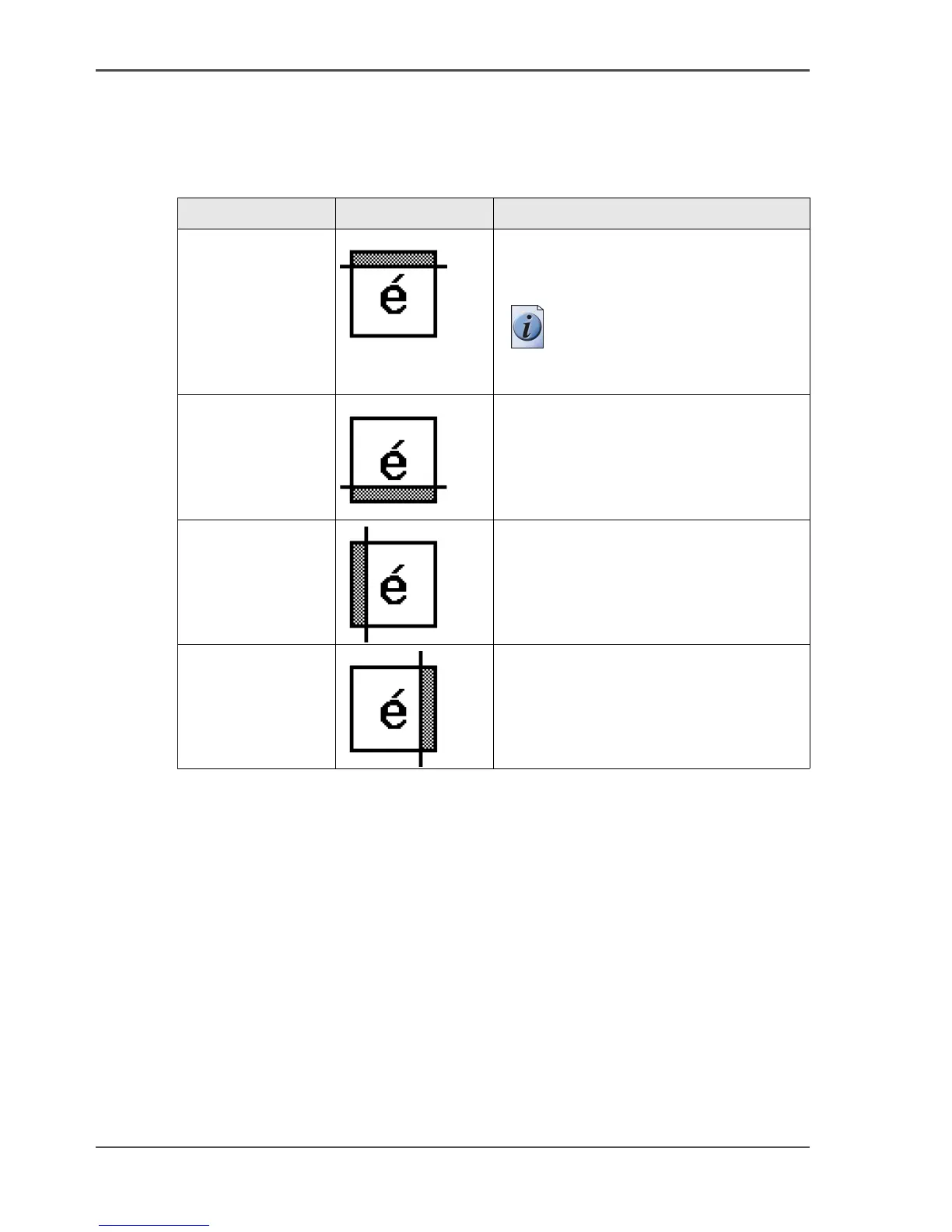
Use the 4 settings below to define the blank areas around the image.
[58]
[58] Remove strips
Setting Icon Result
'Remove strip' -
'Leading'
[116]
Use this setting to remove a strip at the
top of the image. This action decreases
the print or file length.
Note: The top side of the
image is the side that you
first feed into the scanner.
'Remove strip' -
'Trailing'
[117]
Use this setting to remove a strip at the
bottom of the image. This action
decreases the print or file length.
'Remove strip' -
'Left'
[118]
Use this setting to remove a strip from
the left side of the image/original
viewed from the face-up direction. This
action decreases the print or file width.
'Remove strip' -
'Right'
[119]
Use this setting to remove a strip from
the right side of the image/original
viewed from the face-up direction. This
action decreases the print or file width.



 To Next Page