178 Chapter 7 Use the Océ TCS500 for copy jobs
Scale to another media size
Scale to another media size
Introduction
You can use the 'Scale' setting to copy to a larger or smaller media format. Use one
of the following methods to scale a copy.
■ Select another media format with the 'To fit' setting.
■ Adjust a value in terms of percentage with the 'Custom' setting.
You can adjust a value between 10 and 1000%. A value lower than 100% reduces
the copy, a value greater than 100% enlarges the copy.
Before you begin
If you must enter the same value for a setting very often, you can set this value as the
default value for that setting in the Océ Settings Editor.
After you press the start key, the scanner operator panel always shows the job
number and status of the job. A copy job appears temporarily in the printer queue of
the Océ Queue Manager, a scan-to-file job appears in the selected destination of the
Océ Scan Manager.
How to copy to another media size
1. Place the first original face down and right aligned. Make sure that you feed the
original portrait.
The scanner takes the original.
2. Define the job settings.
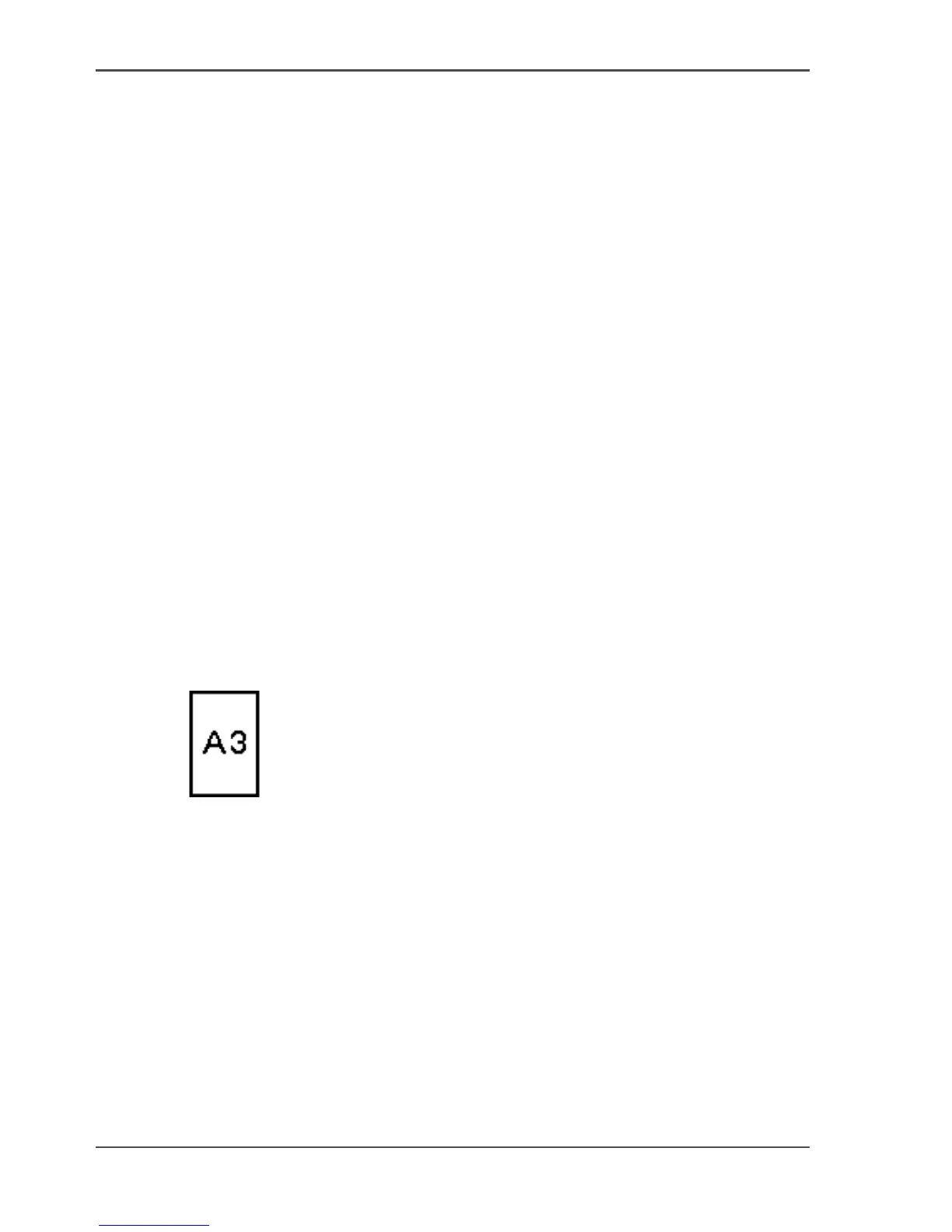
[150]
[150] Example of a 'Scale' icon
■ Select 'Copy' with the upper-left softkey.
The copy job templates appear.
■ Open a copy job template with a left softkey.
The top 5 settings display.
■ Scroll to 'Scale' and open this setting with the left softkey.
The 'To fit' and the 'Custom' setting appear.
■ Define the media format at the 'To fit' setting with the scroll wheel.
3. Define the number of copies and press the green start key.
Result
The Océ TCS500 copies to another media size.



 To Next Page