97
The user interface of the Océ Queue Manager
The menu bar
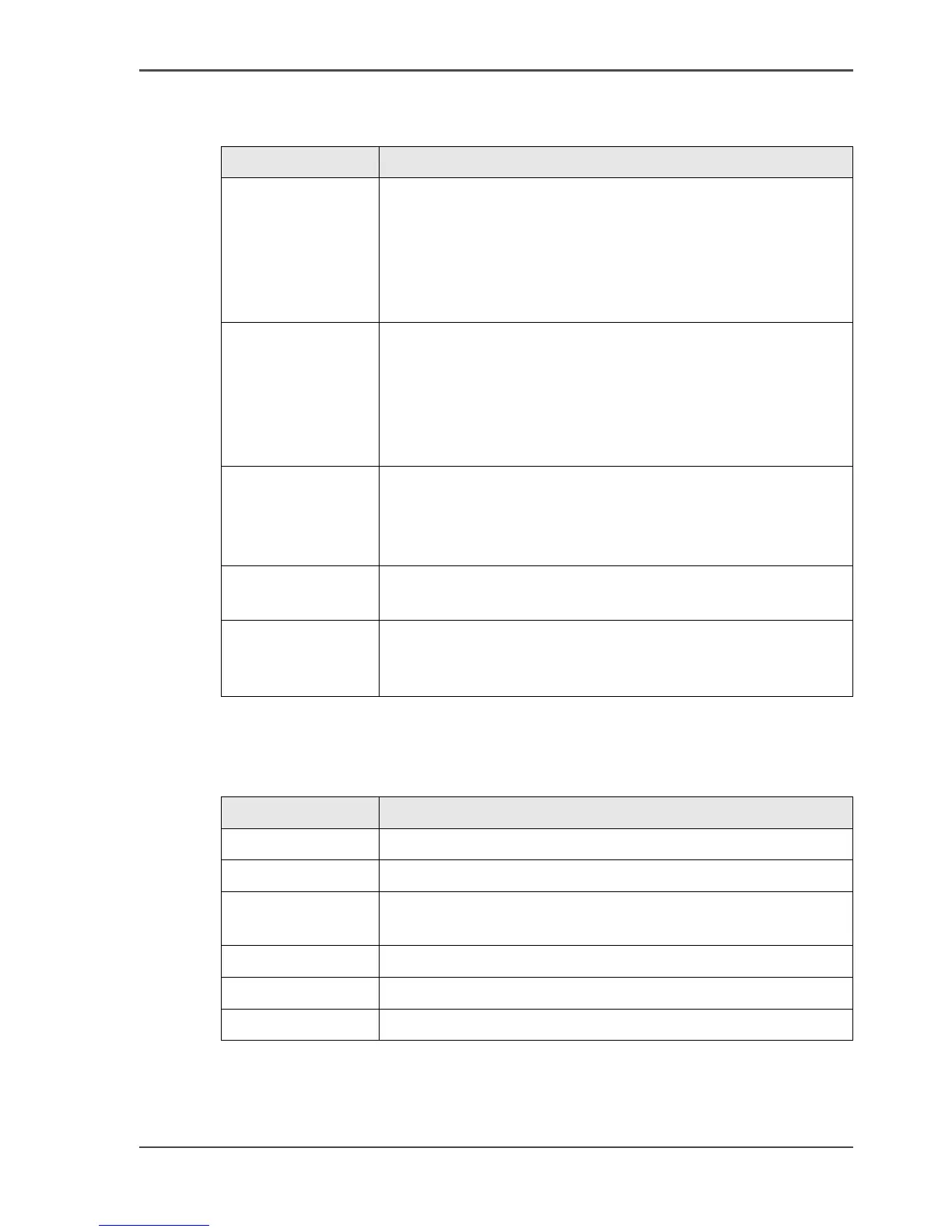
[37]
The toolbar
[38]
[37] The items of the menu bar
Menu Items
'File'
■ Click 'Log on' to select the user mode. Then enter the
password.
■ Click 'Log off' to leave the user mode.
■ Click 'Connect to' and select a different controller (only
for remote users).
■ Click 'Close' to leave the Océ Queue Manager.
'Edit' Click 'Options' to define the following.
■ The 'Host name'.
■ The 'Default system'.
■ The 'Automatic logon'. Use 'Automatic logon' to start up
automatically in the defined user mode.
■ Select the two screen languages.
'View'
■ Toggle between the defined display languages.
■ Toggle between the 'Inbox' queue and the 'History' queue.
■ Define the 'Column options'. Select the table headers you
want to see when you open the Océ Queue Manager.
'Job' Display the actions for a job. The menu items correspond
with the toolbar buttons.
'Help'
■ Click 'Contents' to access the topics of the on-line help.
■ Click 'About' for general information about the Océ
Queue Manager.
[38] The toolbar buttons
Button Function
'Hold' Place a job on hold in the print queue .
'Resume' Continue a job that was placed on hold.
'Move to top' Move a job to the top of the print queue, to give the job
priority.
'Delete' Delete a job from the print queue.
'Properties' View or edit the properties of a selected job.
'Print' Print a job from the print queue.



 To Next Page