Polycom RealPresence Collaboration Server (RMX)1500/2000/4000 Deployment Guide for Maximum Security Environments
2-36 Polycom, Inc.
3
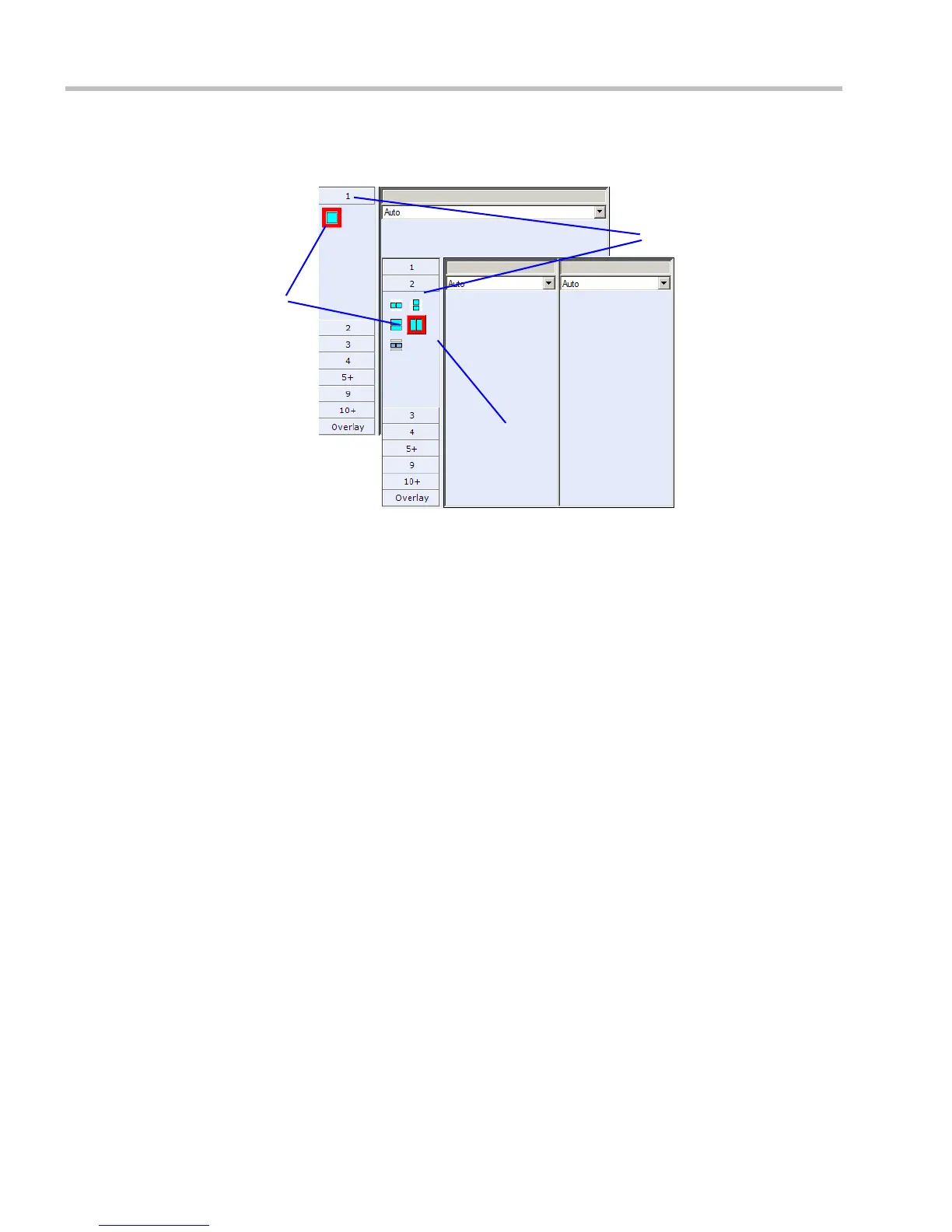
From the
Video
Layout
options, select the
Number of Windows
to display and the
Video
Layout
thumbnail required and click
OK
.
Video Forcing
Users with Administrator or Operator permission can select which participant appears in
each of the video layout windows using Video Forcing. When a participant is forced to a
layout window, switching between participants is suspended for that window and only the
assigned participant is viewed. Video Forcing works on Conference Level or Participant
Level:
• Conference Level – When forcing a participant to a window, all conference participants
will see that participant in the selected window.
• Participant Level – When forcing a participant to a window, only the participant’s
video layout display is affected. All other participants see the conference layout.
Video Forcing Guidelines:
• A participant cannot appear in two or more windows at the same time.
• Participant level video forcing overrides conference level video forcing.
• A participant can view him/herself in a layout window, by selecting the Same Layout
option.
• When different size video windows are used in video layouts such as 1+2, 1+3, 1+4, etc.,
a participant can only be forced, in Personal Layout, to a video window of the same size
as that selected for him/her in Conference Layout.
• When changing the Video Layout at the conference level, the video forcing settings are
not applied to a new layout, and switching between participants is audio-activated. The
video forcing setting are saved and applied the next time the layout is selected.
• Windows that are not assigned any participant display the current speaker and last
speakers.
To video force a participant to a window:
1 In the Conference Properties dialog box, select the Video Settings tab.
2 If Auto Layout check box is selected, clear it.
Video
Layout
Thumbnail
Number of
Video
Windows
Selected
Layout














 To Next Page