Polycom RealPresence Collaboration Server (RMX)1500/2000/4000 Deployment Guide for Maximum Security Environments
2-10 Polycom, Inc.
Customizing the Main Screen
You can customize the main screen according to your preferences. Pane sizes can be
changed, column widths can be adjusted and data lists can be sorted.
To re-size a pane:
>> Move the pointer over the pane border and when the pointer becomes a click and
drag the pane border to the required size and release the mouse button.
To adjust column width:
1 In the column header row, place the pointer on the vertical field- separator bar of the
column.
2 When the pointer becomes a , click and drag the field separator bar to the required
column size and release the mouse button.
To sort the data by any field (column heading):
1 In the Conference list or List view pane, click on the column heading of the field to be
used for sorting.
A or symbol appears in the column heading indicating that the list is sorted by
this field, as well as the sort order.
2 Click on the column heading to toggle the column’s sort order.
To change the order of columns in a pane:
>> Click the column heading to be moved and drag it to its new position. When a set of red
arrows appears indicating the column’s new position, release the mouse button.
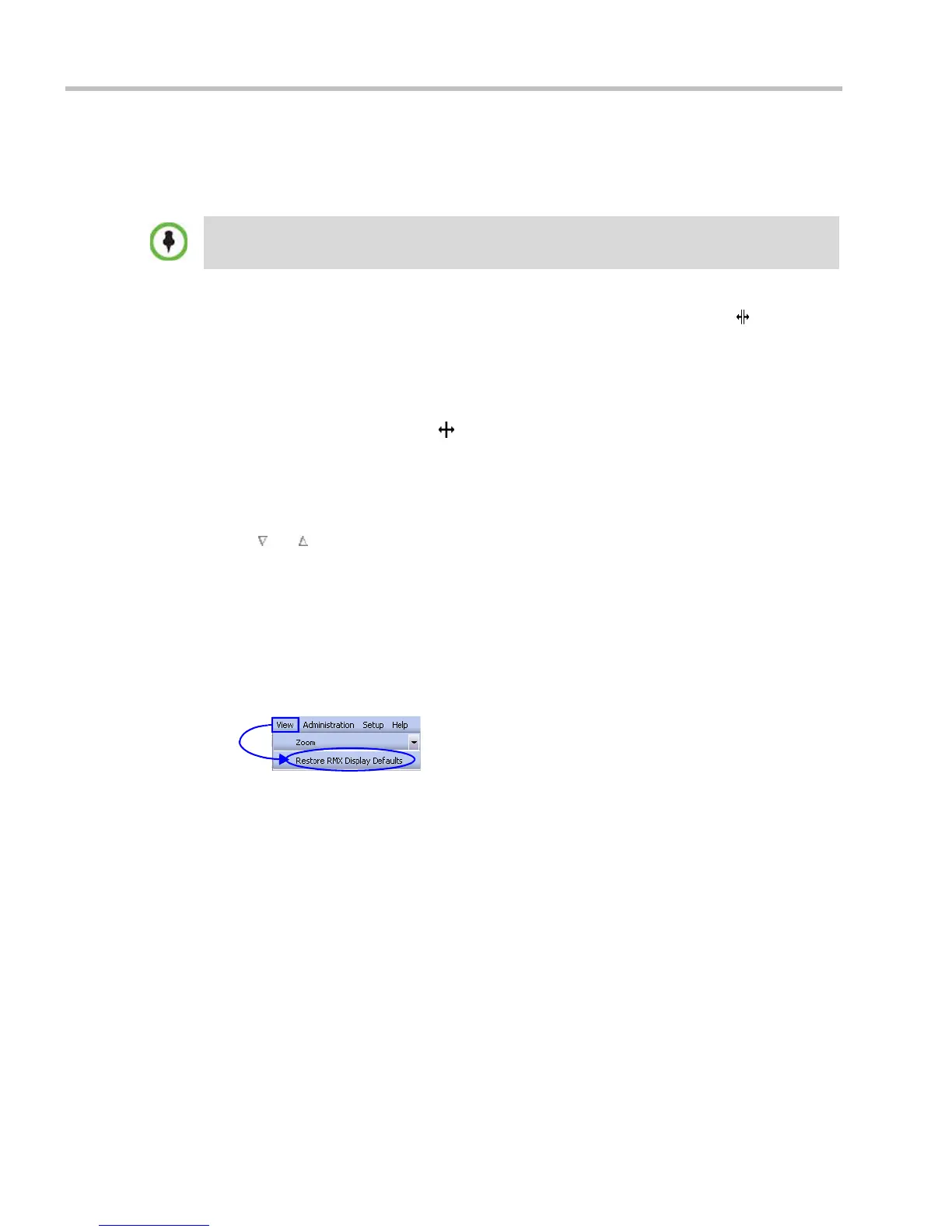
To restore the RMX 2000 display window to its default configuration:
>> On the RMX 2000 menu, click View > Restore RMX Display Defaults.
Customization settings are automatically saved for each logged-in user.
The next time the RMX Web Client is opened, the main screen settings appear as they were when
the user exited the application.














 To Next Page