Polycom RealPresence Collaboration Server (RMX)1500/2000/4000 Deployment Guide for Maximum Security Environments
2-20 Polycom, Inc.
3 Optional. Select the Enable ISDN/PSTN Dial-in check box if you want ISDN and
PSTN participants to be able to connect directly to the conference.
4 If Enable ISDN/PSTN Dial-in option is selected, either enter a dial-in number, or leave
the Dial-in Number field blank to let the system automatically assign a number from the
dial-in range defined for the selected ISDN/PSTN Network Service.
5 Click the OK button.
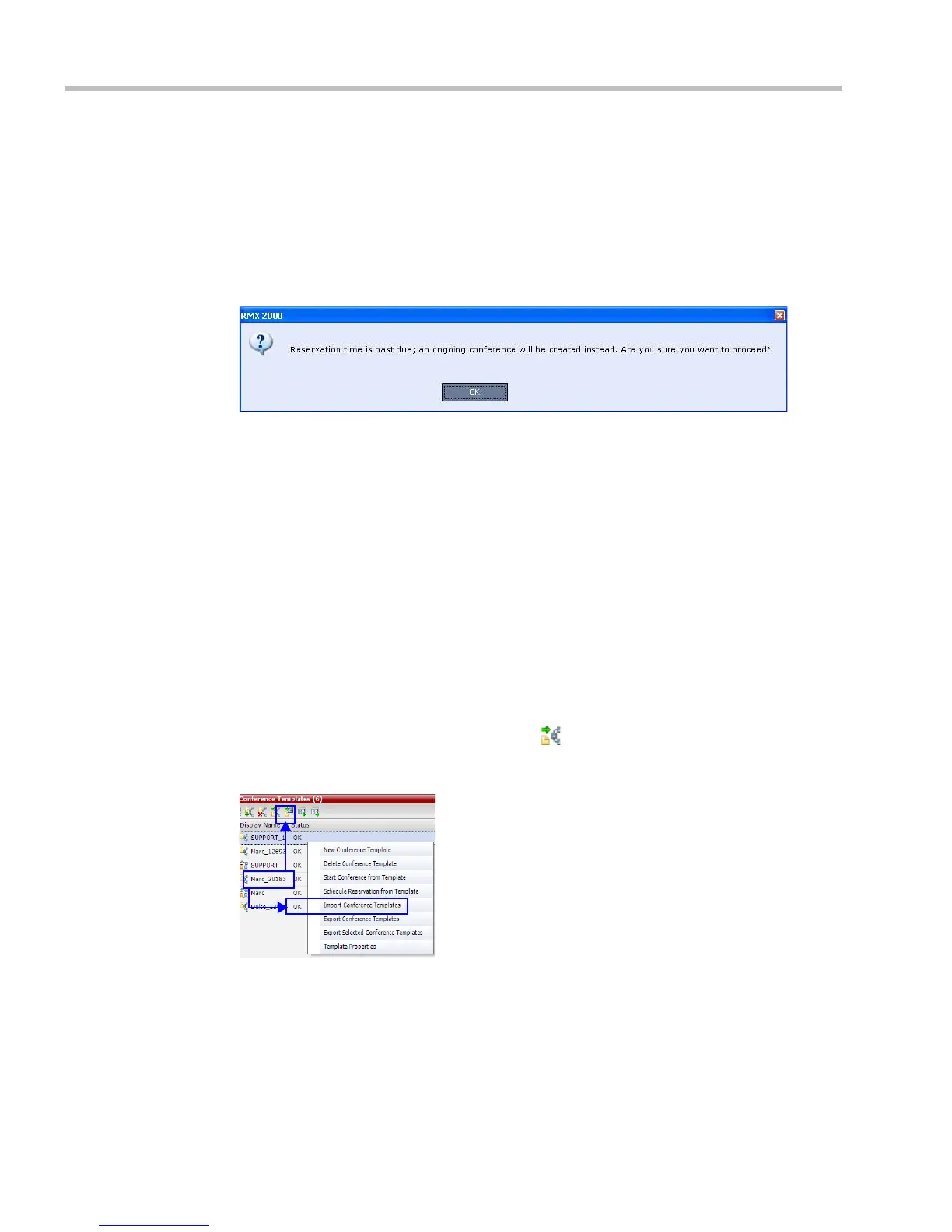
A confirmation box is displayed stating that the Reservation time is past due and that the
conference will become ongoing.
6 Click the OK button.
The conference is started. If an ISDN/PSTN dial-in number was assigned to the
conference either automatically or manually, this number can be viewed in the
Conferences pane.
For more information about Reservations, see the RealPresence Collaboration Server (RMX)
1500/2000/4000 Administrator’s Guide, "Reservations” on page 6-1.
Starting an Ongoing Conference From a Template
An ongoing conference can be started from any Conference Template saved in the
Conference Templates list.
To start an ongoing conference from a Template:
1 In the Conference Templates list, select the Template you want to start as an ongoing
conference.
2 Click the Start Conference from Template
() button.
or
Right-click and select Start Conference from Template.














 To Next Page