Chapter 2-Basic Operation
Polycom, Inc. 2-37
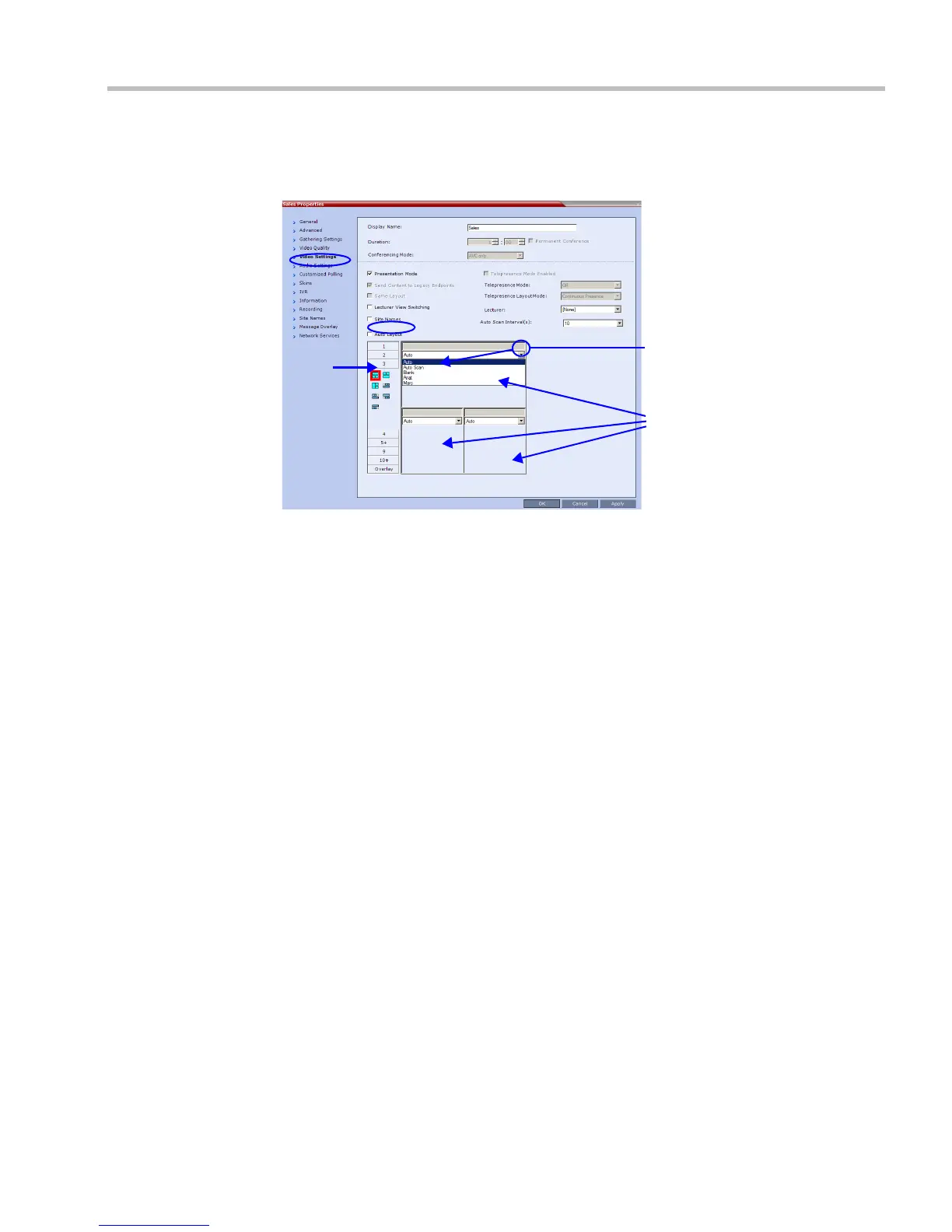
3 Select the required video layout.
4 In the window to which you want to force a participant, select the participant’s name
from the list of conference participants.
5 Repeat step 3 to force participants to other windows.
6 Click OK.
To cancel Video Forcing for a window:
1 In the Conference Properties dialog box, select the Video Settings tab.
2 In the video layout window, in the Participants list, select Auto.
3 Click OK.
Switching between participants is renewed and is audio activated.
Enabling and Disabling Video Clarity™
The user can enable or disable Video Clarity™ during an ongoing conference.
To enable or disable Video Clarity:
1 In the Conference List pane, double-click the name of the conference for which you want
to enable or disable Video Clarity
or
right-click the conference name and then click Conference Properties.
2 Click the Video Settings tab.
3 Select or clear the Video Clarity check box as required.
4 Click OK.
Selected
Layout
List of
Conference
Participants
Video
Windows














 To Next Page