Polycom RealPresence Collaboration Server (RMX)1500/2000/4000 Deployment Guide for Maximum Security Environments
1-26 Polycom, Inc.
7 Click the OK button.
Connecting to the Default Management Network
To connect directly to the RMX:
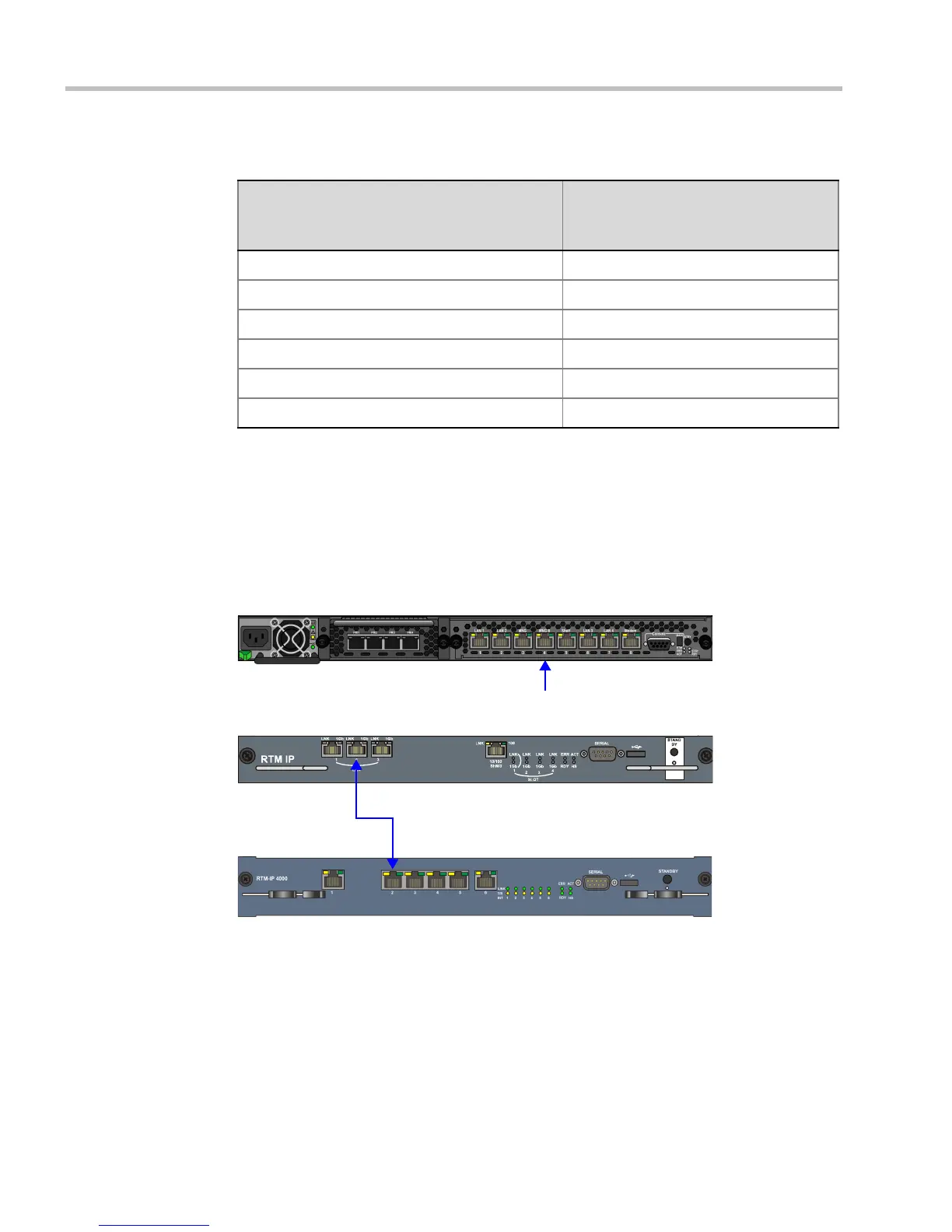
8 Using a LAN cable, connect the workstation to the LAN 2 port on the RMX 2000/4000’s
back panel or the MNGB Port on the RMX 1500.
9 Connect the power cable and power the RMX On.
10 Start the RMX Web Client application on the workstation, by entering the factory setting
Management IP address in the browser’s address line and pressing Enter.
11 In the RMX Web Client Login screen, enter the default Username (POLYCOM) and
Password (POLYCOM) and click the Login button.
Table 1-3 Reserved IP Addresses
Network Entity
Default Management Network
IP Addresses
(Factory Default)
Control Unit IP Address 192.168.1.254
Control Unit Subnet Mask 255.255.255.0
Default Router IP Address 192.168.1.1
Shelf Management IP Address 192.168.1.252
Shelf Management Subnet Mask 255.255.255.0
Shelf Management Default Gateway 192.168.1.1
LAN 2 Port
RMX 4000
RMX 2000
RMX 1500
MNGB Port














 To Next Page