Chapter 2-Basic Operation
Polycom, Inc. 2-41
Personal Layout Selection with Click&View
With the Click&View application, participants can change their Personal Layouts via DTMF
codes entered from their endpoints. Participants cannot change their Personal Layouts when
Lecture Mode is enabled.
This option is available only if the Click&View option is selected in the Conference IVR
Service. For more information see the RMX 2000 Administrator’s Guide, "Defining a New
Conference IVR Service” on page 17-6.
To change Personal Layout with Click&View:
1 Enable Click&View – on the endpoint’s keypad, enter .
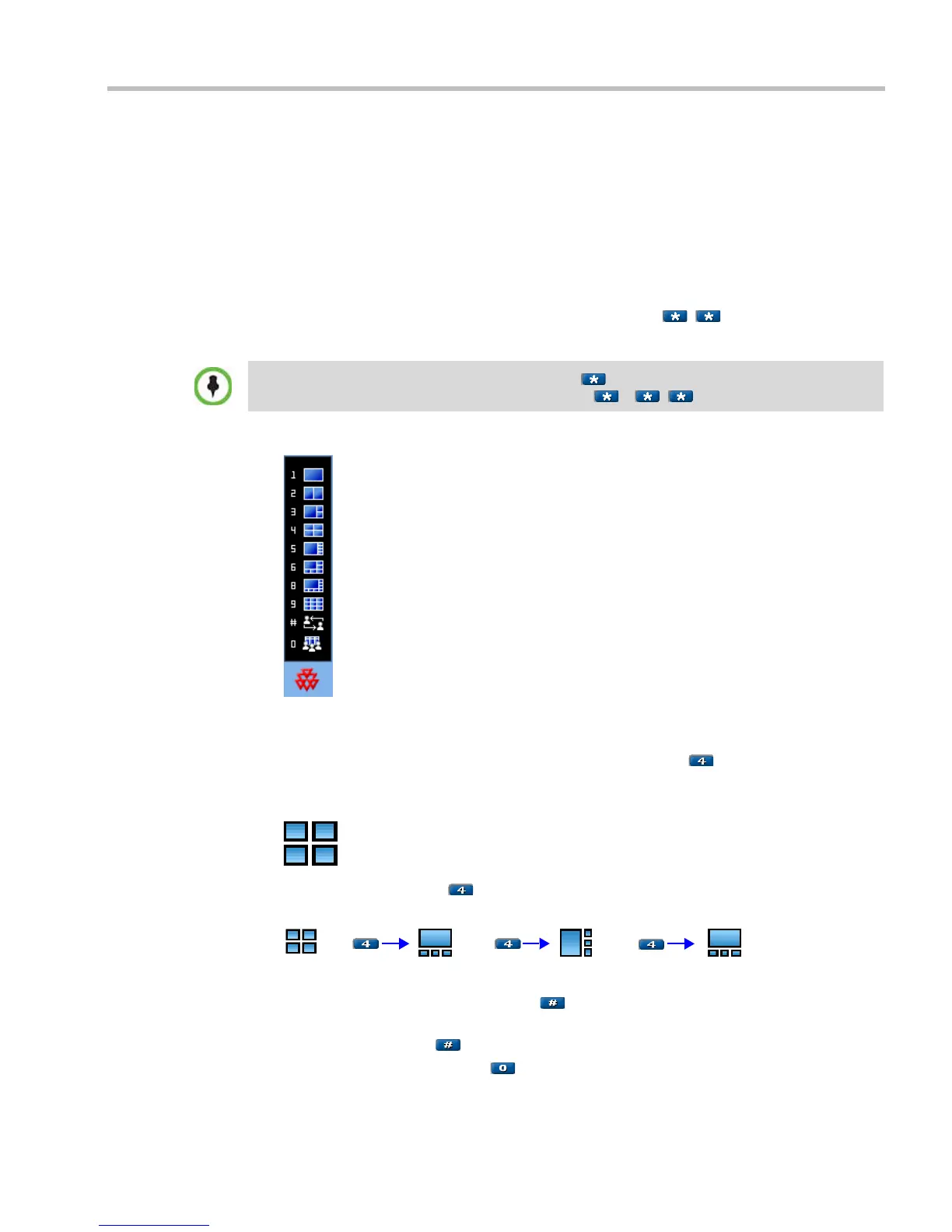
The Click&View application is displayed on the screen.
The Personal Layout keypad options menu is displayed on the video screen.
2 On the endpoint’s remote keypad, press the number corresponding to the number of
video squares you wish to select.
For example, if you want a four-square video layout, press .
The video window layout of your screen changes to the first four-window layout as
follows:
Repeated presses of the key, within eight seconds, cycles through the following
series of four-square layout options:
In any multi-square layout, pressing forces the current speaker to the top left
window.
In full view, pressing forces the next participant to full view.
In any video layout, pressing reverts to the conference layout.
When using a Polycom VSX endpoint, an additional must be entered to enable the remote
DTMF keypad. The full Click&View entry sequence is: , .














 To Next Page