Polycom RealPresence Collaboration Server (RMX)1500/2000/4000 Deployment Guide for Maximum Security Environments
2-40 Polycom, Inc.
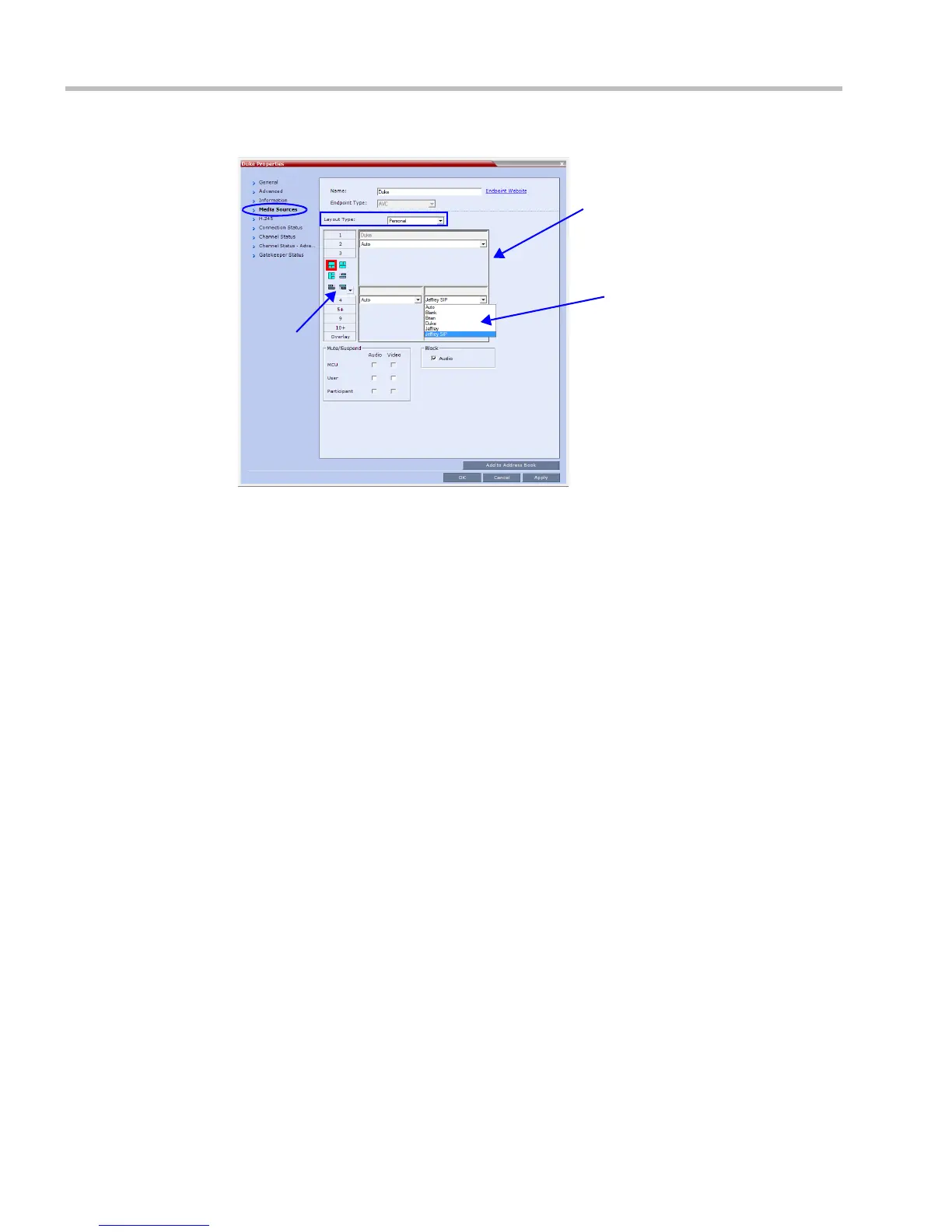
2 In the Layout Type list, select Personal.
3 Select the number of Video Windows.
4 Select the required Video Layout.
5 To video force participants to windows in the selected video layout, in the window to
which you want to force a participant, select the name of the participant to force from
the list of conference participants.
6 Repeat step 5 to force participants to other windows.
7 Click OK.
To cancel the Personal Video Layout selection and return to the conference layout:
1 In the Participant Properties dialog box, select the Media Sources tab.
2 In the Layout Type list, select Conference.
3 Click OK.
The participant will now see the conference video layout with its forced participants.
To cancel the Personal Video Forcing for a window without returning to the conference
layout:
1 In the Participant Properties – Media Sources dialog box, in the video layout window,
select Auto in the Participants list.
2 Click OK.
Switching between participants is renewed and is audio activated.
Selected
Layout
List of
Conference
Participants
Video
Windows
Representation














 To Next Page