Chapter 2-Basic Operation
Polycom, Inc. 2-11
Customizing the RMX Management Pane
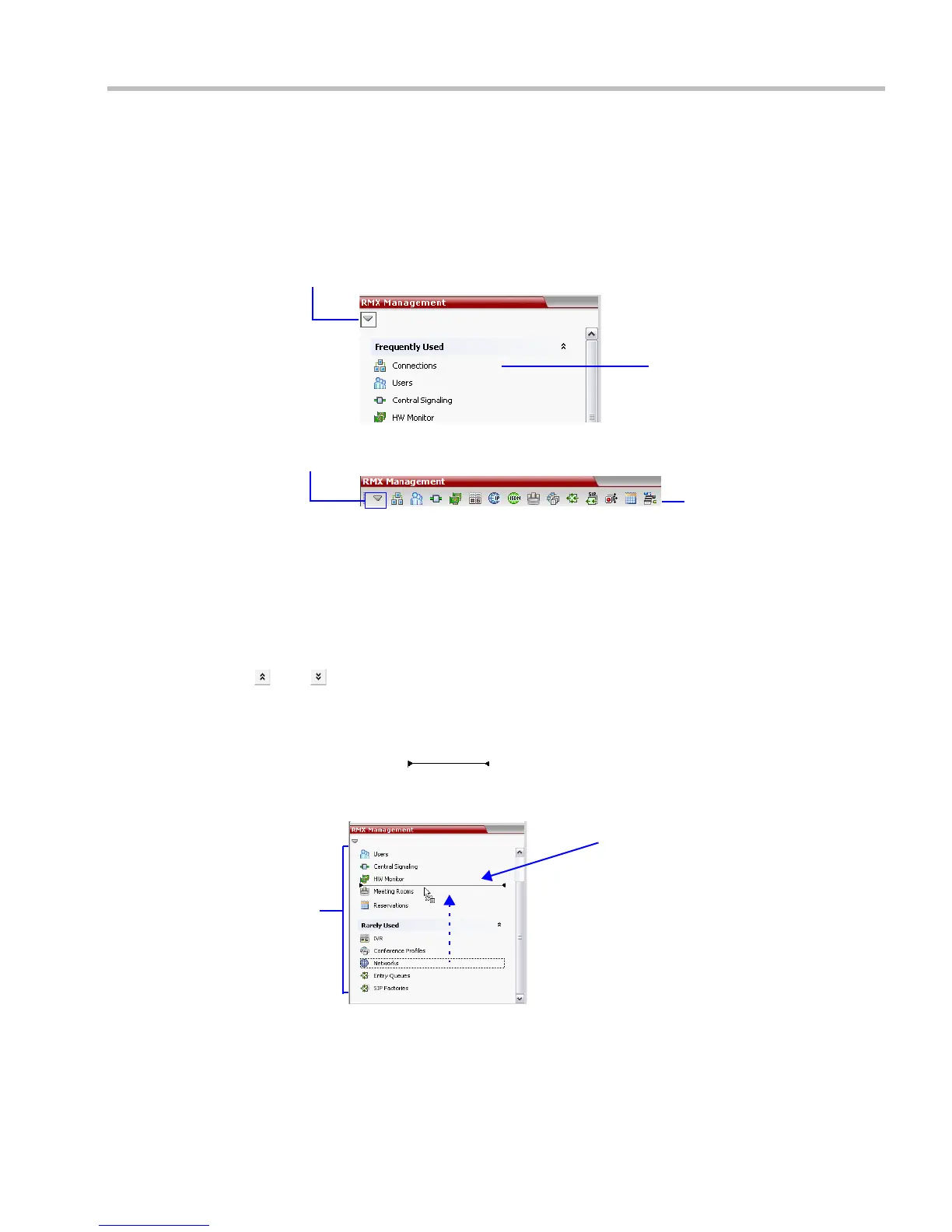
The RMX Management pane can be viewed either as a list or as a toolbar.
To switch between Toolbar and List Views:
>> In the RMX Management pane, click the Toolbar View button to switch to Toolbar view.
>> In Toolbar view, click the List View button to switch back to List view.
You can move items between the Frequently Used and Rarely Used sections depending on the
operations you most commonly perform and the way you prefer to work with the RXM Web
Client.
This only works in List view because in Toolbar view, all items are represented by icons.
To expand or Collapse the Frequently Used and Rarely Used sections:
The Frequently Used and Rarely Used sections can be expanded or collapsed by clicking the
and buttons.
To move items within and between the Frequently Used and Rarely Used sections:
1 In the RMX Management pane click and drag the icon of the item that you wish to move.
An indicator line ( ) appears indicating the new position of the icon.
2 Release the mouse button when the icon is in the desired position.
Toolbar View
List View
Toolbar View Button
List View Button
The new position of the
Networks icon
List
View














 To Next Page