Chapter 1-First Time Installation and Configuration
Polycom, Inc. 1-49
a Copy (Ctrl + C) the certificate information from the Certificate Authority’s e-mail to
the clipboard.
b Click Paste Certificate to paste the clipboard content into the Send Certificate dialog
box.
c Click the Send Certificate button to send the certificate to the RMX.
Option. Send Certificate File
After you have received the certificate file from the Certificate Authority:
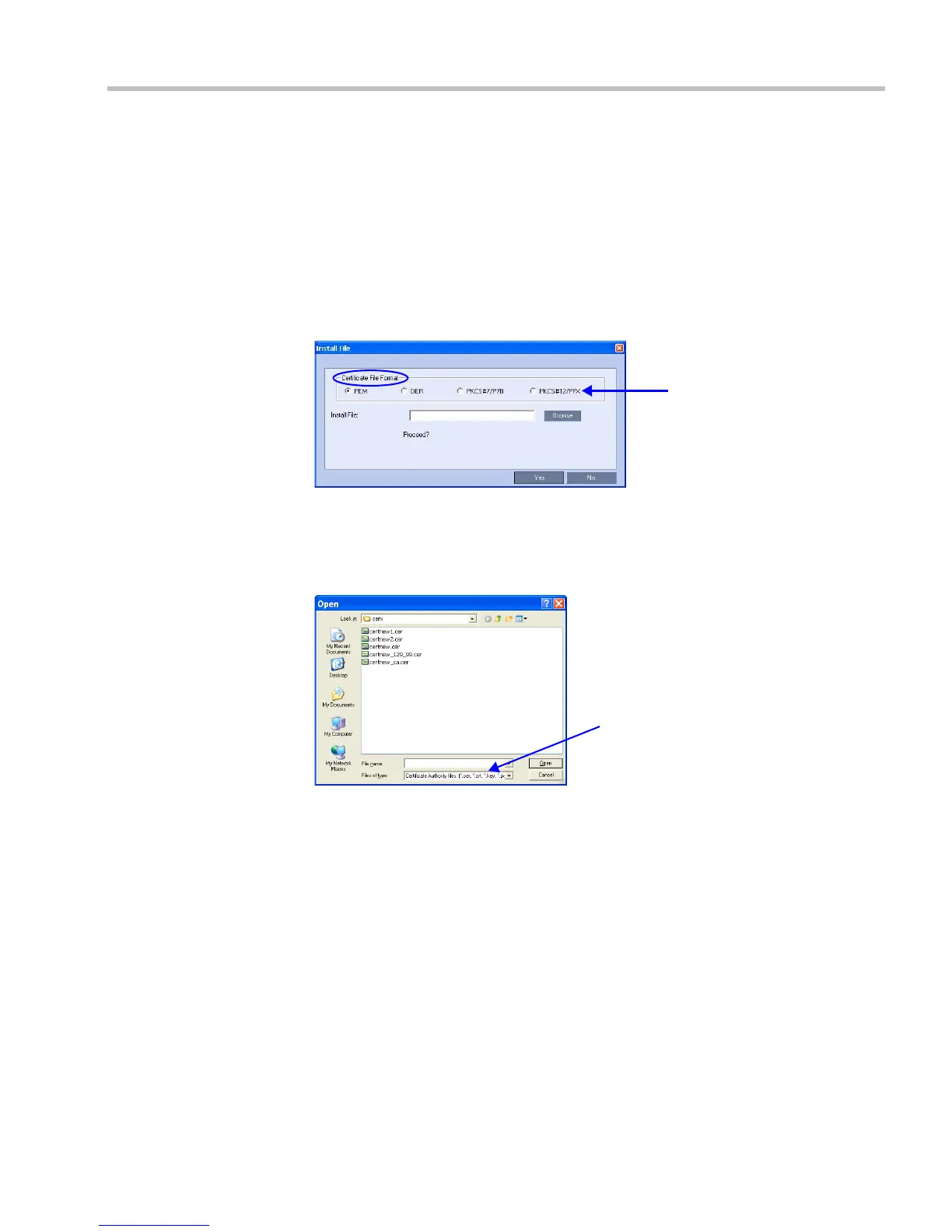
a Click Send Certificate File.
The Install File dialog box is displayed.
b Select the Certificate File Format: PEM, DER, PKCS#7/P7B or PKCS#12PFX.
c Enter the certificate file name in the Install File field or click the Browse button.
The Open file dialog box is displayed. The files are filtered according to the file type
selected in Step b.
d Enter the certificate file name in the File name field or click to select the certificate
file entry in the list.
e Click the Open button.
f In the Install File dialog box, click the Yes button to proceed.
The certificate is added to the Trusted Certificate List in the Certification Repository.
5 If there are additional Trusted Certificates to be added to the Certification Repository,
repeat steps 1 - 2, otherwise click the Update Repository button to complete Trusted
Certificate / CRL installation.
Before clicking the Update Repository button ensure that all CRLs have also been
added to the Certification Repository.
Installing the CRL
This procedure is performed for each CRL that is to be added to the Certification Repository.














 To Next Page