Polycom RealPresence Collaboration Server (RMX)1500/2000/4000 Deployment Guide for Maximum Security Environments
2-38 Polycom, Inc.
Participant Level Operations
Participant Level Operations enable you to modify and control the connections and statuses
of participants in ongoing conferences, as described in Table 2-7.
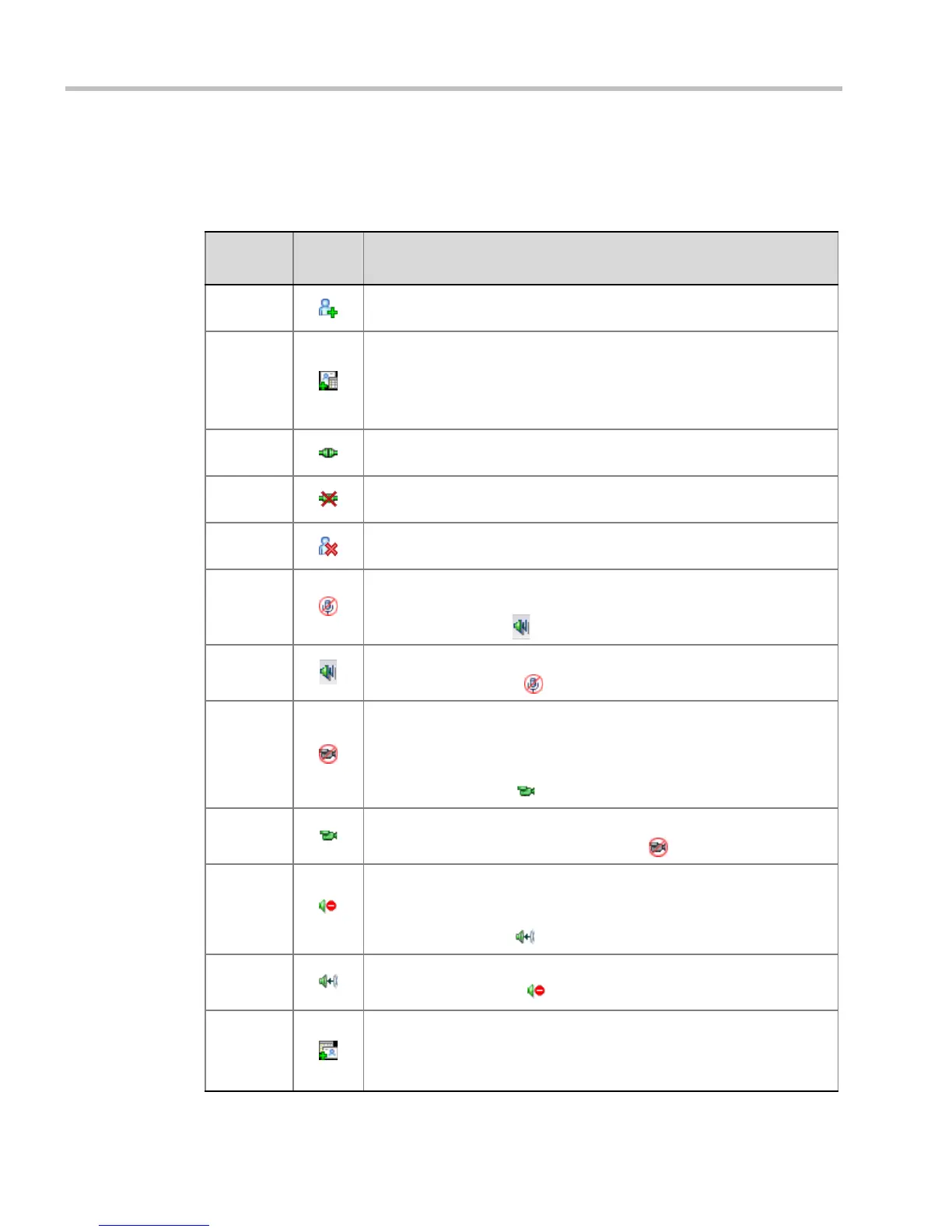
Table 2-7 Participant Level Operations
Menu
Option
Button Description
New
Participant
Define a new participant. For more information about the New Participant
dialog box tab, see Table 2-3 on page 2-16.
Add
Participant
From
Address
Book
Open the Address Book to select the participant for the conference.
For more information about the Address Book, see the RealPresence
Collaboration Server (RMX) 1500/2000/4000 Administrator’s Guide,
"Address Book” on page 5-1.
Connect
Participant
Connect a disconnected defined dial-out participant to the conference.
Disconnect
Participant
Disconnect the participant from the conference.
Delete
Participant
Delete the selected participants from the conference.
Mute
Audio
Mute the audio transmission from the participant to the conference.
The Audio Muted indicator appears in the Participants List and the
Unmute Audio button ( ) becomes active.
Unmute
Audio
Resume the participant’s audio transmission to the conference.
The Mute Audio button ( ) becomes active.
Suspend
Video
Suspend the video transmission from the participant to the conference.
The suppressed participant’s video is not transmitted to the conference
but the participant still receives conference video.
The Suspend Video indicator appears in the Participants List and the
Resume Video button ( ) becomes active.
Resume
Video
Resume the participant’s video transmission to the conference.
The Suspend Video button becomes active ( ).
Block
Audio
Block the audio transmission from the conference to the participant. When
blocked, the participant can still be heard by the conference.
The Audio Blocked indicator appears in the Participants List and the
Unblock Audio button ( ) becomes active.
Unblock
Audio
Resume the audio transmission from the conference to the participant.
The Block Audio button ( ) becomes active.
Add
Participant
to Address
Book
Add selected participant’s details to the Participant Address Book.














 To Next Page