Polycom RealPresence Collaboration Server (RMX)1500/2000/4000 Deployment Guide for Maximum Security Environments
1-42 Polycom, Inc.
Procedure 4: Enable Ultra Secure Mode
The Ultra Secure Mode is disabled by default and can be enabled by changing the value of the
ULTRA_SECURE_MODE System Flag to YES using the Setup > System Configuration
menu. After modifying the value of the ULTRA_SECURE_MODE System Flag to YES, all
RMX users are forced to change their Login passwords.
To enable Ultra Secure Mode:
1 On the RMX menu, click Setup > System Configuration.
The System Flags dialog box opens.
2 Locate and double-click on the ULTRA_SECURE_MODE System Flag entry.
The Update Flag Name dialog box opens.
3 In the New Value field, enter YES.
4 Click the OK button to close the Update Flag Name dialog box.
5 Click the OK button to close the System Flags dialog box.
6 In the Reset Confirmation dialog box, click Yes.
7 In the Please wait for system reset message box, click OK.
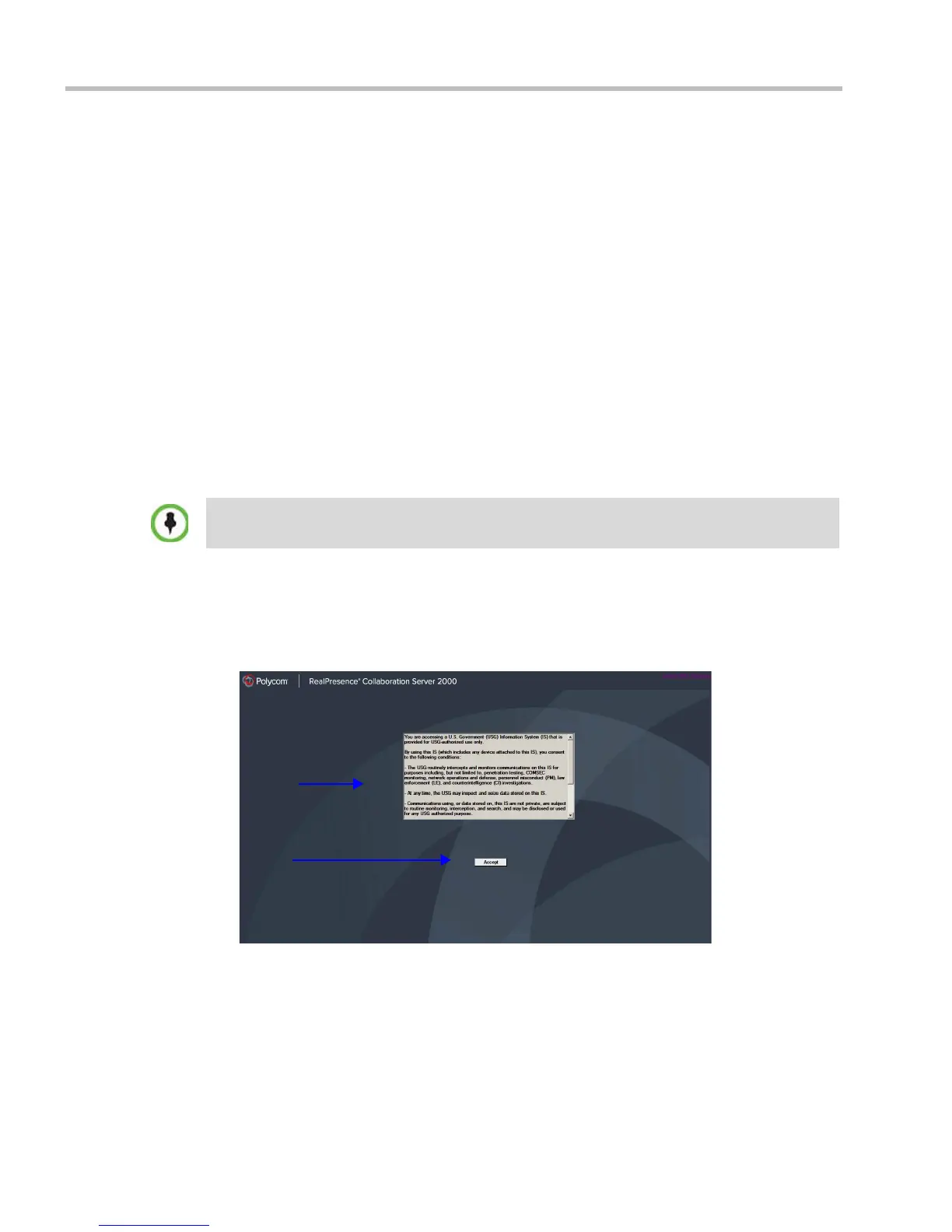
8 Refresh the browser periodically until the RMX Web Client – Terms of Usage screen is
displayed.
Connecting to the RMX
The RMX Web Client – Terms of Usage screen is displayed.
9 Click the Accept button to agree to the terms and conditions displayed in the banner.
System restart may take up to five minutes.
Terms of Usage
Banner
Accept
Button














 To Next Page