Chapter 1-First Time Installation and Configuration
Polycom, Inc. 1-43
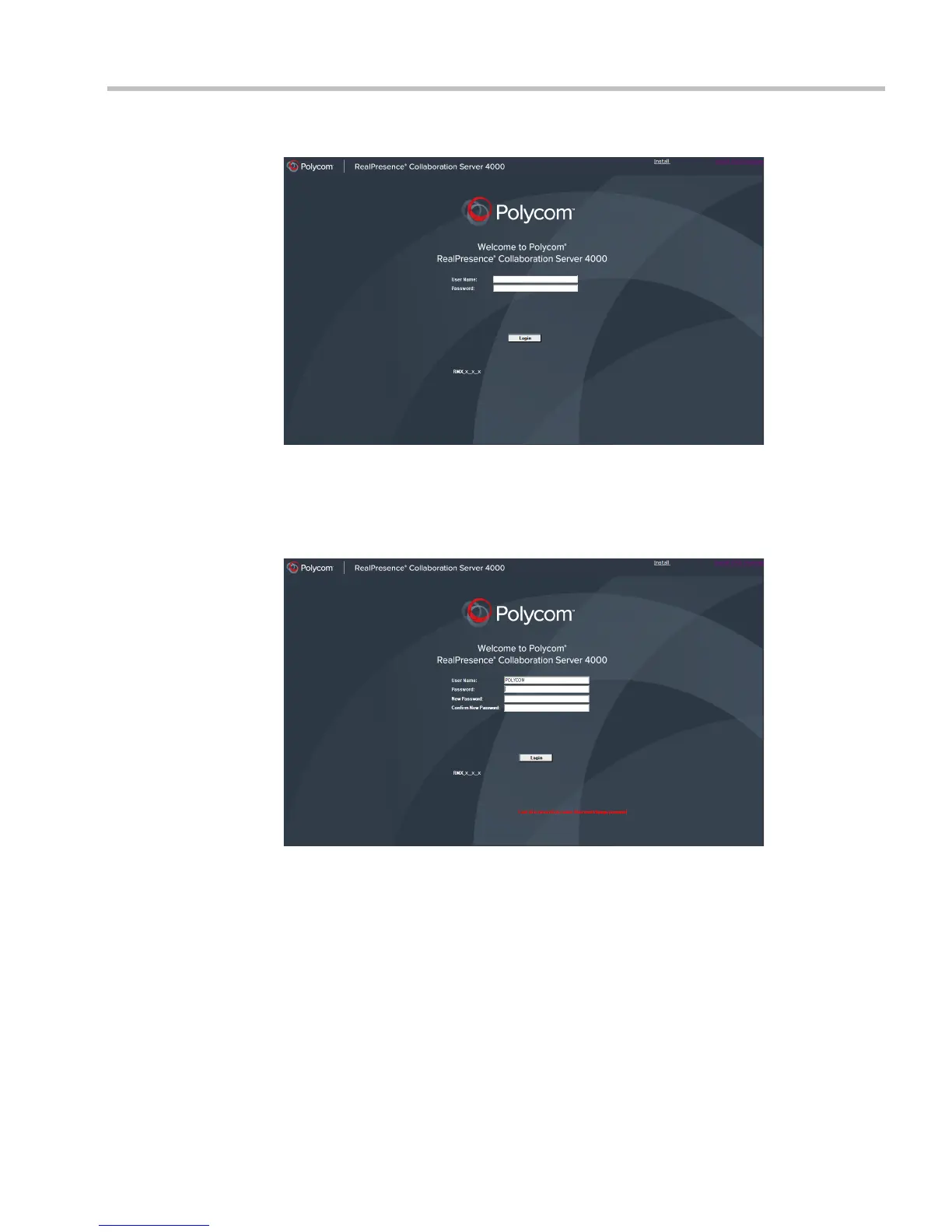
The Login - Welcome screen is displayed:
10 Enter POLYCOM in the User Name field.
11 Enter POLYCOM in the Password field.
12 Click Login.
The Change Password/Login - Welcome screen is displayed:
— A message:
Last disconnection cause: User must change password is
displayed in red.
— Two additional fields are displayed:
• New Password
• Confirm New Password
13 Re-enter the old password in the Password field
14 Enter a Strong Password in the New Password field.
15 Re-enter the Strong Password in the Confirm New Password field.
16 Click Login.














 To Next Page