Chapter 4-Restoring the RealPresence® Collaboration Server (RMX®) 1500/2000/4000 Using the USB Port
Polycom, Inc. 4-9
Step 6: Connect to the Alternate Management Network
a Start the RMX Web Client application on the workstation, by entering
http://
169.254.192.10
(the Control Unit IP Address) in the browser’s address line and
pressing Enter.
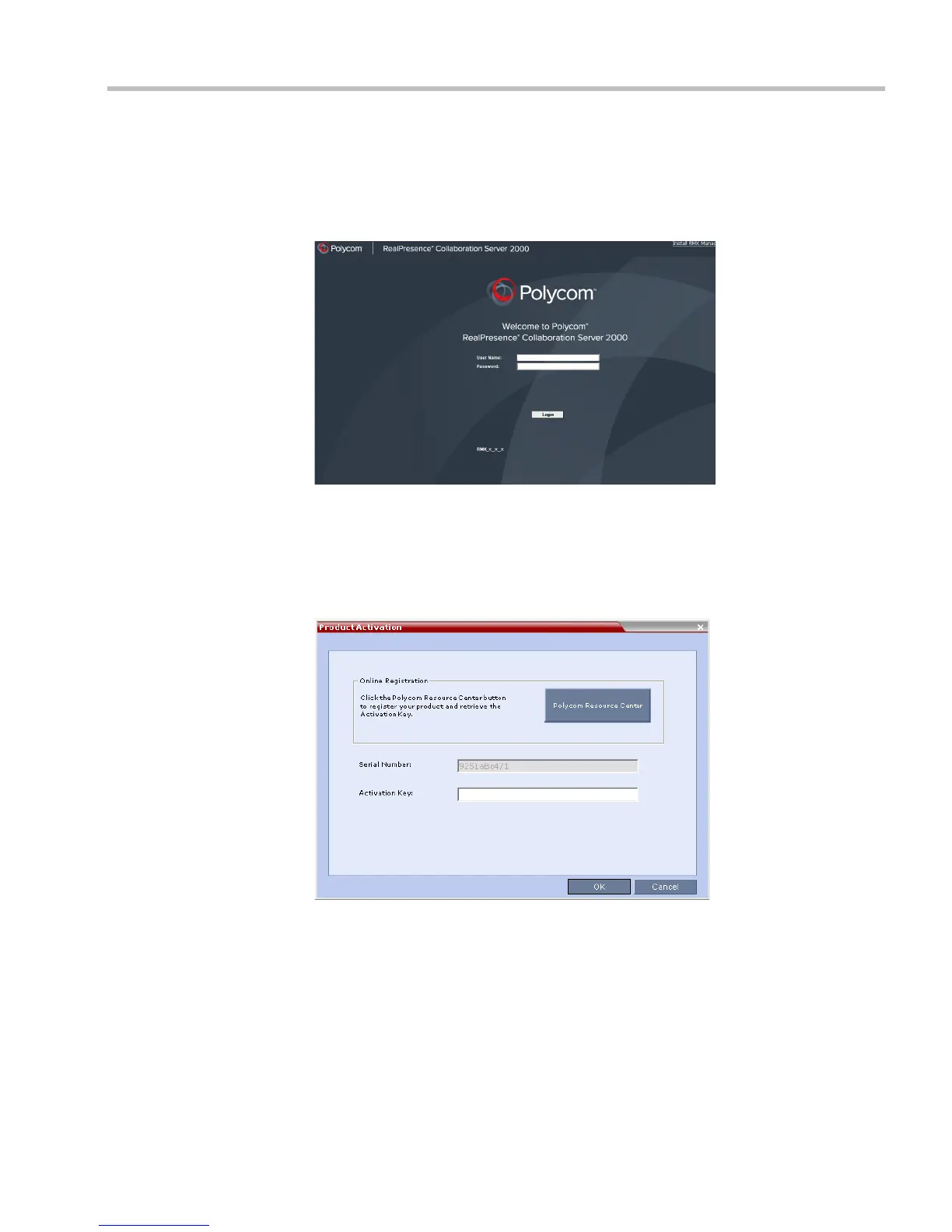
The Login dialog box is displayed.
b In the RMX Web Client Login screen, enter the default Username (POLYCOM) and
Password (POLYCOM) and click Login.
Step 7: Apply the Product Activation Key
The RMX Web Client opens and the Product Activation dialog box appears with the
serial number filled in.
a In the Activation Key field, enter or paste the Product Activation Key obtained earlier.
b Click OK.
If you do not have an Activation Key, click Polycom Resource Center to access the
Service & Support page of the Polycom website.














 To Next Page