18
Online Screen
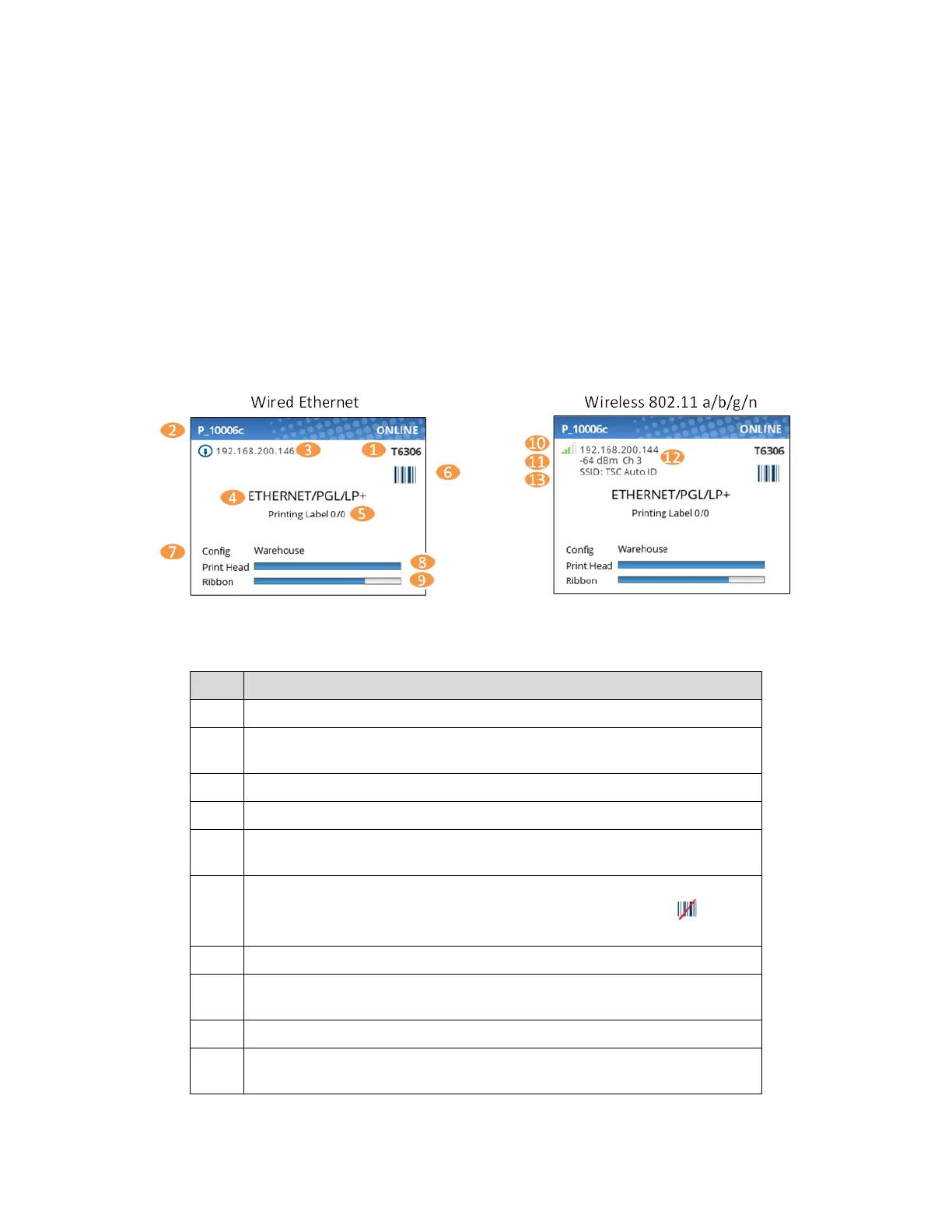
When the printer is ONLINE and ready to receive data, the ONLINE screen is shown. By default, this will
be the first screen the user sees after the power-up process has completed. In order to demonstrate the
full features of the ONLINE Screen, the following options are assumed:
• Network is installed and IP is set
• WiFi is installed and IP is set
• The printer has a Network Printer Name
• The Validator is installed and enabled
• The Active Configuration has been saved under a custom name “Warehouse”
• The Media > Handling > Print Mode is set to Transfer (ribbons).
• The menu option under System > Control > Batch Counter is enabled.
The illustration above has labels associated with each of the ONLINE screen features which are described
in the table below. Notice there are differences for the wired Ethernet and wireless ONLINE screens.
The full model name includes the printer width and DPI.
The Network Printer Name can be set via telnet, SNMP, or the webpage
and is used with Ethernet or WLAN features.
The Ethernet IP address is displayed if the IP address is set (non-zero).
The active IGP Emulation and the active Host IO (based on last job).
This area is reserved for messages such as receiving data, batch
counters, and job status.
When the ODV option is enabled, the barcode icon will appear. If the
option is installed but disabled, this icon will have a red strike ( ). When
validator is not installed, no icon will show.
The last loaded configuration is referred to as the “Active Config”.
The print head gauge is used to show how much of the print head has
been used in relationship to the warranty.
The ribbon gauge is used when a ribbon is installed (thermal transfer).
The WLAN IP address is displayed if the IP address is set (non-zero).
There is also a signal strength indicator next to the WLAN address.












 To Next Page