298
5. Download the configuration files to the printer. These must be downloaded to the printer in a specific
order per the table below. All files need to be sent sequentially (e.g. in a batch file) in order to avoid
having the download process timeout before all files have been received by the printer.
6. As the printer is downloading it will display “Downloading File – xxx” for each file, including those that
are contained in the Program File.
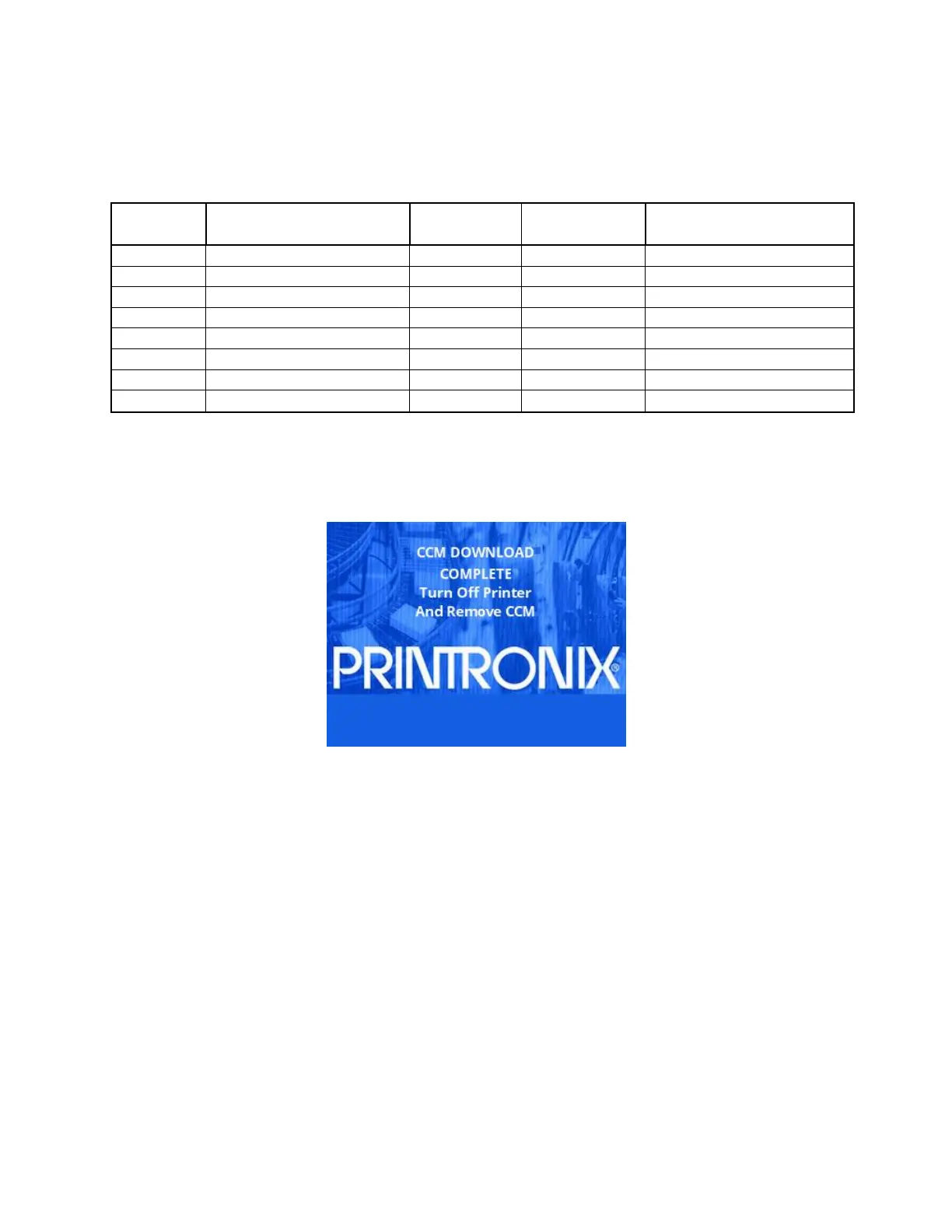
7. When the CCM has completed the programming process, the printer will display
Using CCM To Configure A Printer
CAUTION You must power off the printer before you install or remove the SD card. If you
remove the SD card
after powering on the printer, the fault message
“SD
REMOVED Reboot Printer” will display. You cannot clear this
message by
reinserting the SD card. You must cycle power.
1. Set the printer power switch to O (Off).
2. Insert a programmed CCM SD card into the printer’s SD slot.
3. Turn the printer power on and the following message will be displayed on the front panel:












 To Next Page