212
Windows Driver Download
NOTE: This download method requires firmware in the form FILENAME.prg.
1.
Make sure the printer is powered up, in the ONLINE mode and that
desired host IO cables are
connected.
2.
Install the Windows Driver from the http://PrintronixAutoID.com/support/drivers/ website.
3.
Once the Windows Driver is installed, right-click the printer
driver and select Properties.
4.
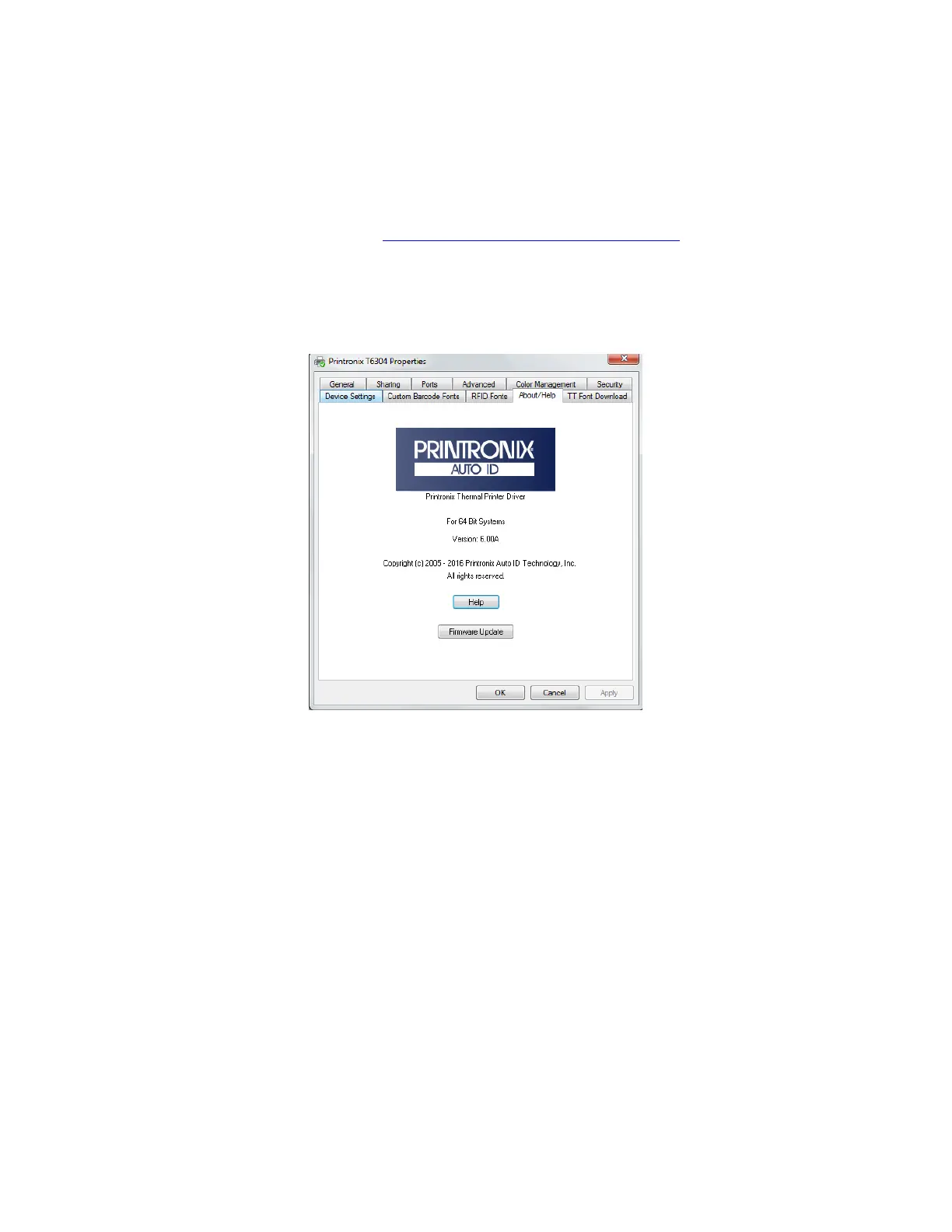
Click the About/Help tab to access the software download option.
5.
Click the Firmware Update button as in Figure 6.
Figure 6 Updating Firmware
6.
Enter the full path and location to the printer software.
For example, c:\download\FILENAME.prg where c:\download is the directory where FILENAME.prg
resides.
7.
Click OK to send the software to the printer. To abort this operation, click Cancel.
8.
When the new software has successfully loaded into flash memory and
the printer has reset itself, the
process is complete.












 To Next Page