Sending Scan File by E-mail
136
5
Making Scan Settings
Follow the steps below to configure
scan settings before you perform a
Send Scan operation. If you skip the
following steps, scan is performed us-
ing the settings that you have config-
ured and registered to [Default] in
[4.Scan Settings] under the Scanner
Features menu.
A
AA
A
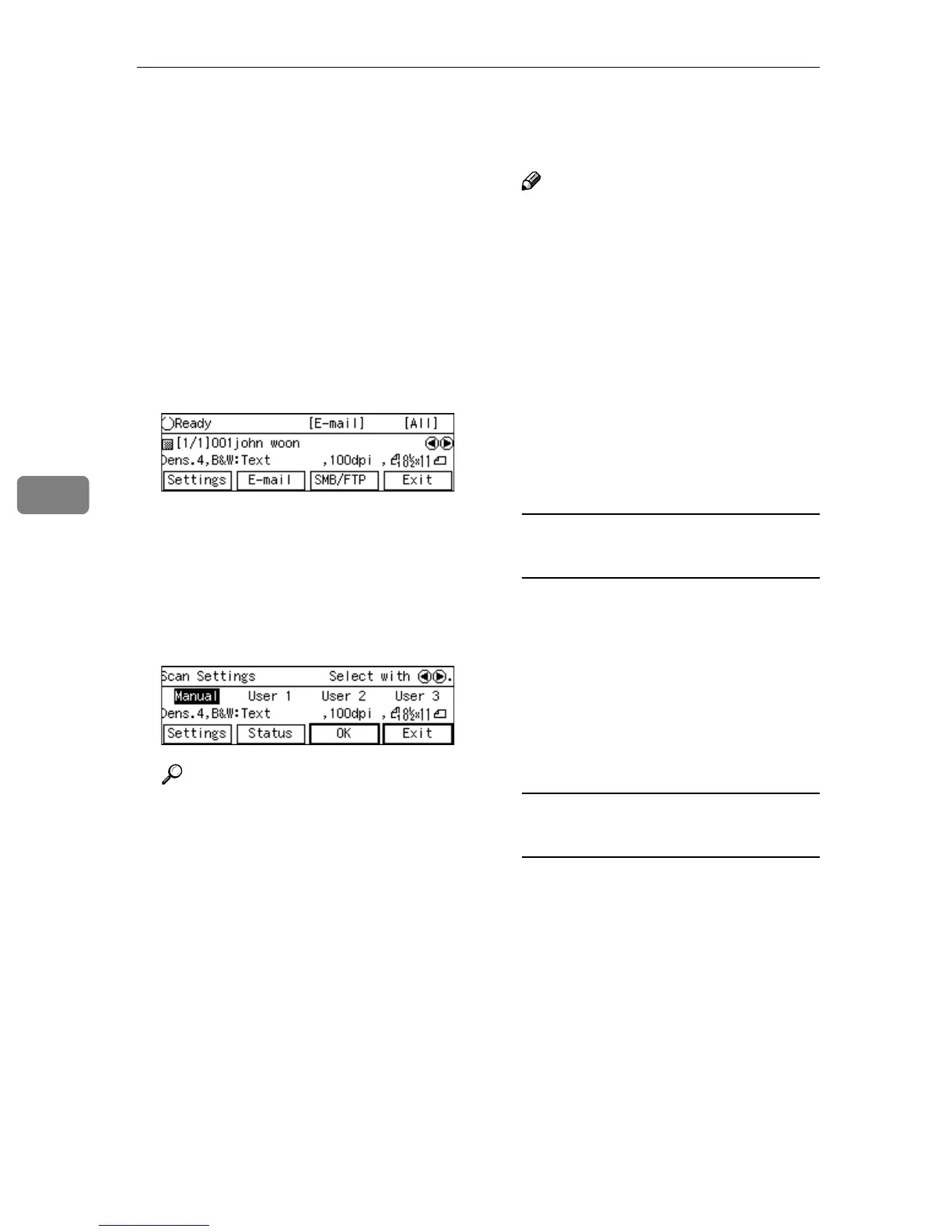
At E-mail Ready screen, press
[Settings].
The Scan Settings screen is dis-
played.
B
BB
B
Select whether you configure the
scan settings manually, or use one
of the user settings you have reg-
istered.
Reference
You can confirm the scan set-
tings you have registered. See
p.137 “Confirming the Scan Set-
tings”.
Note
❒ Press [Exit] if you want to use
the settings you have registered
to [Default].
❒ You cannot edit and save the
settings that you have regis-
tered to [User 1], [User 2] and [Us-
er 3] here. If you want to use one
of the user settings while chang-
ing some of them, recall the user
setting you want to use by high-
lighting it and pressing [OK]
first. And then, change the set-
tings by selecting [Settings].
To recall a registered scan
settings
A Use the {
{{
{1
11
1}
}}
} or {
{{
{0
00
0}
}}
} key to
highlight [User 1], [User 2] or
[User 3] on the screen, and then
press [OK].
This returns to the E-mail stand-
by screen, and the correspond-
ing scan settings are displayed
on the third line of the screen.
To configure scan settings
manually
A Use the {
{{
{1
11
1}
}}
} or {
{{
{0
00
0}
}}
} key to
highlight [Manual] on the
screen, and then press [Set-
tings].
The first page of the Scan Set-
tings screen ( Scan Settings 1/3)
is displayed.



 To Next Page