Using the TWAIN Scanner Function
176
10
Procedure Breakdown
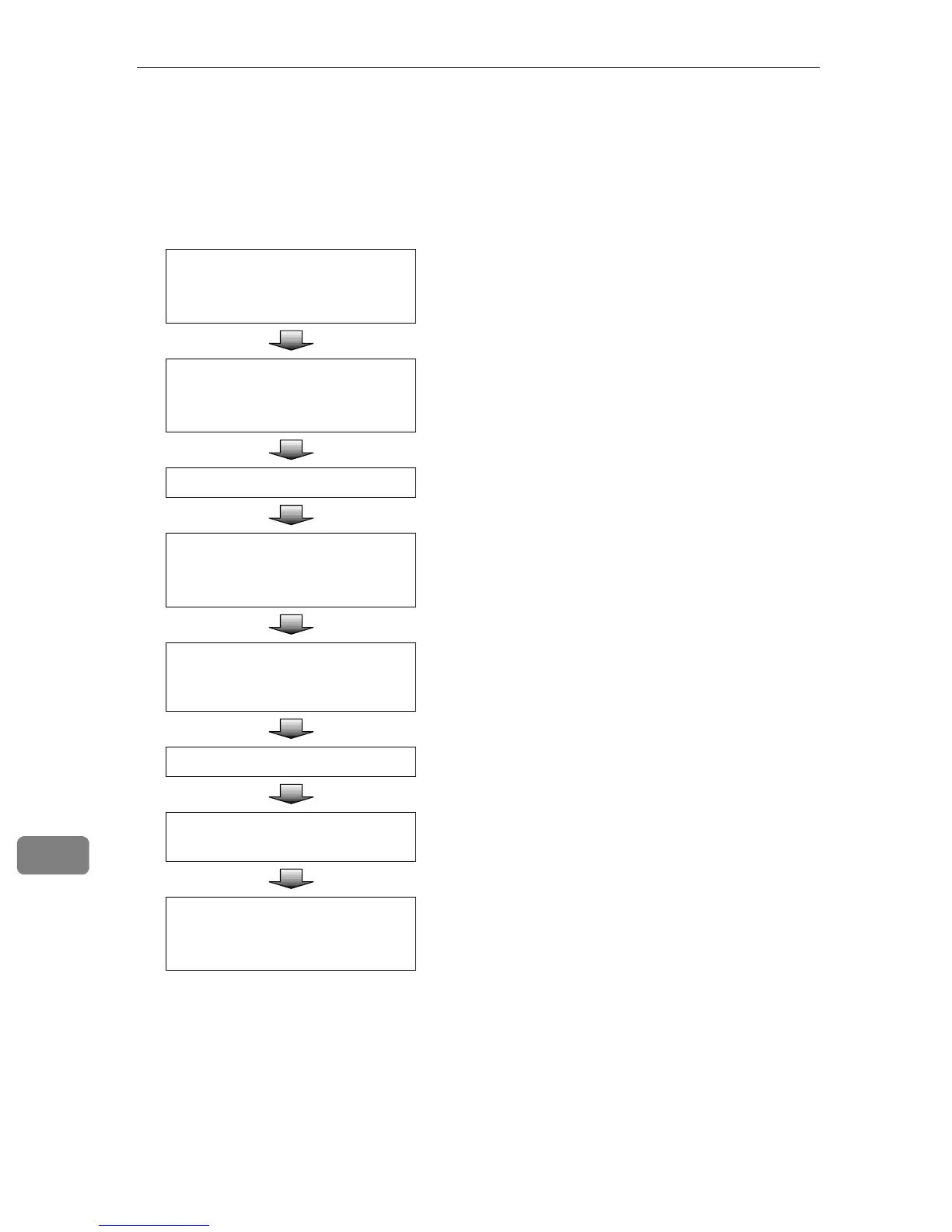
The following overview diagram shows the flow of the steps for scanning orig-
inals from a client computer using the TWAIN driver.
Start a TWAIN-compliant appli-
cation.
Menu may be different depending on the application
you use.
⇒ p.177 “Scanning Originals” A
Select the TWAIN driver.
Menu and Procedure may be different depending on
the application you use.
⇒ p.177 “Scanning Originals” A
Place the originals. ⇒ p.117 “Setting Originals”
Start the TWAIN driver.
Menu and procedure may be different depending on
the application you use.
⇒ p.177 “Scanning Originals” C
Select the scanner you want to
use when multiple scanners are
connected to the network.
⇒ p.177 “Scanning Originals” C
Make the scan settings. ⇒ p.177 “Scanning Originals” C
Click [Scan] on the Scanner Prop-
erty dialog box.
⇒ p.177 “Scanning Originals” D
Save the scanned image.
Menu and procedure may be different depending on
the application you use.
⇒ p.177 “Scanning Originals” E



 To Next Page