Sending Scan File by Scan to FTP
156
7
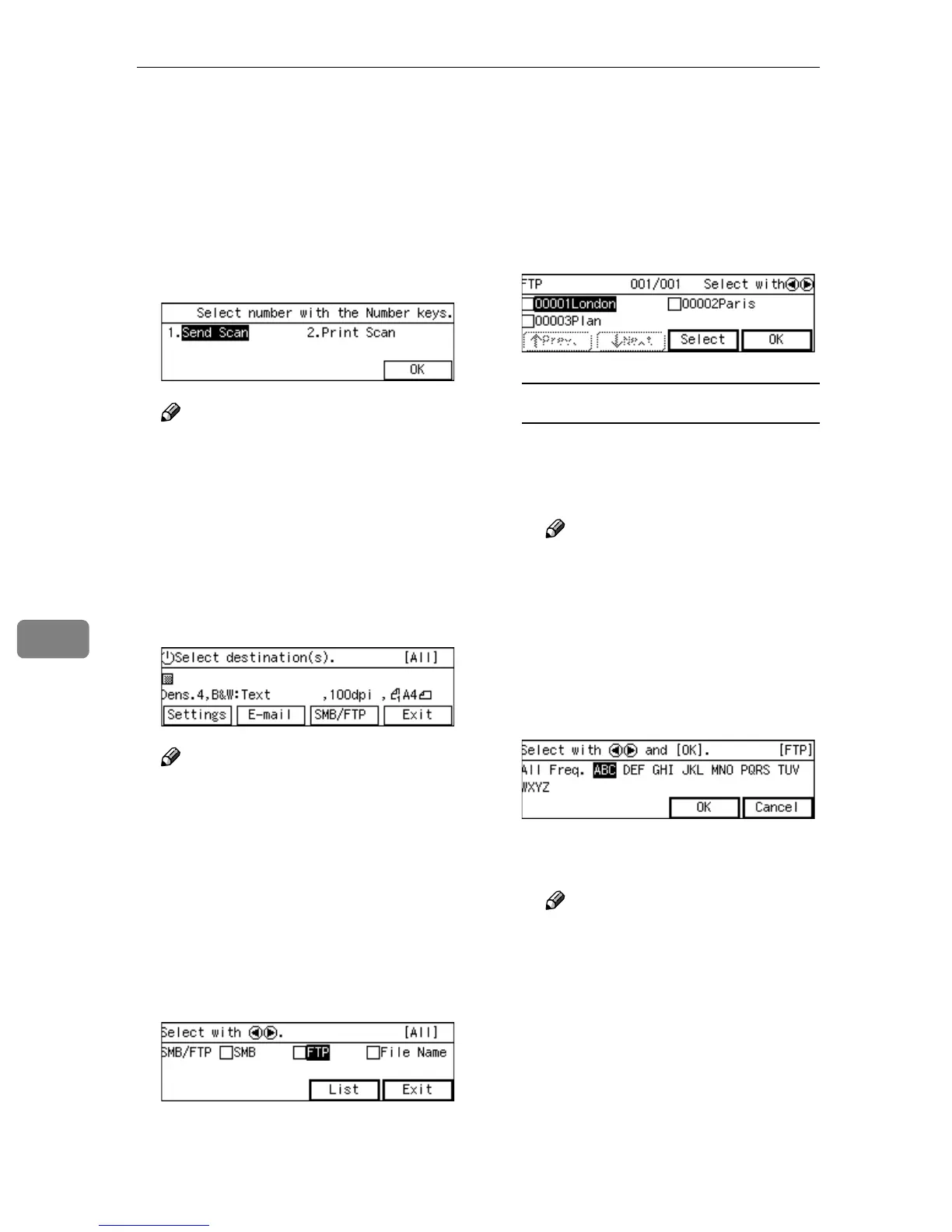
Selecting an FTP Server
You can select a single FTP server as a
destination to which you send a
scanned file. Follow the steps below
to select an FTP server.
A
AA
A
Press the {
{{
{1}
}}
} key.
Note
❒ You can skip this step when the
E-mail/Send File standby
screen is displayed.
❒ Enter your user name and pass-
word, if asked.
The E-mail/Send File standby
screen is displayed.
B
BB
B
Press [SMB/FTP].
Note
❒ If “On” is selected for [Auto Up-
date Destination List] in [2.Send
Scan Settings] under the Scanner
Features menu on this machine,
the destination list is automati-
cally updated when you press
[Dest.]. See p.66 “Auto Update
Destination List” for details.
C
CC
C
Press the {
{{
{1
11
1}
}}
} or {
{{
{0
00
0}
}}
} key to high-
light [FTP], and then press [List].
The list of the FTP servers that are
registered to this machine appears.
D
DD
D
Use [↓
↓↓
↓Next] and [↑
↑↑
↑Prev.] to scroll
through the pages, and display
the FTP server name you want to
select.
To recall FTP servers using a title
A Press the {
{{
{./*}
}}
} (Title) key.
List of titles appears on the
screen.
Note
❒ Titles are displayed accord-
ing to the settings in [Configu-
ration] → [Basic Settings] →
[Scanner] → [Select Title] on
the Web Status Monitor.
B Use the {
{{
{1
11
1}
}}
} or {
{{
{0
00
0}
}}
} key to
highlight the title you want to
select, and then press [OK].
The FTP servers assigned to the
selected title are displayed.
Note
❒ You can select the title under
which each of the registered
destinations is assigned in
[Configuration] → [E-mail Set-
tings] → [E-mail Address] →
[Assign Title] on the Web Sta-
tus Monitor.



 To Next Page