Selecting an FTP Server
157
7
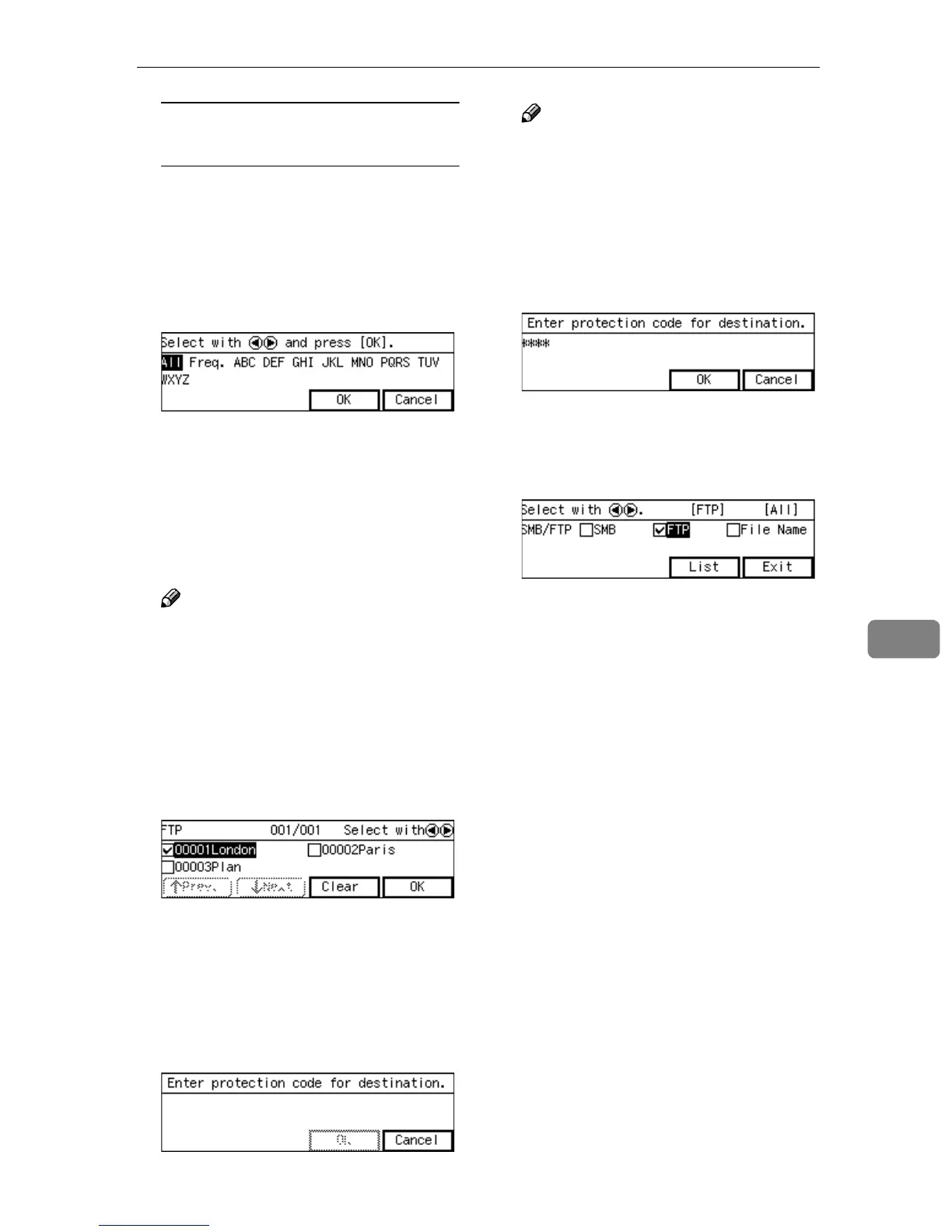
To recall all available
destinations
A Press the {
{{
{./*}
}}
} (Title) key.
List of titles appears on the
screen.
B Use the {
{{
{1
11
1}
}}
} or {
{{
{0
00
0}
}}
} key to
highlight [All], and then press
[OK].
E
EE
E
Use the {
{{
{1
11
1}
}}
} and {
{{
{0
00
0}
}}
} keys to
highlight the FTP server name
you want to select, and then press
[Select].
This selects the check box next to
the FTP server name.
Note
❒ Because you can select only one
FTP server, selecting another
FTP server automatically dese-
lects the FTP server currently
selected (so the check mark next
to the FTP server name is
cleared).
F
FF
F
Press [OK].
If [Protected Password] is set, the
message “
Enter protection
code for destination.
” ap-
pears.
G
GG
G
Enter the protection code using
the number keys.
Note
❒ Enter the four- through eight-
digit number that is specified in
[Configuration] → [File Send Set-
tings] → [FTP Server] → [Protect-
ed Password] on the Web Status
Monitor.
H
HH
H
Press [OK].
This returns to the screen that was
displayed in step
C
.
I
II
I
Press [Exit].
This returns to the E-mail/Send
File standby screen.



 To Next Page