Printing Scanned Image Files
168
8
C
CC
C
Use [↓
↓↓
↓Next] and [↑
↑↑
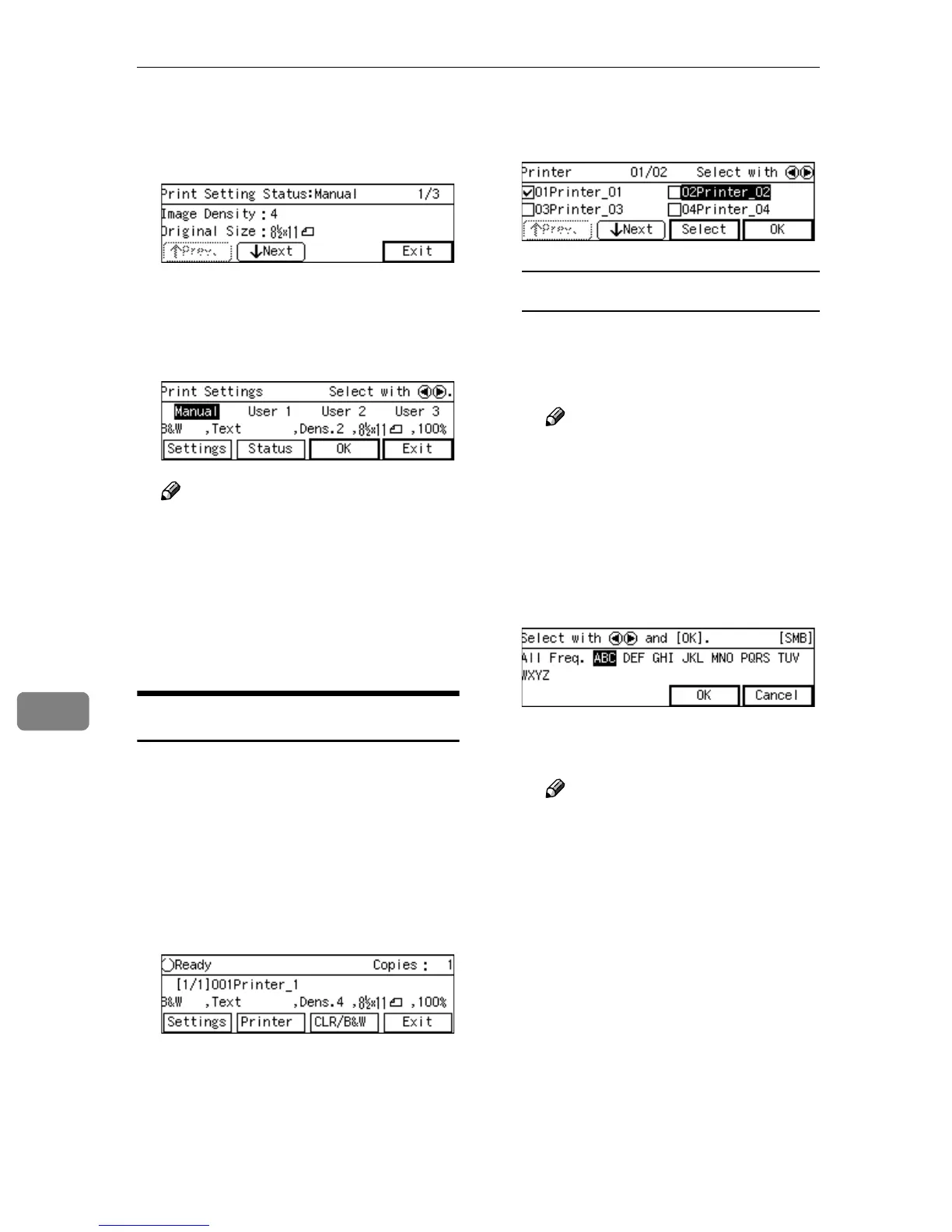
↑Prev.] to display
the setting of the setup item you
want to confirm.
D
DD
D
When you are finished, press [Ex-
it].
E
EE
E
Press [Exit] or [OK].
Note
❒ If you want to apply the print
settings you selected in step
B
,
press [OK]. If you want to exit
the status screen without chang-
ing anything, press [Exit].
This returns to the Print Scan
Ready screen.
Selecting a Printer
When you perform a Print Scan oper-
ation, you can select a printer other
than the default printer (that is select-
ed using [Default Printer] in [Configura-
tion] → [Print Scan Settings] → [Printer]
on the Web Status Monitor).
A
AA
A
While the Print Scan Ready
screen is displayed, press [Printer].
B
BB
B
Display the printer you want to
select by using [↓
↓↓
↓Next] or [↑
↑↑
↑Prev.].
To recall printers using a title
A Press the {
{{
{./*}
}}
} (Title) key.
List of titles appears on the
screen.
Note
❒ Titles are displayed accord-
ing to the settings in [Configu-
ration] → [Basic Settings] →
[Scanner] → [Select Title] on
the Web Status Monitor.
B Use the {
{{
{1
11
1}
}}
} or {
{{
{0
00
0}
}}
} key to
highlight the title you want to
select, and then press [OK].
The printers assigned to the se-
lected title are displayed.
Note
❒ You can select the title under
which each of the registered
printers is assigned in [Con-
figuration] → [Print Scan Set-
tings] → [Printer] → [Assign
Title] on the Web Status Mon-
itor.
❒ While highlighting a printer
name with its check box se-
lected, press [Clear] to clear
the check box (this deselects
the printer).
❒ If you want to select from an-
other title, press the {
{{
{./*}
}}
} (Ti-
tle) key. This displays list of
titles again.



 To Next Page