Guide to this Scanner
21
1
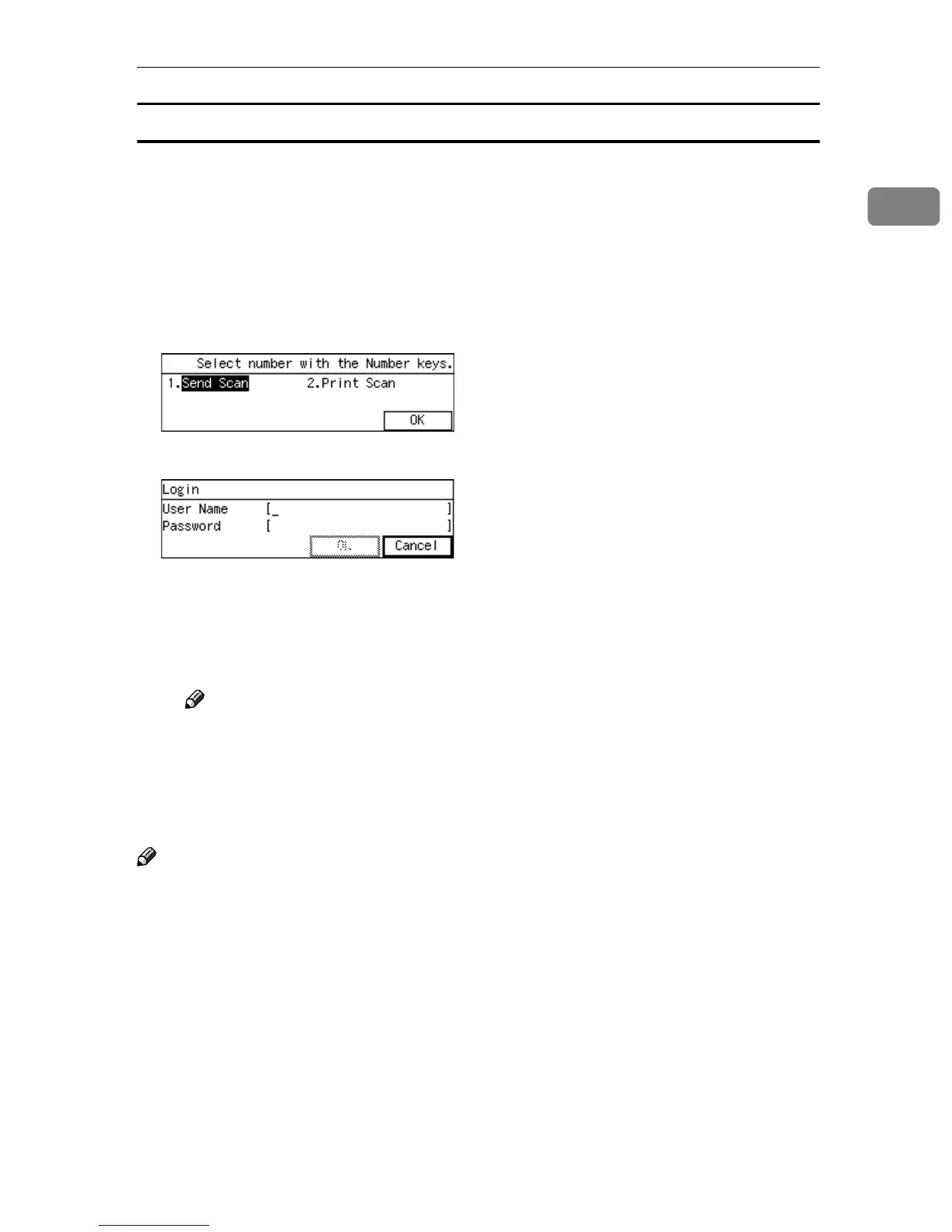
Login and Logout screens
If you have specified and configured your user ID and password at [Password]
menu of the Web Status Monitor, the Login menu will be displayed. Depending
on the system settings, the [Login] screen may be shown after you select [Send
Scan] or [Print Scan] on the Select Method screen. You must enter your ID and
password to log in to this machine. Logout from the machine after you finish
your operation.
• To login
A
Select the method you want to use with the number keys.
B
Enter your [User Name] and [Password]. Press [OK].
User Authentication screen will appear. If you want to cancel, press [Can-
cel].
If authentication succeeds, the screen for your operation will appear. If not,
the error message screen will appear. Configure the message and press [Ex-
it] to retry the login.
Note
❒ Ask the administrator for your password.
• To logout
Press the {
{{
{Clear/Stop}
}}
}key after your operation. The screen with the message
“Are you sure you want to log out?” appears. Click [OK] if you want to log
out. Press [Cancel] to return to the previous screen.
Note
❒ Refer to Web Status Monitor Help for configuration of [User Authentication Man-
agement].



 To Next Page