Printing Scan Data
169
8
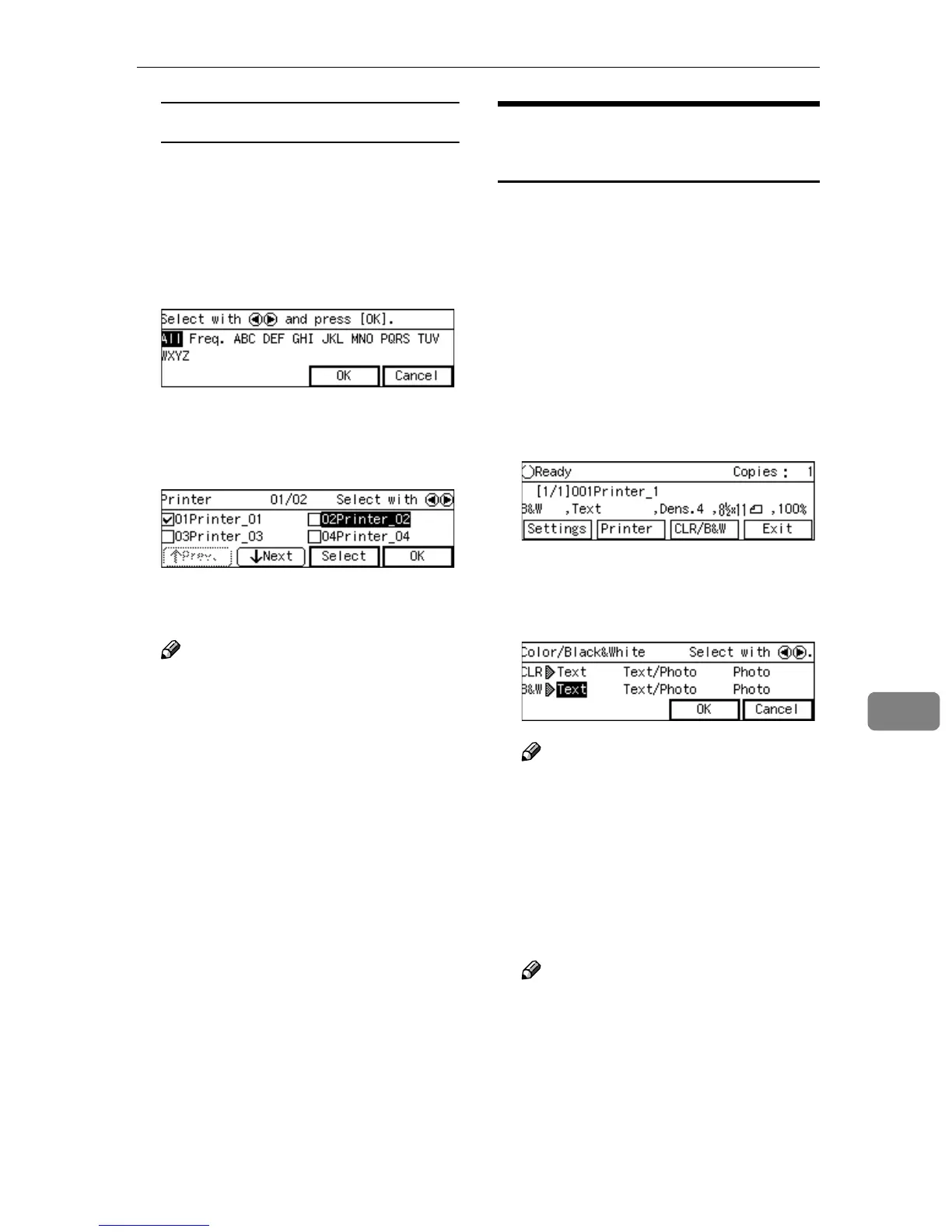
To recall all available printers
A Press the {
{{
{./*}
}}
} (Title) key.
List of titles appears on the
screen.
B Use the {
{{
{1
11
1}
}}
} or {
{{
{0
00
0}
}}
} key to
highlight [All], and then press
[OK].
C
CC
C
Highlight the printer you want to
select, by using the {
{{
{1
11
1}
}}
} or {
{{
{0
00
0}
}}
}
key and then press [Select].
This selects the check box next to
the printer name.
Note
❒ Selecting another printer auto-
matically deselects the printer
currently selected (so the check
mark next to the printer is
cleared).
❒ While highlighting a printer
name with its check box select-
ed, press [Clear] to clear the
check box (this deselects the
printer).
D
DD
D
Press [OK].
This returns to the Print Scan
Ready screen.
Selecting Color/Black and
White
When you perform a Print Scan oper-
ation, you can select between “color”
scanning and “black and white” scan-
ning. If you do not select this setting,
the default setting selected using [Col-
or/Black and White] (in [3.Print Scan Set-
tings] under the Scanner Features
menu) applies.
A
AA
A
While the Print Scan Ready
screen is displayed, press
[CLR/B&W].
B
BB
B
Use the {
{{
{1
11
1}
}}
} or {
{{
{0
00
0}
}}
} key to high-
light [Black and White] or [Color] on
the screen.
Note
❒ When the above screen is dis-
played, currently selected op-
tion is highlighted.
C
CC
C
While the option you want is
highlighted, press [OK].
This returns to the Print Scan
Ready screen.
Note
❒ Pressing [Cancel] discards the
selected option, and returns to
the previous screen.



 To Next Page