Order No.
35 MHz: F 8042
40 MHz: F 8043
41 MHz: F 8044
FX-30
• At this point a security query appears which you must also
confirm with EDIT. The new model memory is now activa-
ted.
• For safety reasons the RF signal is still switched off. The
screen now displays the query “Transmit?”; you must ans-
wer with ‘Yes’; only then is the transmitter ready for use
with the newly selected model memory.
T
he new model is initially saved under the name “New” follo-
wed by an incremental number; at the same time it is added to
the model list. Your next step should be to assign the model a
memorable name.
ERASING A MODEL MEMORY
For safety reasons it is not possible to delete an active model.
• From the list in the appropriate memory medium use the 3-
D hot-key to select the model to be erased, and confirm
w
ith ‘EDIT’.
• Now mark the DELETE field, and confirm with ‘EDIT’.
• Answering the security query with “Yes” erases the model;
if you wish to interrupt the erase process, turn the 3-D hot-
key or operate the S1 button.
RENAMING A MODEL MEMORY
• From the list in the appropriate memory medium use the 3-
D hot-key to select the model which is to be renamed, and
confirm with ‘EDIT’.
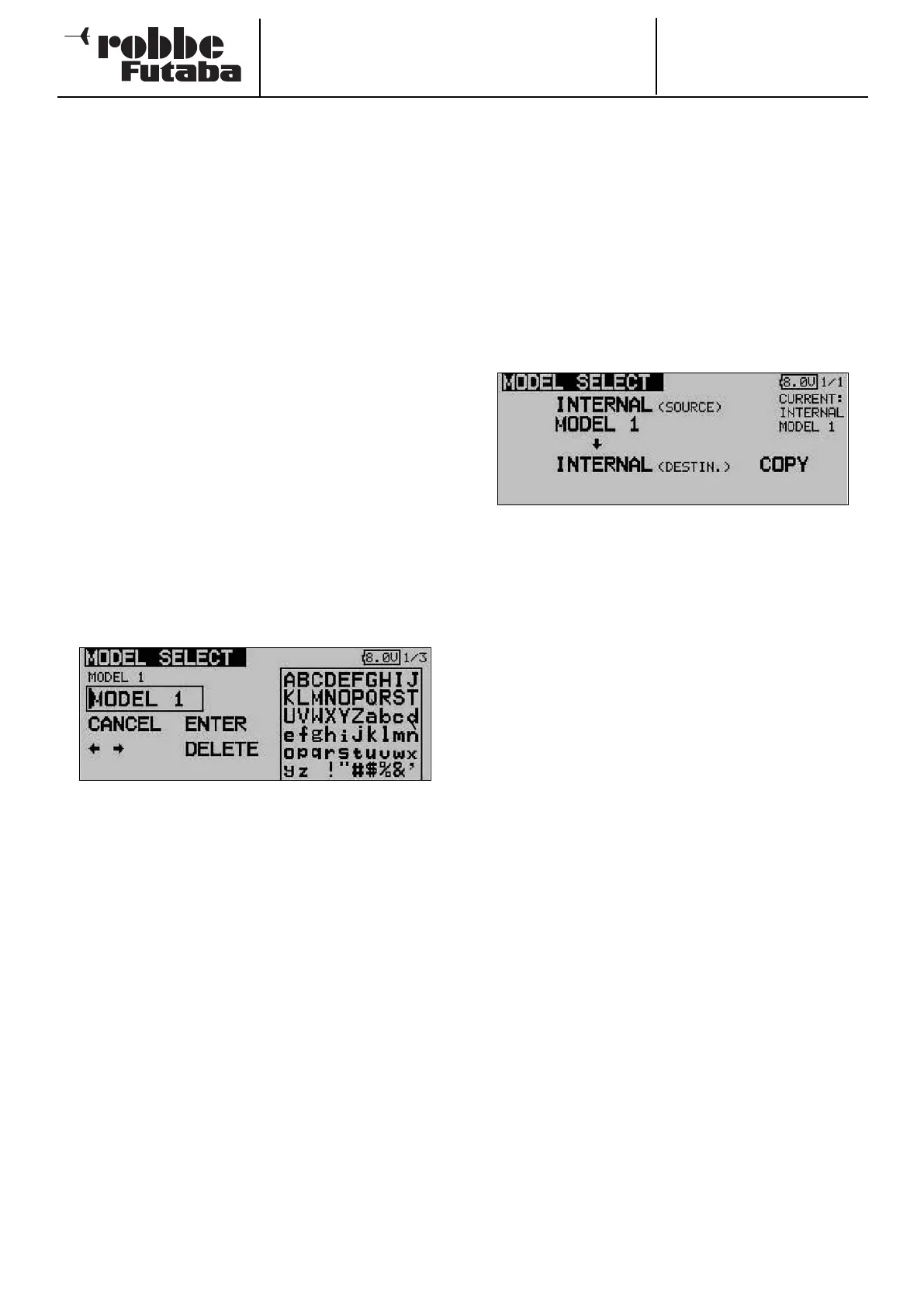
• Now mark the ‘RENAME’ field and confirm with ‘EDIT’. A
new screen appears displaying all the available letters,
numbers and symbols.
The name is entered in letters and numerals. The model name
can be up to eight characters long, including spaces.
• First use the 3-D hot-key to mark the letter in the name line
which you wish to alter, then select the appropriate letter in
the character field using the ‘3-D hot-key’, and confirm
your choice with the ‘EDIT’ button. This action adopts the
new letter.
• Use the ‘Arrow button’ to jump to the previous letter;
‘Delete’ erases the character after the cursor.
• Repeat this procedure to enter the whole name, letter by
letter.
• When you have completed the data input process, confirm
with the ‘EDIT’ button.
• To interrupt the procedure and re-activate the old name,
move the cursor to MODEL SELECT, and press Enter.
COPYING A MODEL MEMORY
You can copy a model memory within the same memory
medium, and also transfer the data into the alternative memo-
ry medium.
• The first step must always be to determine the memory
l
ocation (source)
- INTERNAL or
- SD card
Mark the appropriate field and use the ‘3-D hot-key’ to
select the desired memory medium.
1) Select the source from which the copy is to take place, e.g.
from the internal memory or from the memory card.
2) The next step is to determine the memory location of the
destination file using the cursor; confirm your choice with
the ‘EDIT’ button.
- INTERNAL or
- SD card
3) The ‘COPY’ command can now be carried out by marking
it with the cursor, and confirming it with the ‘EDIT’ button.
You can interrupt the process at any time by turning the 3-
D hot-key.
When you make a copy, an incremental number (-1, -2 etc.)
is always appended to the existing model name. If the
model name is too long for an additional suffix, the last two
characters of the name itself are erased.
28
S1 = leaf through


 To Next Page