Order No.
35 MHz: F 8042
40 MHz: F 8043
41 MHz: F 8044
FX-30
17. UPDATING THE TRANSMITTER SOFTWARE
The user can replace the FX-30 software with the current ver-
sion at any time. Update files are stored on the robbe website
ready for downloading. We recommend that you register at
http://support.robbe.com, so that you will be informed by e-
m
ail newsletter of the availability of new updates. You will also
have access to the protected Support area of the site.
This file must then be copied onto the SD card using a card
reader. The procedure for transferring the software to the
transmitter’s working memory is as follows:
Software Update:
1) Download the compressed software file from the robbe
Support Server.
2) De-compress (unzip) the file.
3) A folder entitled ‘T12FG update’ is generated.
4) Open the folder, and double-click on the file T12FG upda-
te.exe.
5) The ‘Futaba File System Utility’ opens.
6) Select the drive in which the SD card is located, and click
on ‘OK’.
7) You will now see a query:
‘Data Copy on the SD-card. OK?’
Click on OK to confirm this
8) The following message then appears:
‘The copy to the SD-card ended normally’
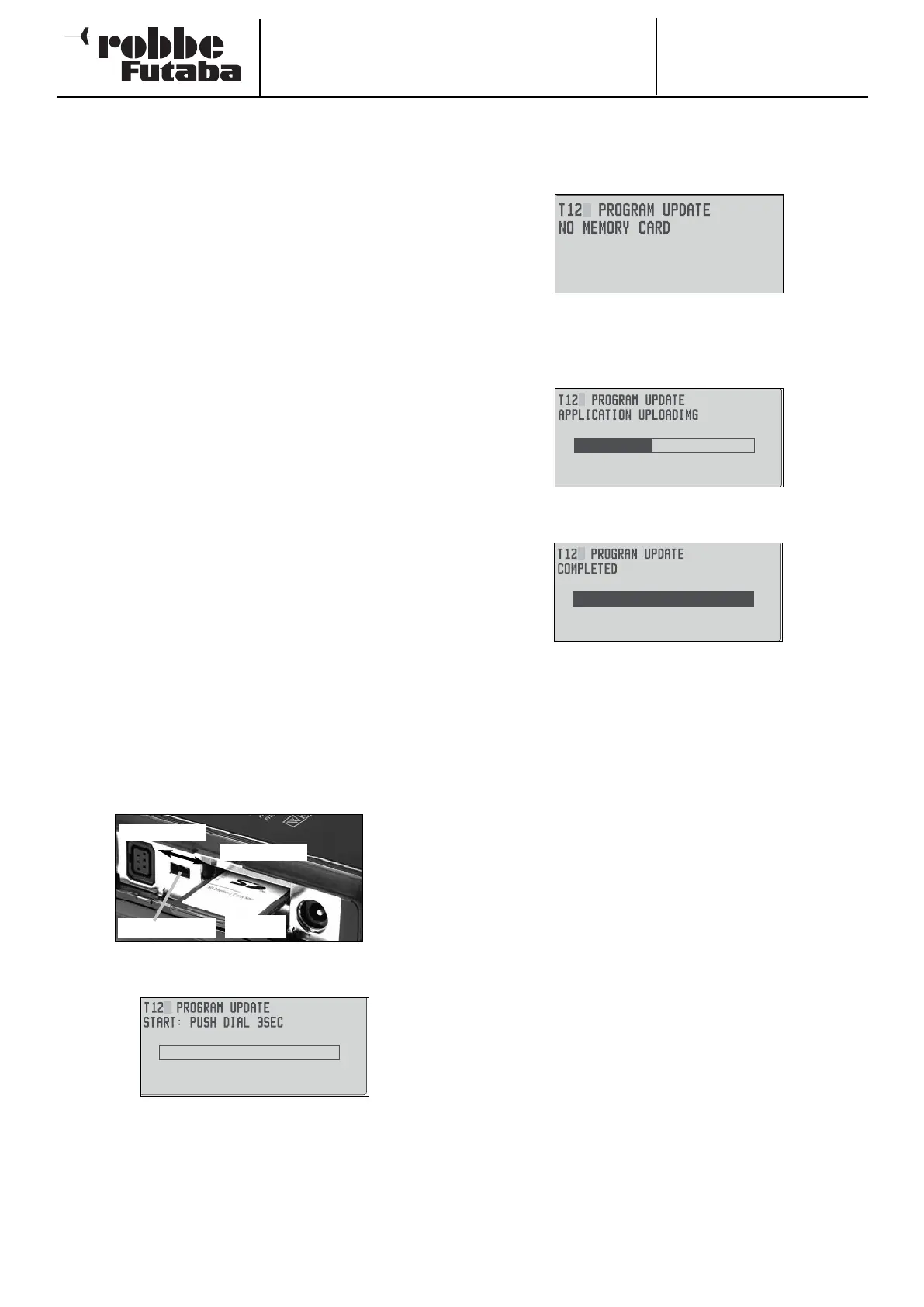
9) Insert the SD card in the transmitter:
Fit the SD card containing the Update file in the card slot
on the left-hand side of the transmitter.
10) Move the ‘Update’ switch to the ‘Update’ position using a
screwdriver with a very fine tip.
11) Switch the transmitter on. After about ten seconds you will
see the following message on the transmitter screen:
Follow the instructions, and hold the ‘EDIT’ button pressed in
for at least three seconds.
If no card is present, if the card contains no Update file, or if
the Update file is corrupt, the following error message will be
displayed on-screen:
Switch the transmitter off and check the card and / or the file.
12) Press the ‘EDIT’ button to initiate the data transfer.
13) As soon as the data transfer is completed, the following
display appears:
14) Switch the transmitter off, and move the Update switch
back to the ‘Normal’ position.
72
Update switch
Update position
Normal position
SD-Card


 To Next Page