Playing movie
continuously
If you exit playing movie, playing
it
continuously later
is
possible.
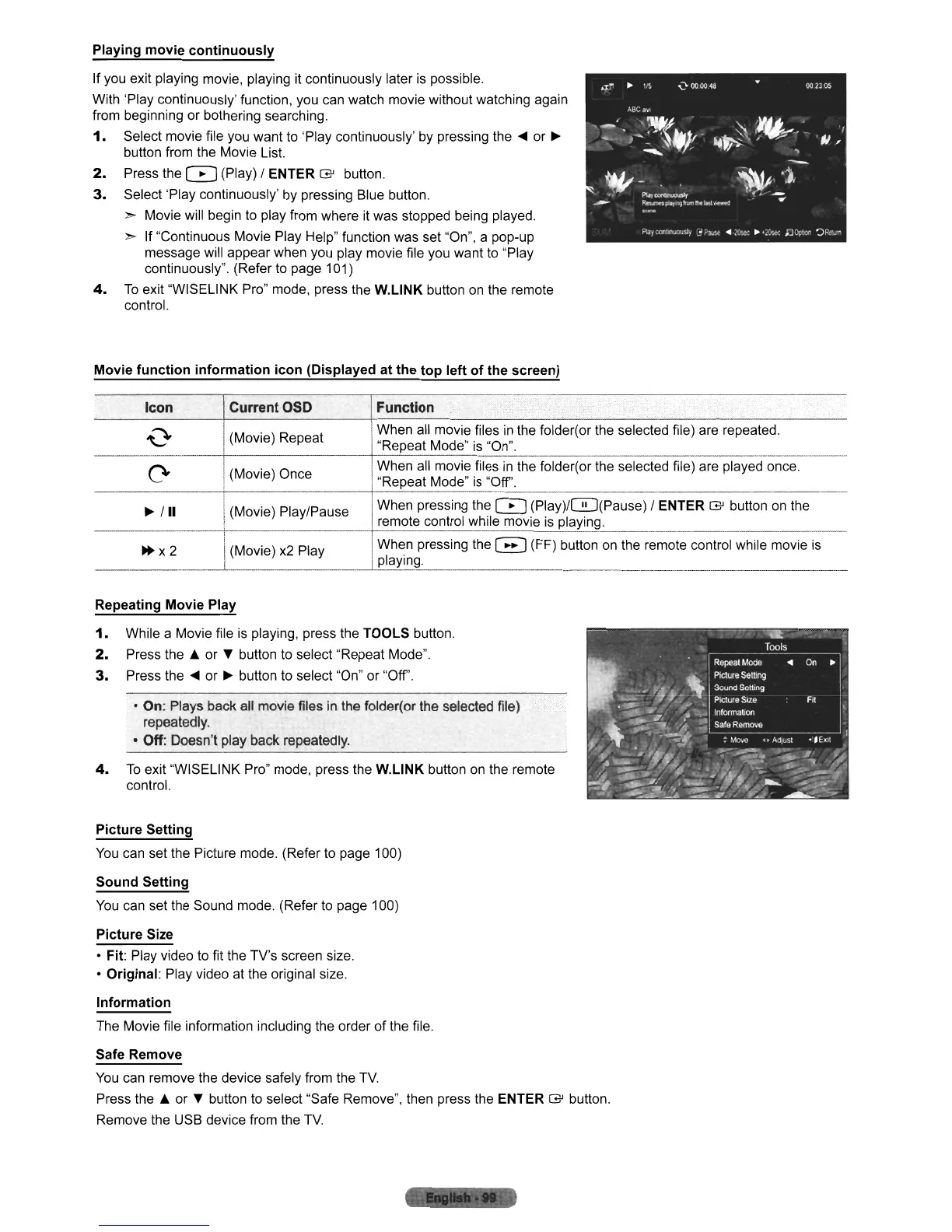
With 'Play continuously' function, you can watch movie without watching again
from beginning or bothering searching.
1.
Select movie file you want
to
'Play continuously'
by
pressing the
....
or
~
button from the Movie List.
2.
Press the G (Play) I ENTER
G'
button.
3.
Select 'Play continuously' by pressing Blue button.
>- Movie will begin
to
play from where
it
was stopped being played.
>- If "Continuous Movie Play Help" function was set "On", a pop-up
message will appear when you play movie file you want to "Play
continuously". (Refer
to
page 101)
4.
To
exit "WISELINK Pro" mode, press the
W.L1NK
button
on
the remote
control.
Movie
function
information
icon
(Displayed at
the
top
left
of
the screen)
Icon
Current
OSD
Function
,
..
.0
(Movie) Repeat
When all movie files
in
the folder(or the selected file) are repeated.
"Repeat Mode"
is
"On".
-
0-
(Movie) Once
When all movie files
in
the folder(or the selected file) are played once.
"Repeat Mode"
is
"Off'.
~
III
(Movie) PlaylPause
When pressing the
G
(Play)/0(Pause)
I ENTER
G'
button
on
the
remote control while movie
is
playing
~x2
(Movie)
x2
Play
When pressing the
B (FF) button
on
the remote control while movie
is
.pJ_~.Y-!~\!
_____
.
__________________
._._
..
_______
.
___
..
_._.
____
..
____
..
__
Repeating Movie Play
1.
While a Movie file
is
playing, press the TOOLS button.
2.
Press
the"
or T button
to
select "Repeat Mode".
3.
Press the
....
or
~
button to select "On" or "Off'.
• On: Plays back all movie files in the folder(or the selected file)
repeatedly.
• Off: Doesn't play back repeatedly.
4.
To
exit "WISELINK Pro" mode, press the
W.L1NK
button
on
the remote
control.
Picture Setting
You
can set the Picture mode. (Refer to page 100)
Sound Setting
You
can
set the Sound mode. (Refer
to
page 100)
Picture Size
• Fit: Play video
to
fit the TV's screen size.
• Original: Play video at the original size.
Information
The Movie file information including the order of the file.
Safe Remove
You
can
remove the device safely from the
TV.
Press
the"
or T button
to
select "Safe Remove", then press the ENTER
G'
button.
Remove the USB device from the
TV.












 To Next Page